Focus Filters? Basics
You turn on Do Not Disturb, but your work email still buzzes and your home screen still tempts you with social apps. Focus Filters are the deeper layer: they change what your iPhone shows you during a Focus — which mailboxes appear, which home screens stay visible, even which Safari tabs you see. Here is how to set them up so each Focus actually feels different.
TL;DR / Quick Fix
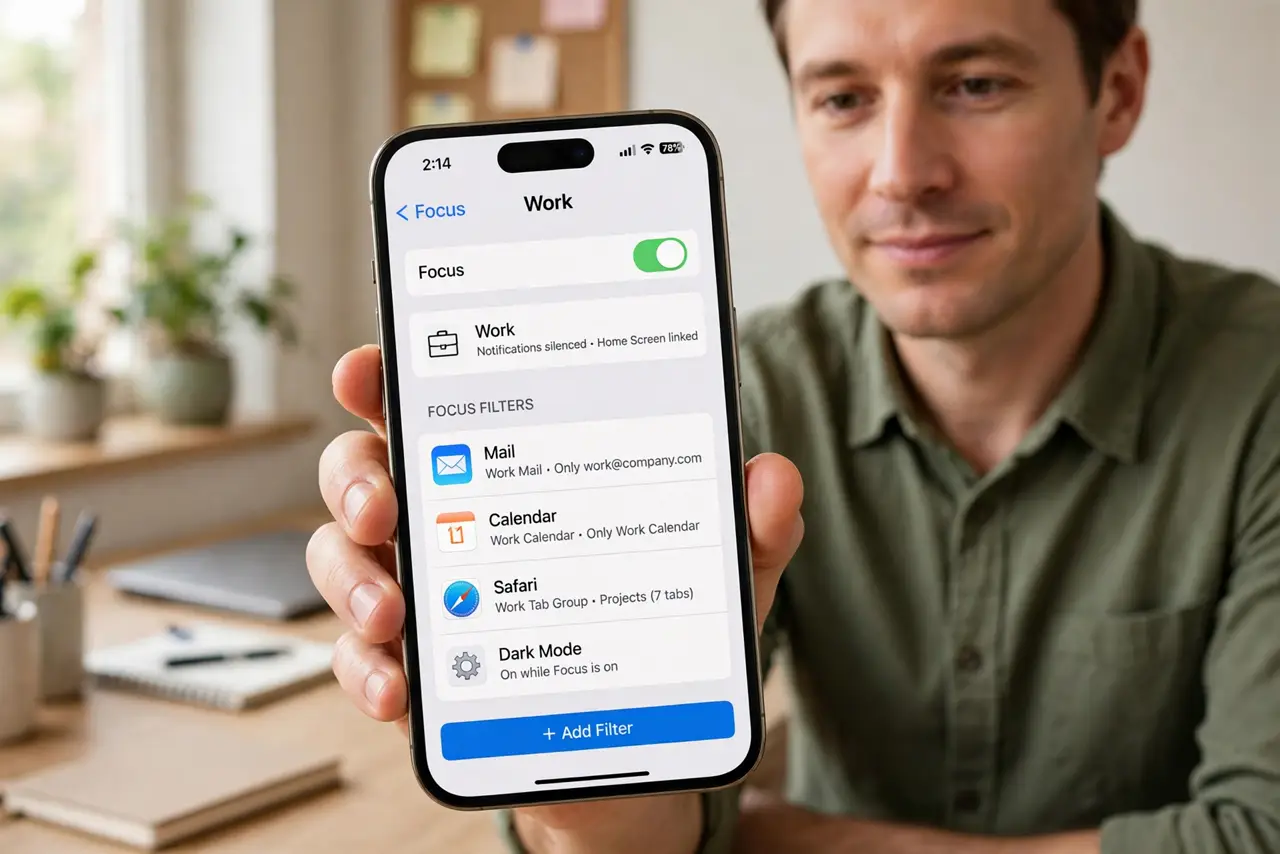
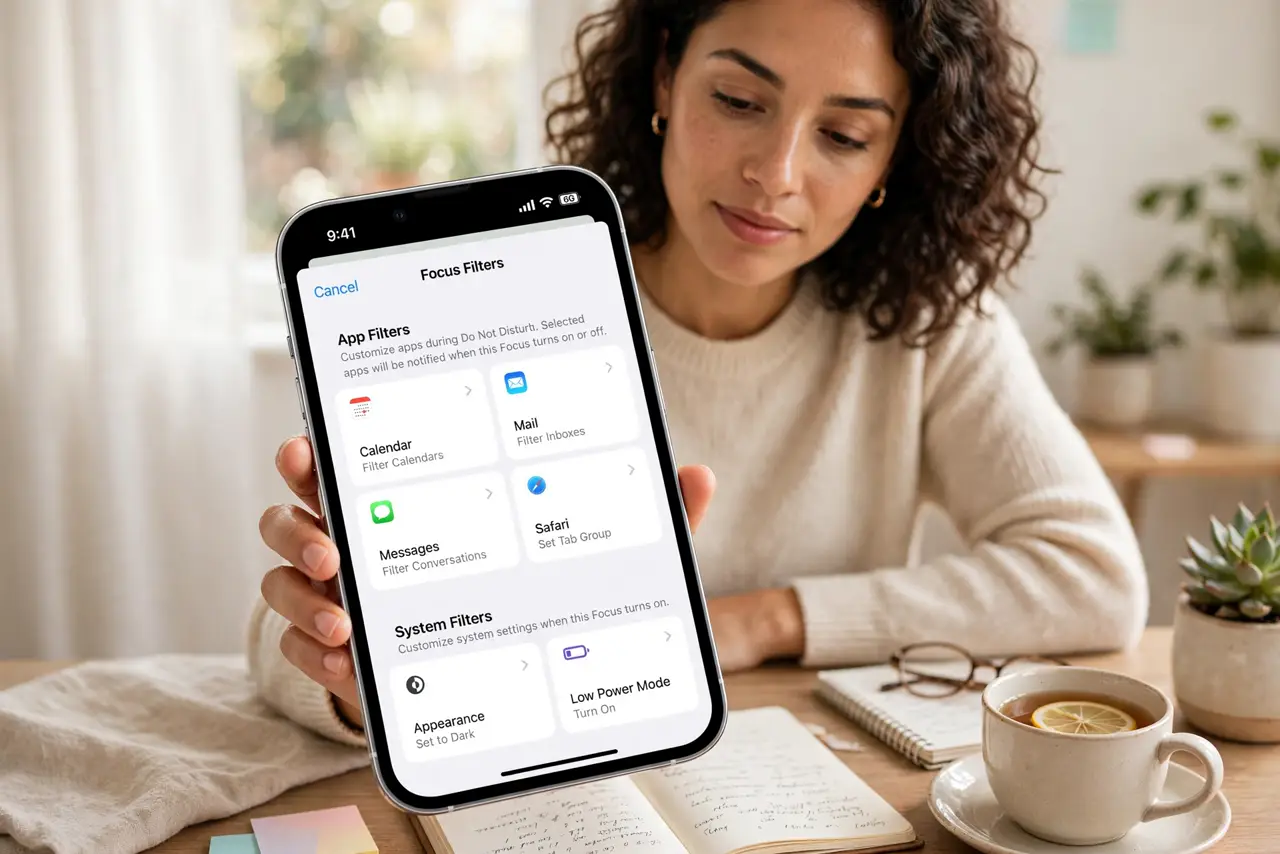
Quick fix: go to Settings, Focus, pick a Focus like Work, and tap Add Filter under Focus Filters. You can filter Mail to one inbox, hide home screen pages, or limit Safari to a Tab Group. Filters only apply while that Focus is on — everything returns to normal after.
Follow these steps
- Understand what Focus Filters do. A Focus silences notifications; Focus Filters go further and reshape apps. Mail can show only your work inbox, Calendar only your work calendar, Safari only work tabs. The apps do not lose data — they just show a slice of it.
- Add a filter to a Focus. Go to Settings > Focus, choose a Focus (or create one), scroll to Focus Filters, and tap Add Filter. Pick the app, then choose what it should show during this Focus — for example, Mail limited to one account.
- Filter your home screens. Add a Home Screen filter to show only chosen app pages during a Focus. Your social apps physically disappear from view during Work hours — out of sight, out of mind, without deleting anything.
- Use Safari Tab Groups as a filter. A Safari filter locks the browser to one Tab Group during a Focus. Research tabs for a project stay; the rabbit-hole tabs vanish until the Focus ends.
- Set different filters per Focus. Work gets the work inbox and work tabs; Personal gets family contacts and hides work mail. Each Focus is independent, so build them as opposites.
- Test by turning the Focus on. Enable the Focus from Control Center and open the filtered apps. If something you need is missing, loosen the filter — a Focus that blocks real work gets abandoned.
What NOT to do
- Do not set filters so tight you miss real work. A Work focus that hides the inbox your boss uses defeats the purpose — filter thoughtfully.
- Do not forget filters are per-Focus. Setting a Mail filter under Work does nothing during Personal — configure each Focus separately.
- Do not confuse Focus Filters with Screen Time limits. Filters reshape what apps show; Screen Time blocks apps entirely. Different tools.
- Do not leave a Focus on indefinitely. Filters only lift when the Focus ends — check Control Center if your apps look strangely empty.
Frequently asked questions
What's the difference between a Focus and a Focus Filter?
A Focus controls which notifications reach you. Focus Filters control what apps display while that Focus is active — the content layer beneath the notifications.
Do Focus Filters sync across devices?
Yes, through iCloud — filters you set on iPhone apply on iPad and Mac too, as long as all run recent software.
Can apps add their own Focus Filters?
Yes — third-party apps can offer custom filters (like a task app showing one project). Look in the Add Filter list for apps you use.