Save Guides in Apple Maps
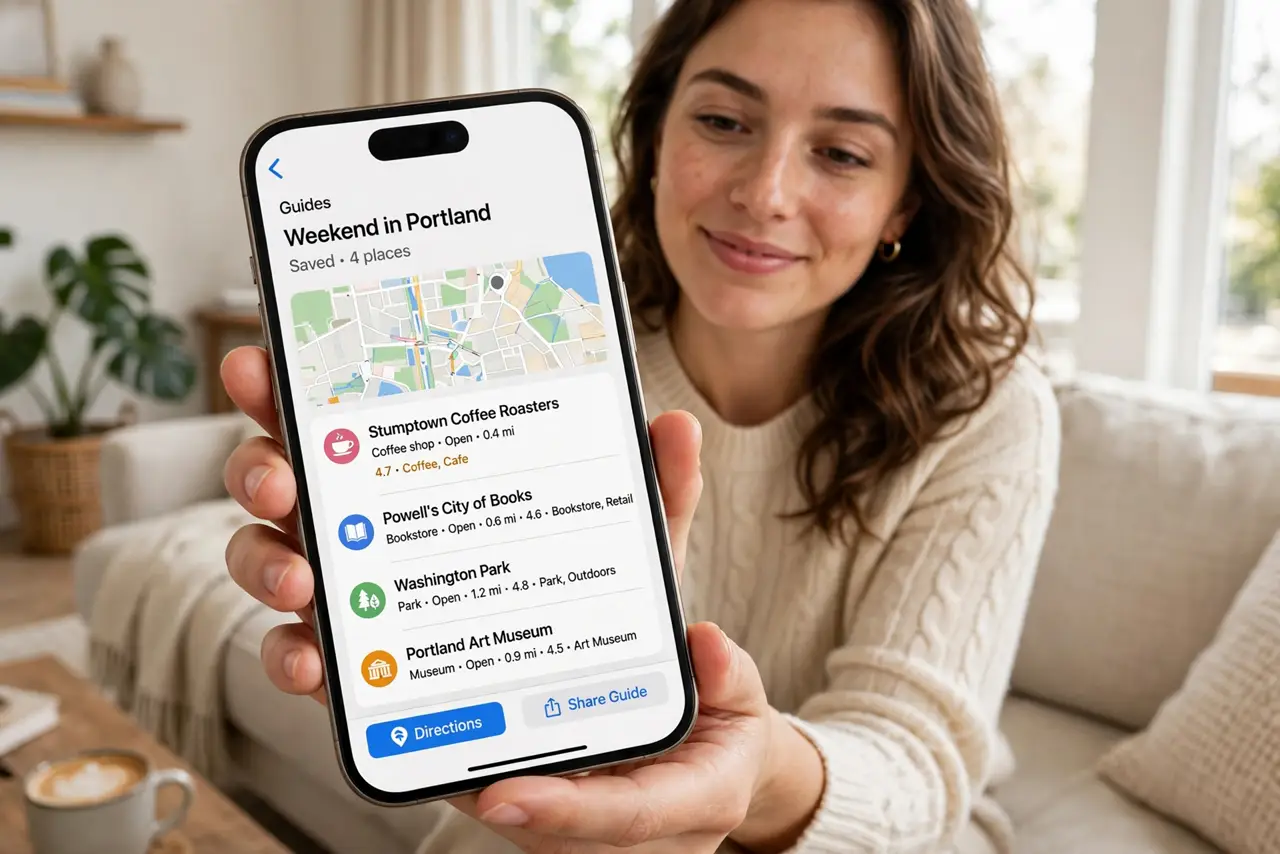
Planning a trip means a dozen scattered pins — the restaurant your friend mentioned, the hotel, that viewpoint — and losing track of half of them. Apple Maps Guides let you bundle places into named collections: 'Tokyo trip', 'date-night spots', 'weekend hikes'. They sync across your devices and share with one tap.
TL;DR / Quick Fix
Quick fix: in Apple Maps, swipe up on the search card, tap Guides, then create a New Guide and name it. Save places into it while browsing by swiping up on a place card and tapping Save. Guides sync across your Apple devices and can be shared with travel companions.
Follow these steps
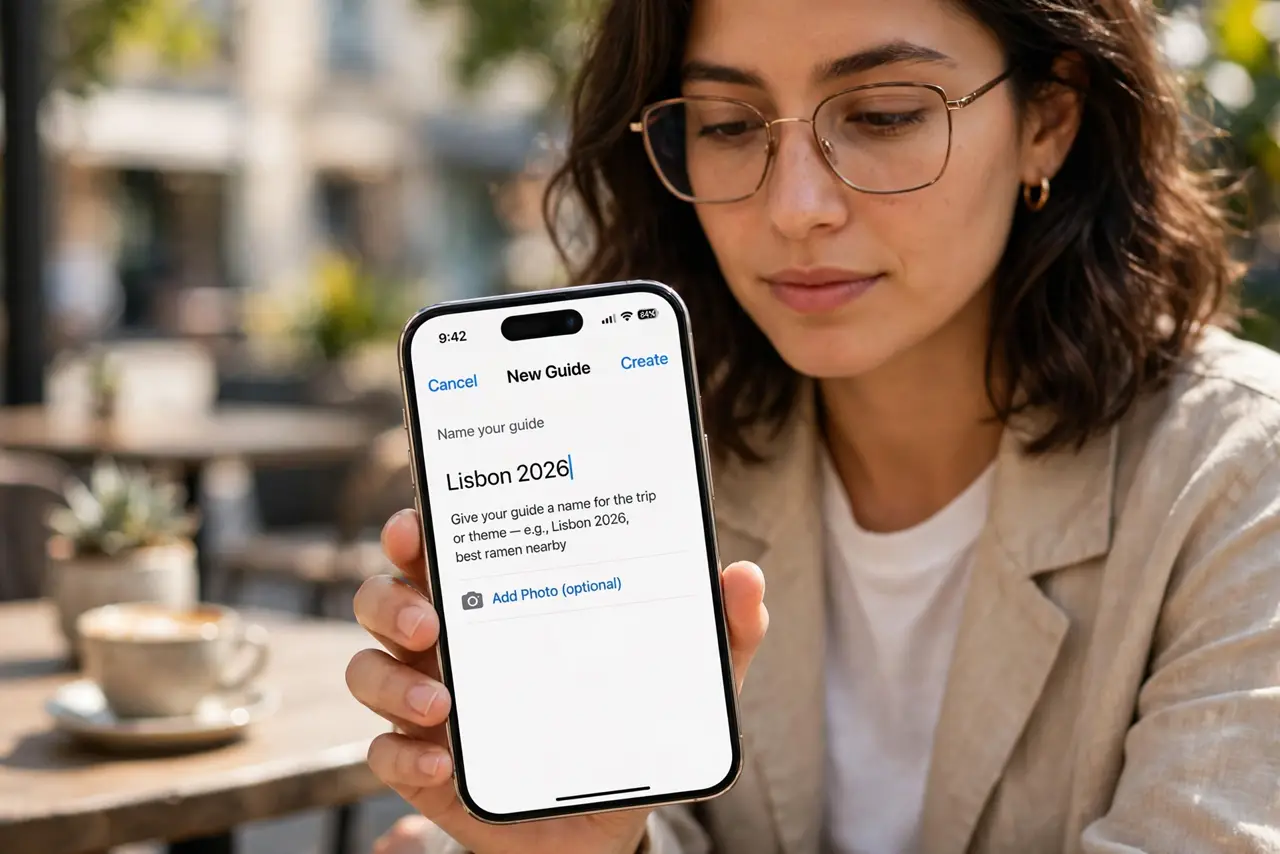
- Create your first guide. In Apple Maps, swipe up the search card, tap Guides, then New Guide. Name it for the trip or theme — 'Lisbon 2026', 'best ramen nearby'.
- Save places as you find them. On any place card, swipe up and tap Save, then pick the guide. Build the collection over days of casual browsing — no need to plan it all at once.
- Add notes and photos. Each saved place accepts a note: 'book ahead', 'cash only', 'sunset spot'. Future-you will thank present-you for the context.
- Share with travel companions. Open the guide, tap share, and send it to your travel group. Everyone sees the same list — no more 'wait, which restaurant was it?' texts.
- Use guides offline. Download the area's offline maps before the trip. Your guides and the map data then work without signal — essential abroad.
- Clean up after the trip. Delete or archive finished guides. A library of stale trip plans becomes clutter; keep the keepers, drop the rest.
What NOT to do
- Do not save everything to one giant guide. Themed guides ('food', 'hikes') stay useful; a 200-place miscellany does not.
- Do not forget guides need iCloud. Without iCloud sync on, your guides live on one device only — and vanish with it.
- Do not share a guide publicly by accident. Check the share settings — some guides can be published; make sure yours goes only to your group.
- Do not skip the notes. A bare list of pins is forgettable in a month; one-line notes make the guide actually reusable.
Frequently asked questions
Can Android users see my shared guide?
Yes — shared guides open as web links, viewable on any device. They just can't edit them without an Apple device.
Do guides work without internet?
The list does, but map tiles and place details need downloaded offline maps or a connection.
How many places can a guide hold?
Far more than you'll ever need for a trip. If a guide gets unwieldy, split it by day or neighborhood.