The Hidden Apps Folder? Explained
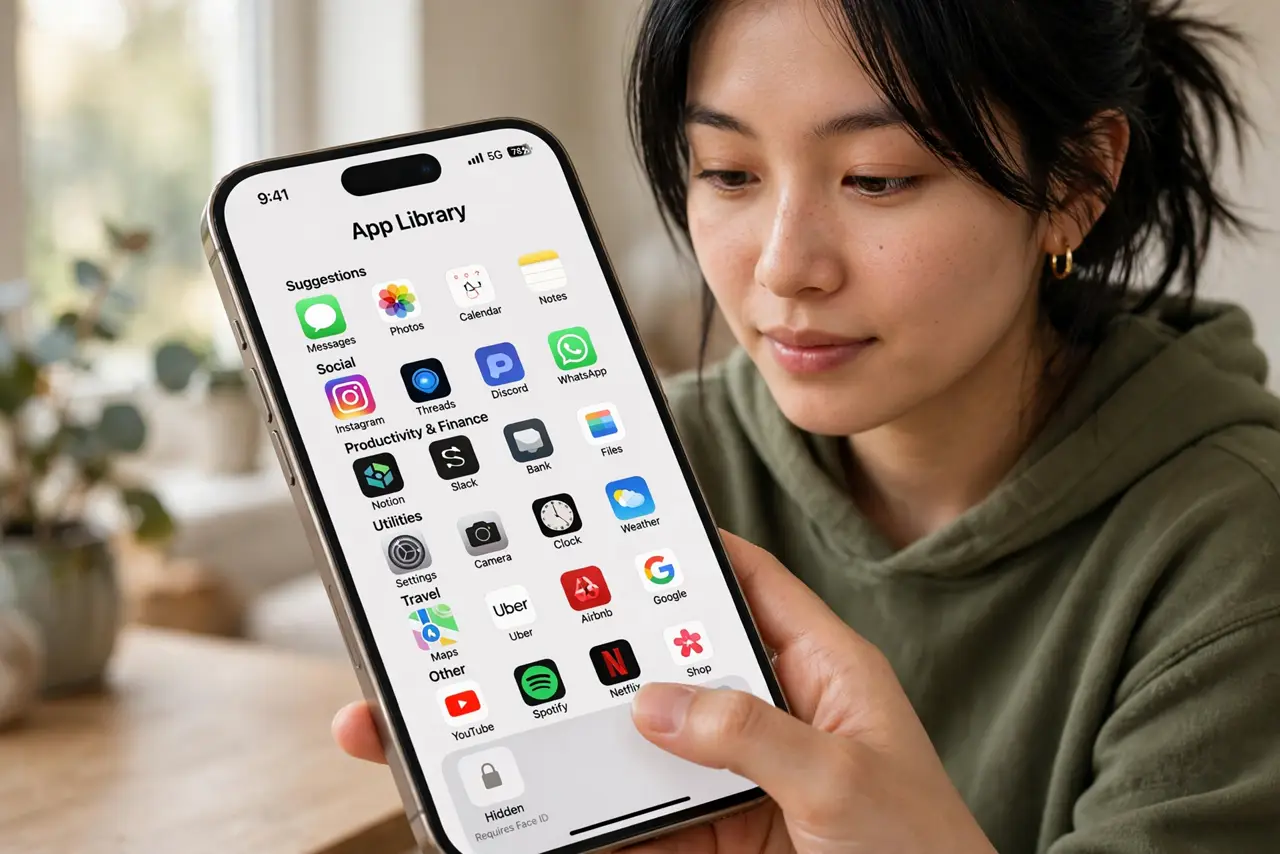
Since iOS 18, apps can vanish from the Home Screen into a locked Hidden folder at the bottom of the App Library. It is not a secret vault hackers cannot find — it is a Face ID-gated drawer for apps you want out of sight. Here is where it lives and how to manage it.
TL;DR / Quick Fix
Quick fix: on iOS 18 and later, swipe to the App Library and scroll to the Hidden folder at the bottom — it needs Face ID to open. Apps hidden with Hide and Require Face ID live there. Unhide an app from the same folder.
Follow these steps
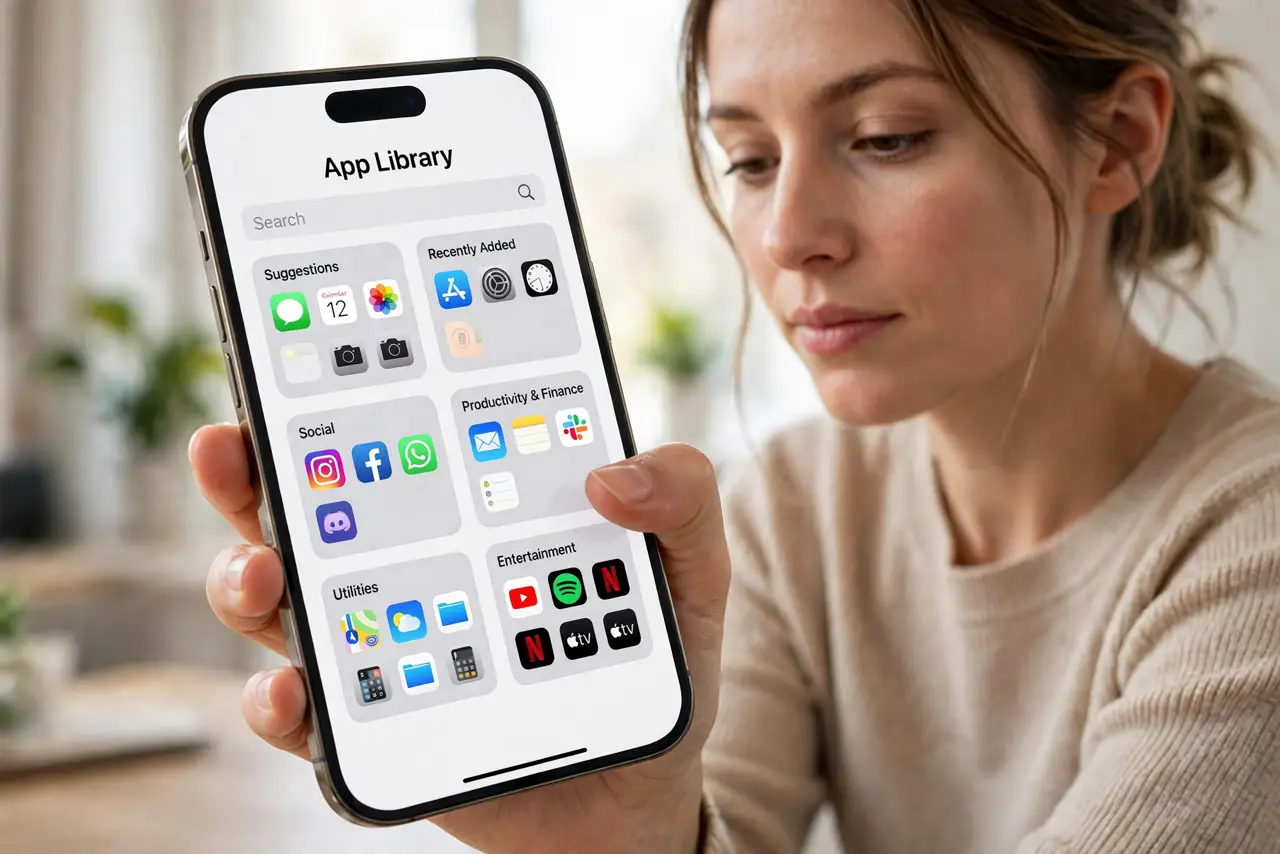
- Swipe to the App Library. Swipe left past your last Home Screen page until the App Library appears with its app category folders.
- Scroll to the very bottom. The Hidden folder sits at the bottom of the App Library, showing a crossed-out eye icon. It is always last.
- Authenticate with Face ID. Tap the folder and let Face ID verify you. Without your face or passcode, the folder shows nothing — not even app names.
- Open or unhide apps inside. Tap an app to launch it. To unhide, long-press the app and choose ‘Don't Require Face ID’ to return it to the Home Screen.
- Hide new apps the right way. Long-press any Home Screen app, choose ‘Hide and Require Face ID’ — see the Face ID app lock guide for the full flow.
- Check the App Library when apps vanish. An app that disappeared from the Home Screen is often just hidden, not deleted — the same confusion as apps hiding in the App Library.
What NOT to do
- Do not treat the Hidden folder as invisible. Anyone who knows iOS 18 knows to look at the bottom of the App Library.
- Do not hide apps to dodge Screen Time limits. The limits still apply; hiding only removes the icon.
- Do not forget hidden apps still update. They update silently and can still send notifications unless you change that.
- Do not panic if the folder looks empty. It shows empty until Face ID succeeds — that blankness is the security working.
Frequently asked questions
Can someone see which apps are hidden?
No. Until Face ID or the passcode succeeds, the folder reveals nothing — no names, no icons, no count.
Do hidden apps appear in search?
No. Spotlight and Siri suggestions skip hidden apps entirely while they are hidden.
How do I unhide all apps at once?
There is no bulk unhide — long-press each app in the Hidden folder and choose ‘Don't Require Face ID’ one by one.