A New App Hides in the App Library Only
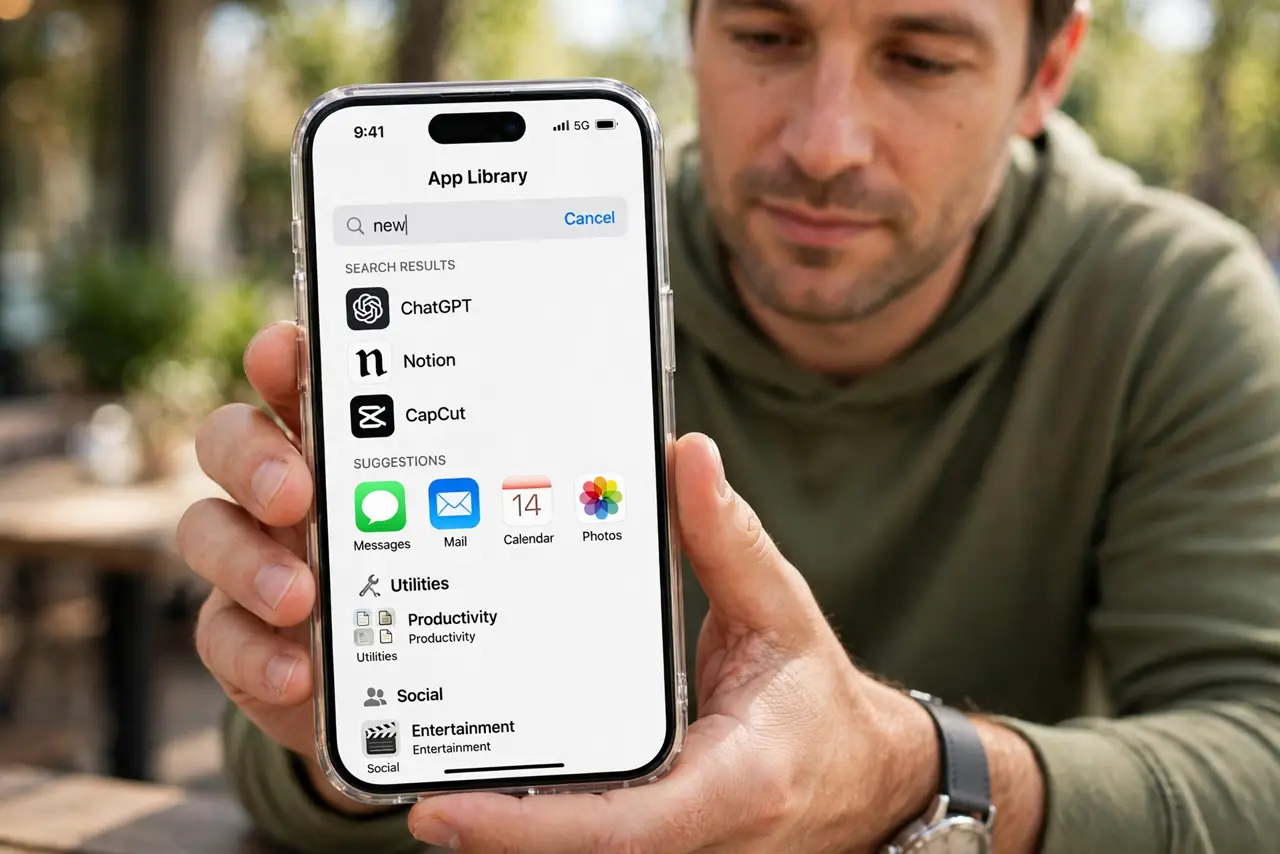
You download an app, but it never appears on the home screen. New downloads can go straight to the App Library, where they sit in a category folder instead of on a page you see.
TL;DR / Quick Fix
Quick fix: swipe left past your last home screen page to open the App Library, search for the app, and press and hold it to add it to the home screen. Then change new downloads to appear on the home screen.
Follow these steps
- Find the app in the App Library. Swipe left past your last home screen page until the App Library appears, then use its search bar to find the new app by name. It is installed, just not placed on a page.
- Add it to the home screen. Press and hold the app in the App Library, then choose Add to Home Screen. The app icon moves onto a home screen page where you will see it every day.
- Change where new downloads go. Open Settings, then Home Screen and App Library, and choose Add to Home Screen for newly downloaded apps. Future downloads will land on a page instead of hiding in the library.
- Check for a hidden home screen page. If the app should be on a page you cannot see, press and hold an empty home screen area and check the page dots. A hidden page holds its apps out of sight until you show it again.
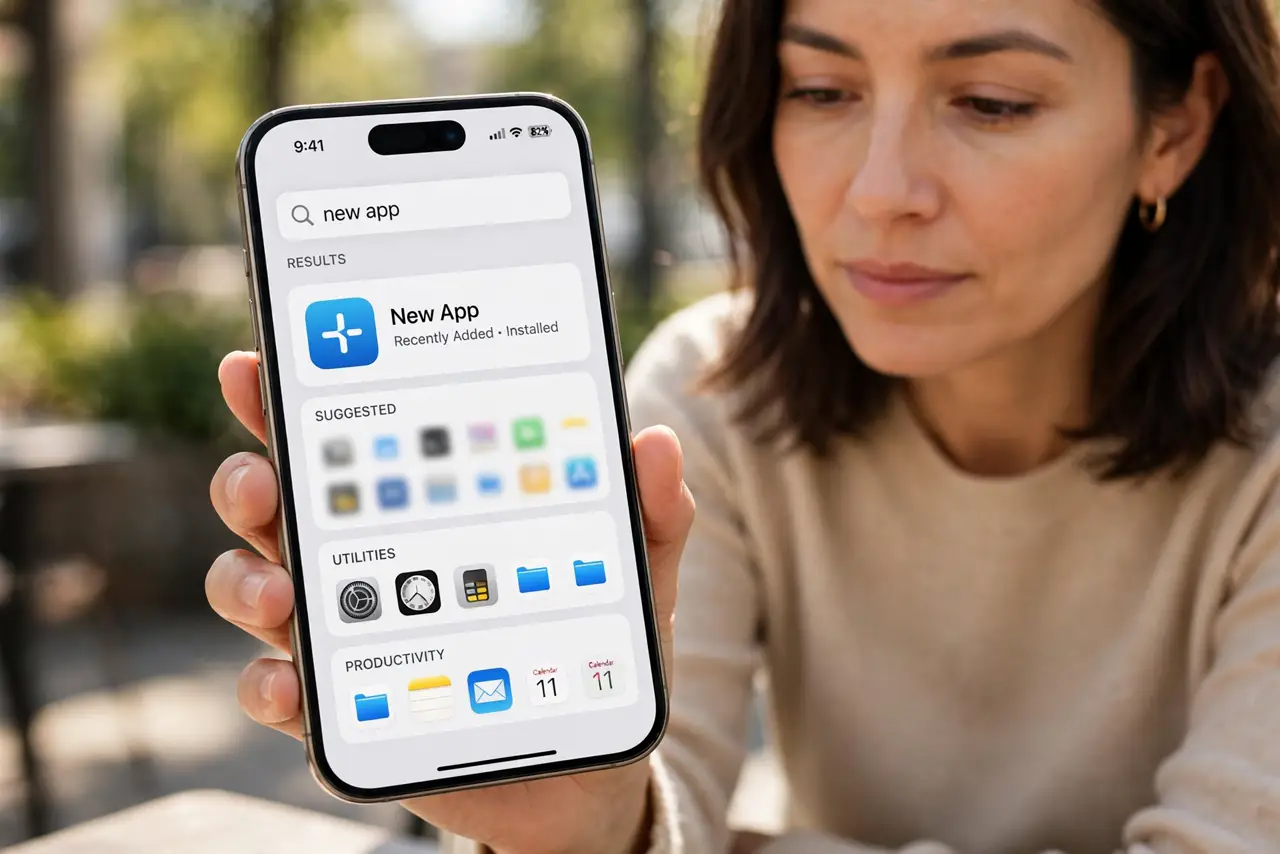
- Search from the home screen as a backup. Swipe down on any home screen page and type the app name. Search finds installed apps even when their icon sits on a hidden page or only in the library.
- Restart if the app still will not appear. If the app is installed but invisible everywhere, restart the iPhone once and search again. A restart clears a stuck home screen layout that hides a fresh install.
What NOT to do
- Do not download the app a second time. It is already installed in the App Library, and a second download wastes time without adding a home screen icon.
- Do not reset the home screen layout first. That moves every icon and folder, while adding one app from the library fixes the single missing icon.
- Do not assume the download failed. A missing icon usually means the app went to the App Library, so search there before retrying the download.
- Do not delete the app to reinstall it on the home screen. Press and hold in the App Library and add it to the home screen instead, keeping its data intact.
Frequently asked questions
Why is my new app only in the App Library?
Because new downloads are set to go to the App Library only, instead of appearing on the home screen as well.
How do I move it to the home screen?
Press and hold the app in the App Library and choose Add to Home Screen.
Will changing the setting move old apps?
No. It only affects future downloads, so move older library-only apps by hand.