Hide Apps from Prying Eyes
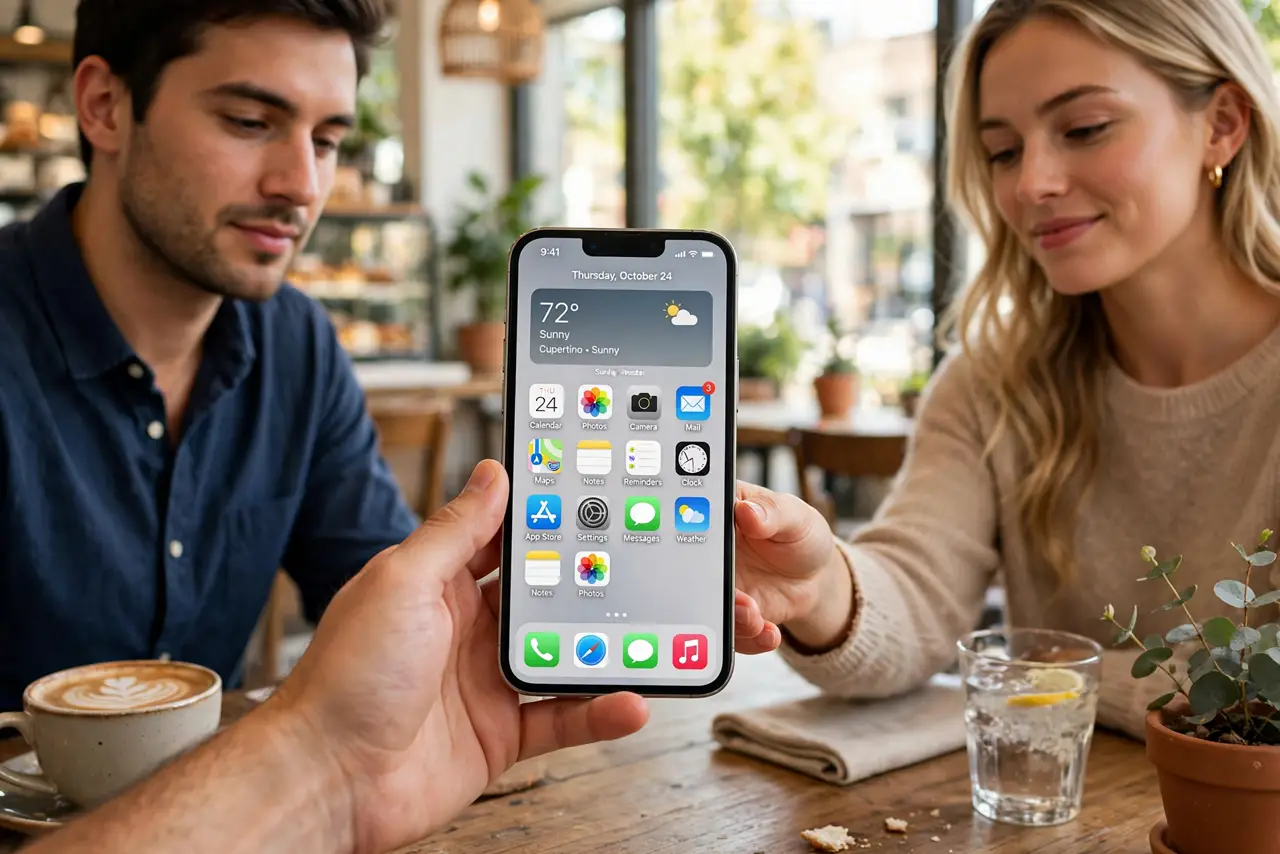
You hand your phone to a friend to show a photo, and suddenly they are swiping through your apps — messages, banking, dating, everything. Since iOS 18, the iPhone can hide apps completely: they vanish from the home screen, search, and notifications, locked behind Face ID in a hidden folder. This guide shows the two-minute setup.
TL;DR / Quick Fix
Quick fix: iOS 18 can hide an app completely — long-press its icon, tap Require Face ID, then Hide and Require Face ID. It vanishes from the home screen and search, living in a locked Hidden folder in the App Library. Long-press there to unhide it the same way.
Follow these steps
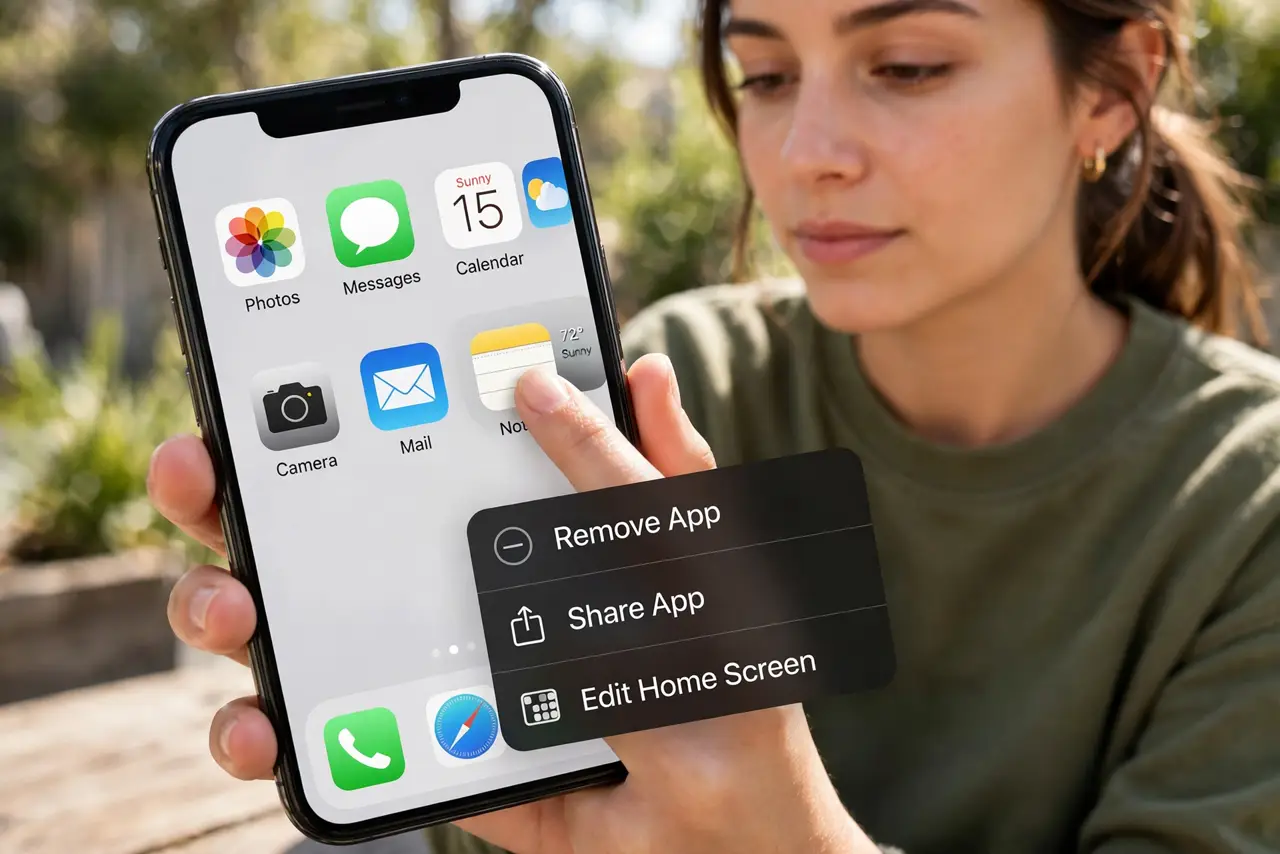
- Long-press the app icon. On the home screen, press and hold the app you want to hide until the quick menu appears. This works for most third-party apps; some built-in system apps cannot be hidden.
- Choose Require Face ID. Tap Require Face ID in the menu. The phone will offer two options: just requiring Face ID to open the app, or hiding it as well — choose Hide and Require Face ID for the full vanishing act.
- Confirm with Face ID. Authenticate once to confirm. The app immediately disappears from the home screen, from Spotlight search, and from notification previews — as if it was never installed.
- Find it in the Hidden folder. Swipe to the App Library (past your last home screen page) and look for the Hidden folder at the bottom. It is locked — Face ID opens it, revealing your hidden apps.
- Unhide when you need it back. Long-press the app inside the Hidden folder and choose not to require Face ID, or drag it back to the home screen. The process reverses cleanly with no data loss.
- For lighter protection, just lock instead. If hiding feels like overkill, the same menu offers Face ID lock without hiding — the app stays visible but needs your face to open. Pick the level that fits the snoop threat.
What NOT to do
- Do not hide apps you need in emergencies. A hidden medical or emergency app that needs Face ID fumbling is a liability when seconds count.
- Do not forget where the Hidden folder is. It lives at the bottom of the App Library — panic-searching for a 'deleted' app is a common first-timer moment.
- Do not rely on hiding for truly sensitive data. Hiding stops casual snoops, not someone with your passcode and determination — it is privacy, not security.
- Do not hide system apps expecting them to vanish. Core apps like Settings cannot be hidden; the option simply will not appear for them.
Frequently asked questions
Can hidden apps still send notifications?
Their notifications are hidden too — no previews, no badges revealing content. You will only see them after unlocking the Hidden folder.
Does hiding an app delete its data?
No. Everything stays intact — messages, logins, files. Hiding only removes visibility and adds the Face ID gate.
Will hidden apps appear in Screen Time or battery stats?
They can still appear in Screen Time reports and battery usage, which a determined snoop could check. Hiding covers the casual glance, not a forensic audit.