A Whole Home Screen Page Goes Hidden
An entire page of apps vanishes at once — not one icon, but a whole screen. A hidden home screen page is the usual cause, and it takes a few seconds to bring back.
TL;DR / Quick Fix
Quick fix: press and hold an empty area of the home screen, tap the page dots at the bottom, and tick the hidden page. Then tap Done, and swipe to the restored page to confirm its apps are back and swipe to the restored page to confirm.
Follow these steps
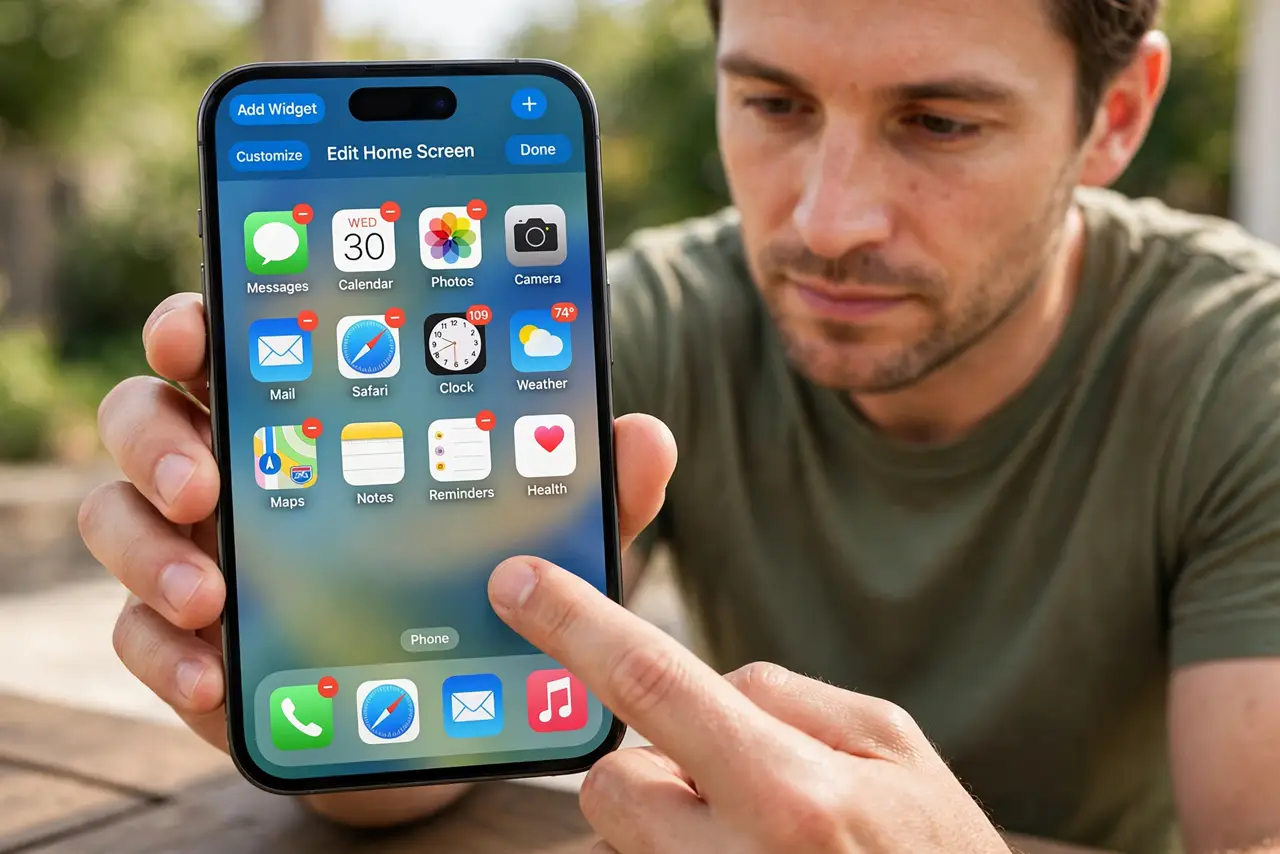
- Enter home screen editing. Press and hold an empty area of any home screen page until the icons jiggle. Editing mode is where pages are hidden and shown, so start there rather than searching for lost apps.
- Open the page dots. Tap the row of dots at the bottom of the screen. That opens the page list, where each home screen page appears with a tick showing whether it is visible.
- Tick the hidden page. Find the page without a tick and tap its circle to tick it. An unticked page is hidden, not deleted, and ticking it restores the whole page at once.
- Tap Done and swipe to the page. Tap Done to leave editing, then swipe to the restored page. Check that its apps and folders are all back, since a hidden page returns complete, not icon by icon.
- Check the App Library as a backup. If a page is missing from the page list entirely, open the App Library and search for one of its apps. Apps that only live in the library need adding to the home screen by hand.
- Recheck after an update. After an iOS update, glance through your pages once. Updates rarely hide pages, but a quick check after a big update catches a hidden page before you miss its apps.
What NOT to do
- Do not reinstall the missing apps. A hidden page still holds them, and reinstalling wastes time while the originals sit untouched in the page list.
- Do not reset the home screen layout. That scatters every icon and folder, while ticking the hidden page restores the layout exactly as it was.
- Do not assume the apps were deleted. A whole page vanishing at once points to a hidden page, not to dozens of apps disappearing one by one.
- Do not hide pages casually to tidy up. A page hidden for tidiness is easy to forget, so only hide a page you truly do not need to see daily.
Frequently asked questions
Where did a whole page of apps go?
It was hidden, not deleted. The page list in home screen editing shows it unticked, and ticking it brings it back.
Does hiding a page delete its apps?
No. Hidden pages keep their apps, and showing the page restores them all at once.
What if the page is not in the page list?
Its apps may live only in the App Library. Search there and add each app to the home screen by hand.