Back Up to iCloud? Basics
Your iPhone warns that it has not backed up in weeks, or the backup keeps failing for lack of space. iCloud Backup protects your photos, messages, and settings automatically — but only when it is turned on, the phone is on Wi-Fi and charging, and there is room in iCloud. This guide gets backups running again.
TL;DR / Quick Fix
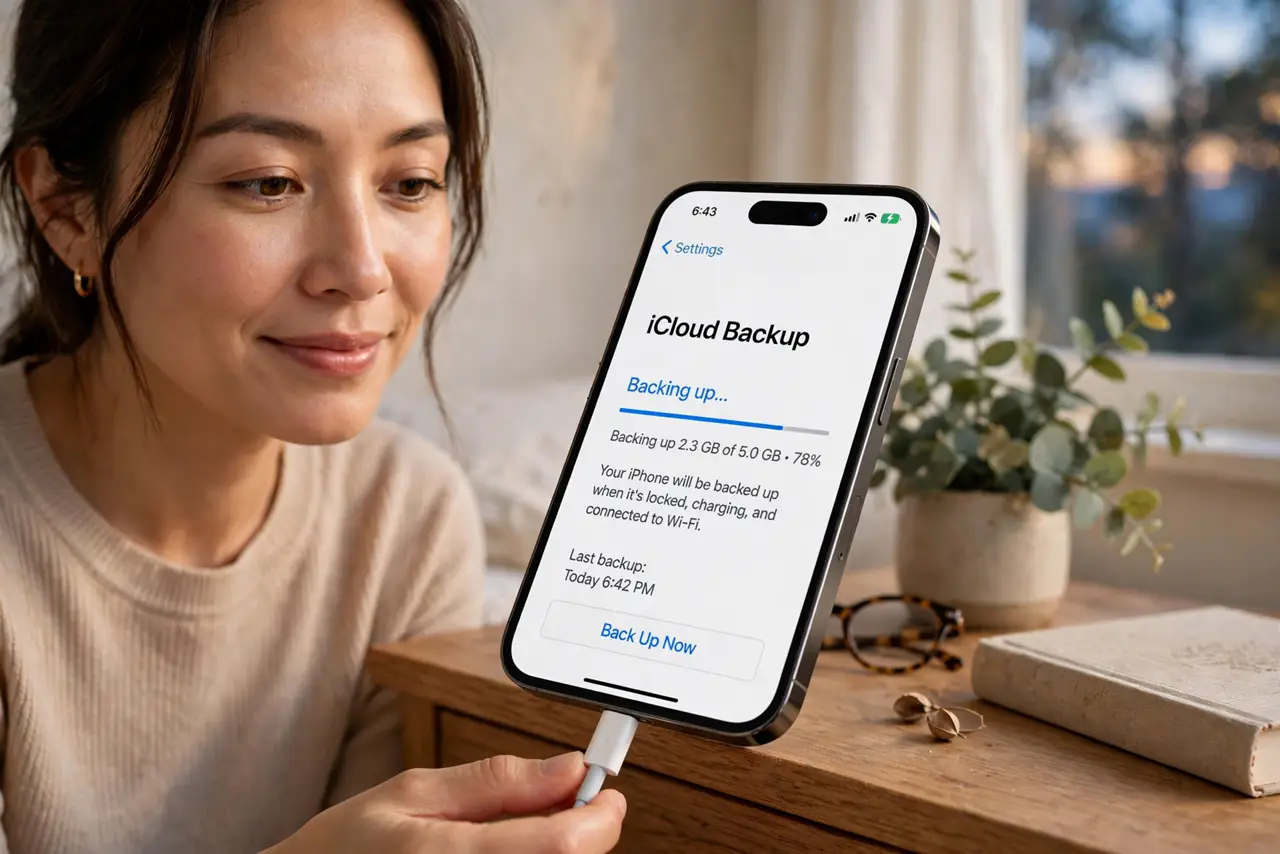
Quick fix: open Settings, tap your name, iCloud, then iCloud Backup, and turn it on. Plug in the phone on Wi-Fi overnight — the first backup takes a while. If it fails for space, buy more storage or trim what backs up. Tap Back Up Now to start one immediately.
Follow these steps
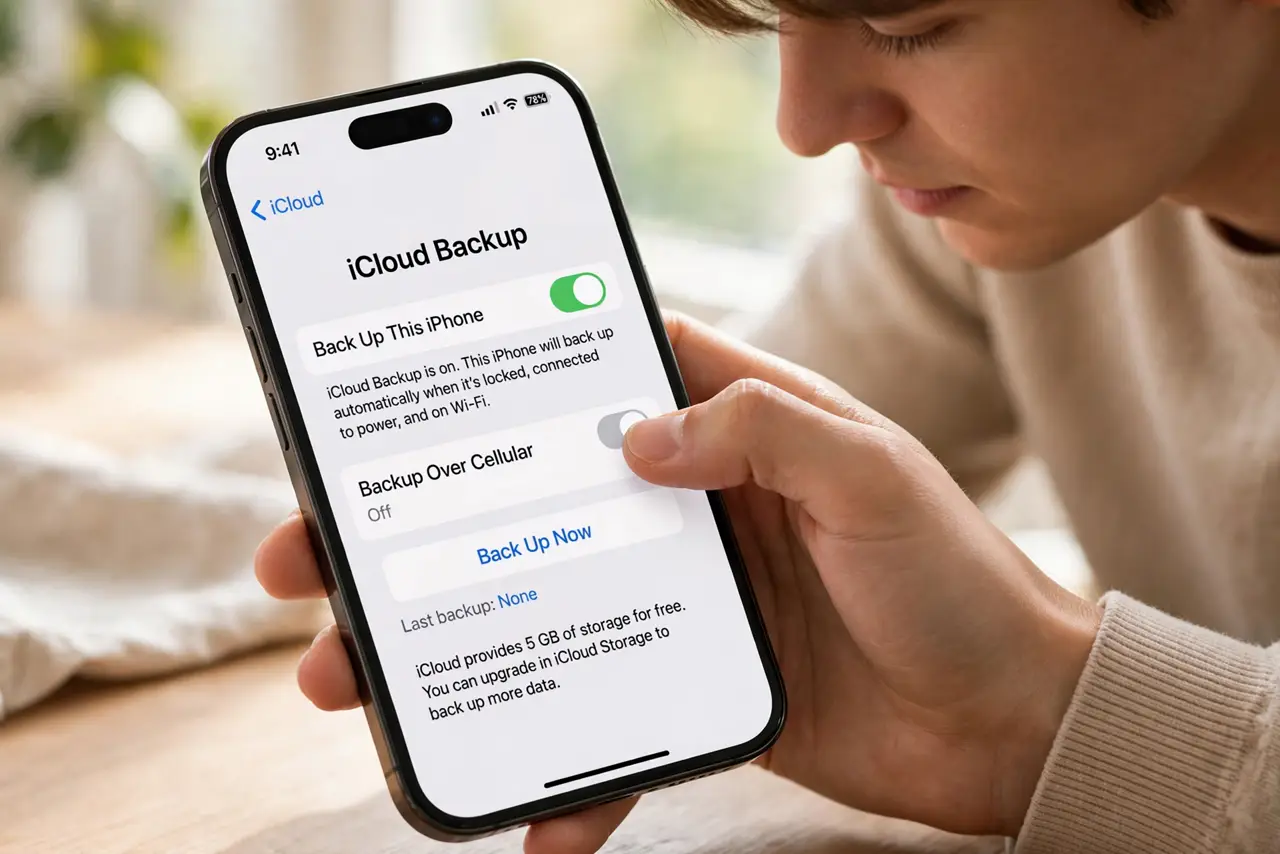
- Turn on iCloud Backup. Settings, your name, iCloud, iCloud Backup — toggle it on. This is the whole foundation; without it, nothing backs up automatically.
- Meet the backup conditions. Backups run when the phone is locked, charging, and on Wi-Fi. Overnight charging covers all three — if backups never run, one condition is missing, often the paused-on-battery pattern.
- Fix the storage problem. The free 5 GB fills fast. Either upgrade storage or shrink the backup: turn off backup for apps with their own cloud (like photo apps that already sync). A full iCloud silently stops all backups.
- Run a manual backup now. Tap Back Up Now and leave the phone alone on Wi-Fi. The first backup is slow; later ones are incremental and quick.
- Verify the backup completed. Check the date under iCloud Backup — 'Last successful backup' should be recent. A backup you never verify is a hope, not a plan.
- Know what is and is not included. iCloud Backup covers settings, messages, and app data. Photos may live in iCloud Photos separately — understand both so nothing falls through the cracks.
What NOT to do
- Do not assume it is backing up. The toggle can be on while backups silently fail for months — check the last-successful date.
- Do not back up over cellular. Metered data plus a multi-gigabyte backup equals a shocking phone bill — Wi-Fi only.
- Do not delete the old backup mid-crisis. If the phone is failing, keep every backup until the replacement is fully restored.
- Do not ignore the storage-full warning. It does not resolve itself — backups stop until you act.
Frequently asked questions
How much iCloud storage do I need?
Enough for your largest backup plus headroom — check Settings for the backup size. Most people land on the 50 GB or 200 GB tier.
iCloud Backup vs iCloud Photos — what's the difference?
Backup saves device state and app data; iCloud Photos syncs the photo library separately. You may need both on for full protection.
Can I back up to a computer instead?
Yes — Finder on Mac or iTunes on Windows backs up locally free. It lacks the automatic nightly convenience but costs nothing.