Navigate Malls Indoors
Big malls, airports, and stadiums are where phone maps traditionally give up — GPS bounces off concrete and you are on your own. Indoor maps cover the inside: floor plans with stores, gates, restrooms, and your blue dot walking the halls. Here is how to find and use them.
TL;DR / Quick Fix
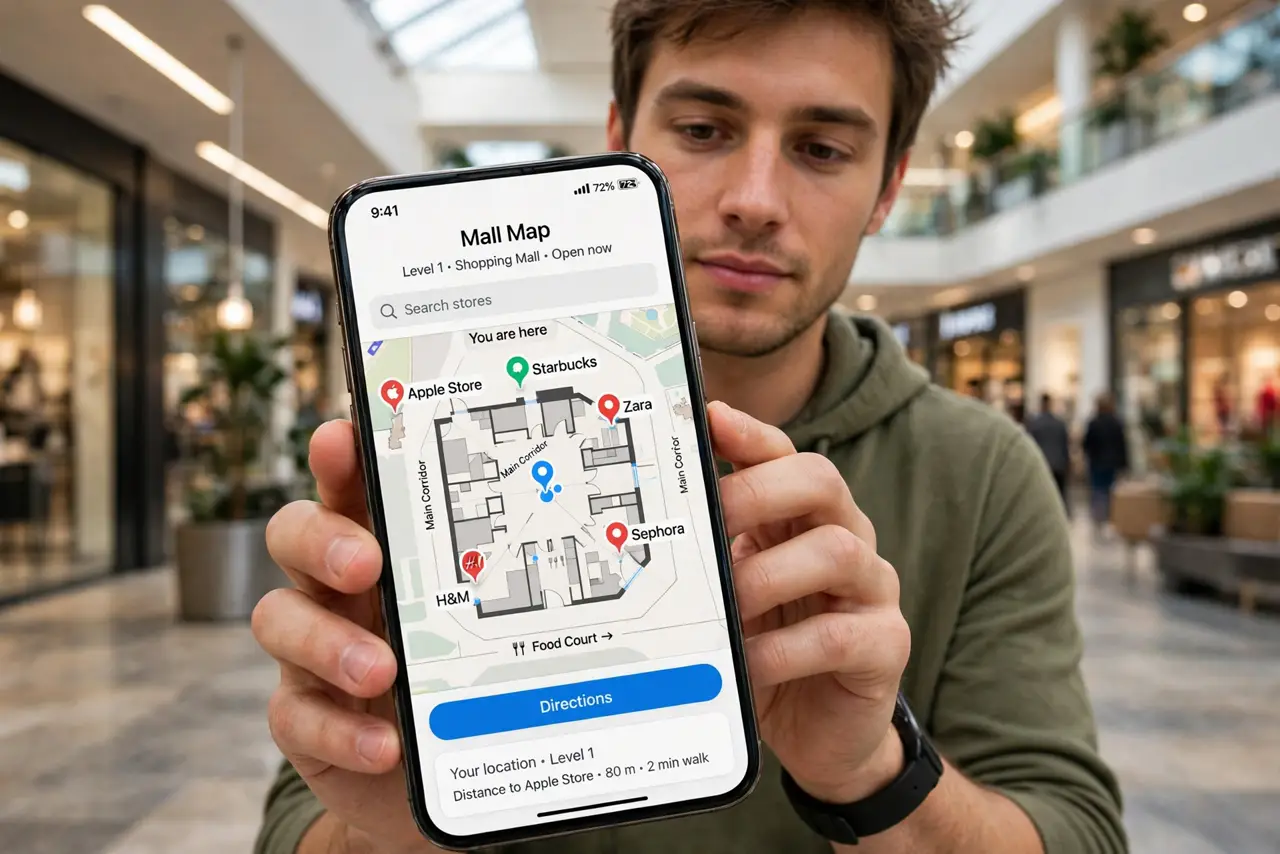
Quick fix: in Apple Maps or Google Maps, search the mall or airport by name — supported venues show indoor maps with stores, gates, and restrooms. Zoom in to switch floors and follow the directory pins. Download the area offline first; concrete buildings kill signals.
Follow these steps
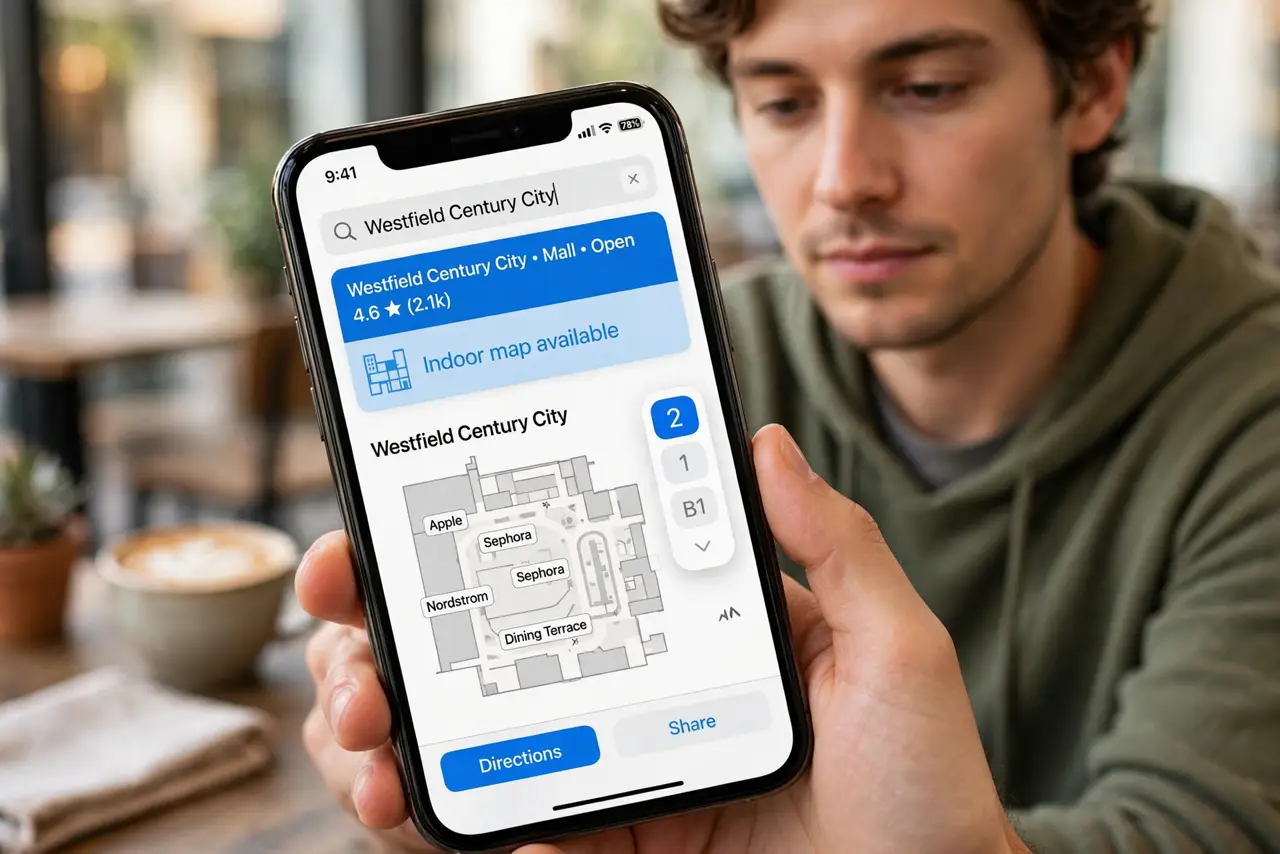
- Search the venue by name. Type the mall or airport name into Apple Maps or Google Maps. Supported venues show an ‘indoor map available’ style experience — look for floor-switcher controls.
- Switch floors. Use the floor picker (usually a stacked-squares icon) to move between levels. Stores, restrooms, and exits are labeled per floor — the directory, on your phone.
- Follow the blue dot. Indoors, positioning uses Wi-Fi and Bluetooth beacons rather than GPS — keep Wi-Fi on even without connecting. The dot is less precise than outdoors but good enough to find the right wing.
- Search inside the venue. Search ‘restroom’ or a store name while viewing the indoor map to get walking directions within the building. It routes you floor to floor, escalators included conceptually.
- Download offline first. Save the area in offline maps before entering — concrete and steel murder cellular signals, and the indoor map needs its data cached to be useful.
- Scout the outside too. Before going in, check the surroundings with Look Around — parking entrances and drop-off points are the part indoor maps never show.
What NOT to do
- Do not expect GPS precision indoors. The blue dot wanders — use it for orientation, not for ‘which shelf’ accuracy.
- Do not turn off Wi-Fi inside. Indoor positioning depends on it; airplane mode with Wi-Fi off leaves you truly lost.
- Do not assume every venue is mapped. Big airports and malls usually are; small ones often are not — check before counting on it.
- Do not rely on it during an emergency. For evacuations, follow posted signs and staff, not your phone — indoor maps are a convenience, not a safety system.
Frequently asked questions
Why is my blue dot jumping around indoors?
Weak Wi-Fi and beacon coverage. Stand still a moment and let it settle — moving fast makes it worse.
Do indoor maps work without internet?
Only if downloaded offline beforehand. Stream it before you enter, or save the area in offline maps.
Which venues have indoor maps?
Major airports, malls, stadiums, and transit hubs in most large cities. Search the venue name — if no floor picker appears, it is not mapped.