Use the iPhone Journal App
The Journal app shows up on your iPhone offering 'suggestions' — photos, workouts, places it thinks are worth writing about — and it can feel like the phone is watching you. It is: but the processing happens on-device, and the suggestions are genuinely useful prompts if you give journaling a chance. A two-minute daily entry is one of the cheapest mental-health habits there is. Here is how to use the app well and keep it private.
TL;DR / Quick Fix
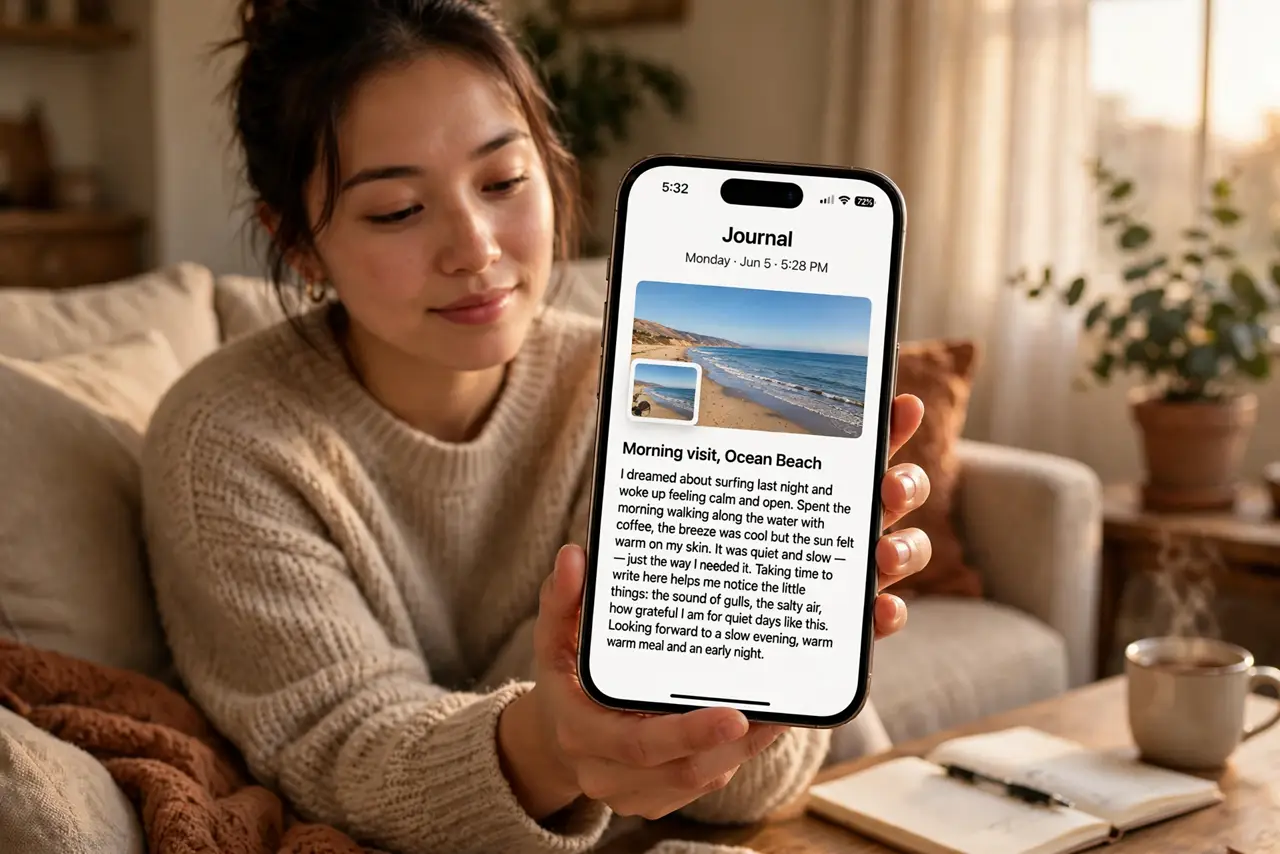
Quick fix: Apple's Journal app turns moments into entries with suggested memories from photos, workouts, and places — on-device only. Open the app, accept a suggestion or start blank, write a few honest lines, and add a photo. Set a daily schedule reminder so journaling becomes a two-minute habit.
Follow these steps
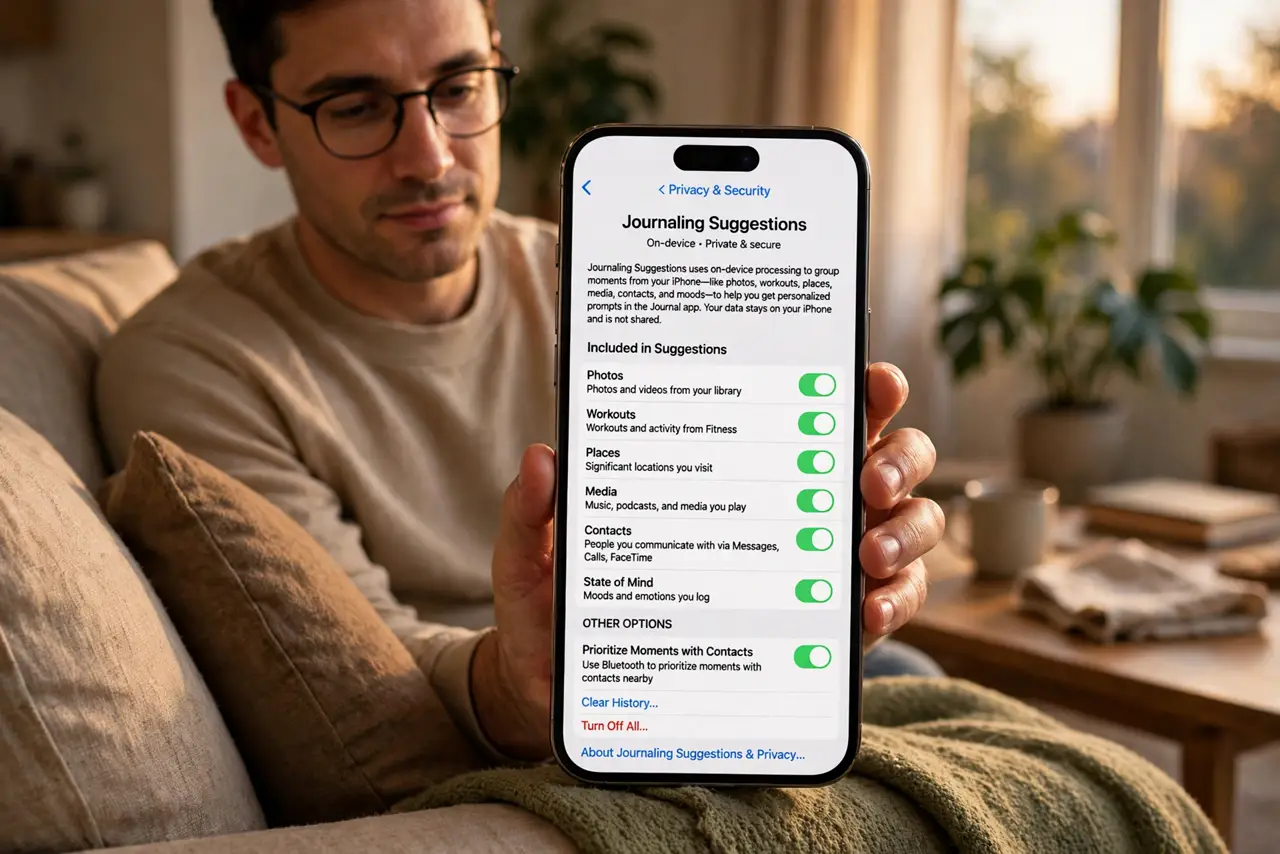
- Understand the suggestions first. Journal suggests entries based on recent photos, workouts, locations, and music — all processed on your iPhone, not sent to Apple. If suggestions feel creepy, you can turn off specific sources in Settings > Privacy & Security > Journaling Suggestions rather than abandoning the app.
- Start your first entry. Open Journal and tap the plus button. Pick a suggestion if one resonates, or start blank. Write three to five honest sentences — what happened, how it felt. Done beats perfect; this is a habit, not literature.
- Add media to entries. Attach a photo, a workout, or a location to an entry with the media button. Months later, a photo plus two sentences recalls a day far better than either alone.
- Lock the journal. In Settings > Journal, turn on Lock Journal so entries require Face ID. Journaling only works if you trust the privacy — this lock is the feature that makes honesty safe. Learn the basics of the app before customizing further.
- Set a daily schedule. Settings > Journal > Journaling Schedule lets you pick a daily reminder time. Anchor it to something existing — right after dinner, or before bed — so the reminder lands when you can actually write.
- Reflect with past entries. Scroll back monthly and reread a few entries. The real value of a journal compounds: patterns in your own words become visible only in hindsight.
What NOT to do
- Do not write for an audience. The moment you imagine someone reading it, honesty dies — write as if the entries self-destruct.
- Do not aim for long entries. Two minutes daily beats an hour monthly; consistency is the entire mechanism.
- Do not leave the journal unlocked on a shared device. Face ID lock takes seconds to enable and protects years of honest writing.
- Do not delete old entries in a bad mood. Future-you will want the unflattering ones most — they are the data that shows growth.
Frequently asked questions
Is my journal data sent to Apple?
No — suggestions and entries are processed on-device. iCloud backup can include entries if enabled, encrypted with your account, but Apple does not read them for advertising.
Can I use Journal on iPad or Mac?
Journal syncs across your Apple devices through iCloud when enabled, so entries written on iPhone appear on iPad and Mac too.
What if I hate the suggestions?
Turn them off per-source in the privacy settings and write blank entries. The app works fine as a plain private diary.