Use iPhone as a Level
Hanging a picture straight without a level means stepping back, squinting, adjusting, repeating. Your iPhone has a digital level built into the Measure app — accurate enough for pictures, shelves, and furniture. It takes longer to find the app than to use it.
TL;DR / Quick Fix
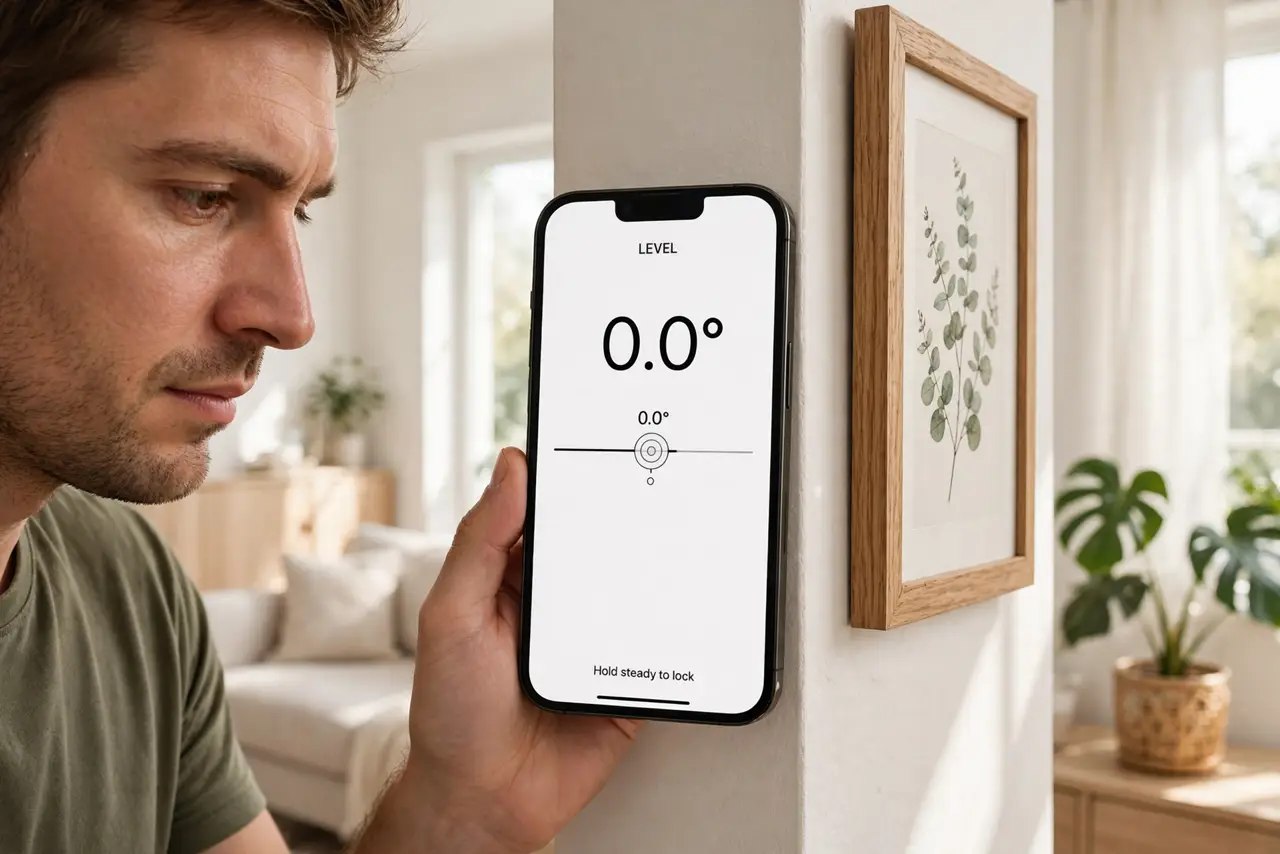
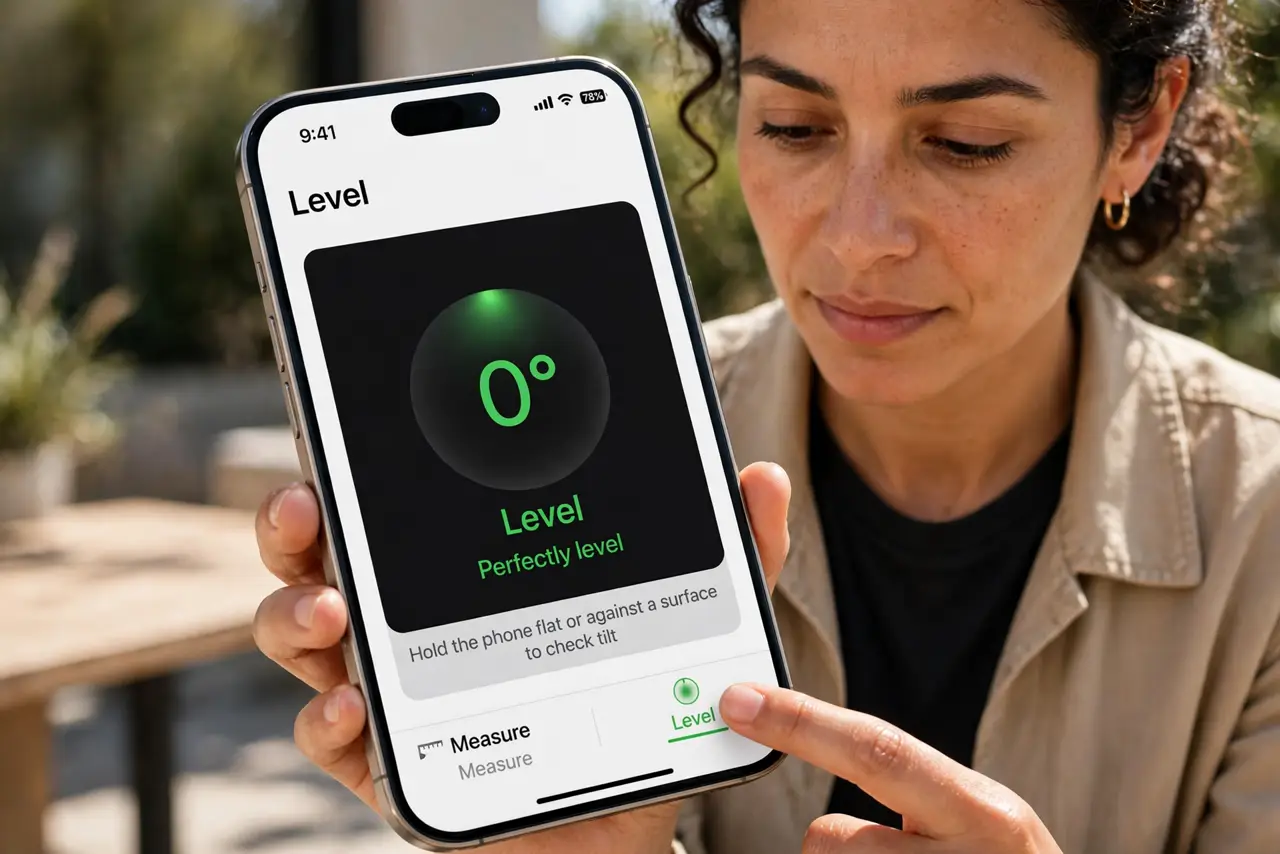
Quick fix: open the Measure app on iPhone and tap Level at the bottom. Lay the phone on the surface or hold it against the object — the screen shows the angle and turns green at zero degrees. Calibrate by waving it in a figure-eight if readings seem off.
Follow these steps
- Open the Measure app. Find Measure (preinstalled on iPhone) and open it. Tap 'Level' at the bottom of the screen — the app switches from measuring distance to measuring tilt.
- Choose your orientation. Lay the phone flat for table surfaces, hold it upright against a wall for hanging pictures, or rest its edge on a shelf. The display adapts to the orientation.
- Read the angle. The screen shows the current tilt in degrees. At perfectly level, the display turns green and reads 0° — that's your signal.
- Tap to set a relative zero. Tap the screen to zero the reading on a reference surface, then measure relative angles from there. Handy for matching an existing slope.
- Calibrate if readings seem off. Wave the phone in a figure-eight motion to recalibrate the motion sensors — the same trick as compass calibration, since both use the same sensors.
- Remove the case for precision. Thick or uneven cases tilt the phone slightly. For the most accurate reading, take the case off — it matters more than you'd think.
What NOT to do
- Do not trust it for structural work. It's great for pictures and shelves; load-bearing construction wants a real spirit level.
- Do not use it near strong magnets. Speakers and magnetic mounts distort the sensors — move away from them for an honest reading.
- Do not forget it needs a flat reference. A warped phone case or a bumpy surface defeats the purpose — check your reference first.
- Do not assume Android works identically. Android has no built-in equivalent; third-party level apps fill the gap with similar figure-eight calibration.
Frequently asked questions
How accurate is the iPhone level?
Within about a degree when calibrated — plenty for household hanging and leveling. Not survey-grade, but better than eyeballing.
Where did the level go in iOS?
It lives in the Measure app's bottom tab. Older iOS had it in Compass; Apple moved it — update the app if you can't find it.
Why does the reading drift?
Sensor drift or magnetic interference. Figure-eight recalibration and moving away from magnets fix most drift.