Live Activities Get Stuck on the Lock Screen
A delivery, timer, or sports score stays on the lock screen long after it ended. The Live Activity did not close, or the app never told the iPhone it finished.
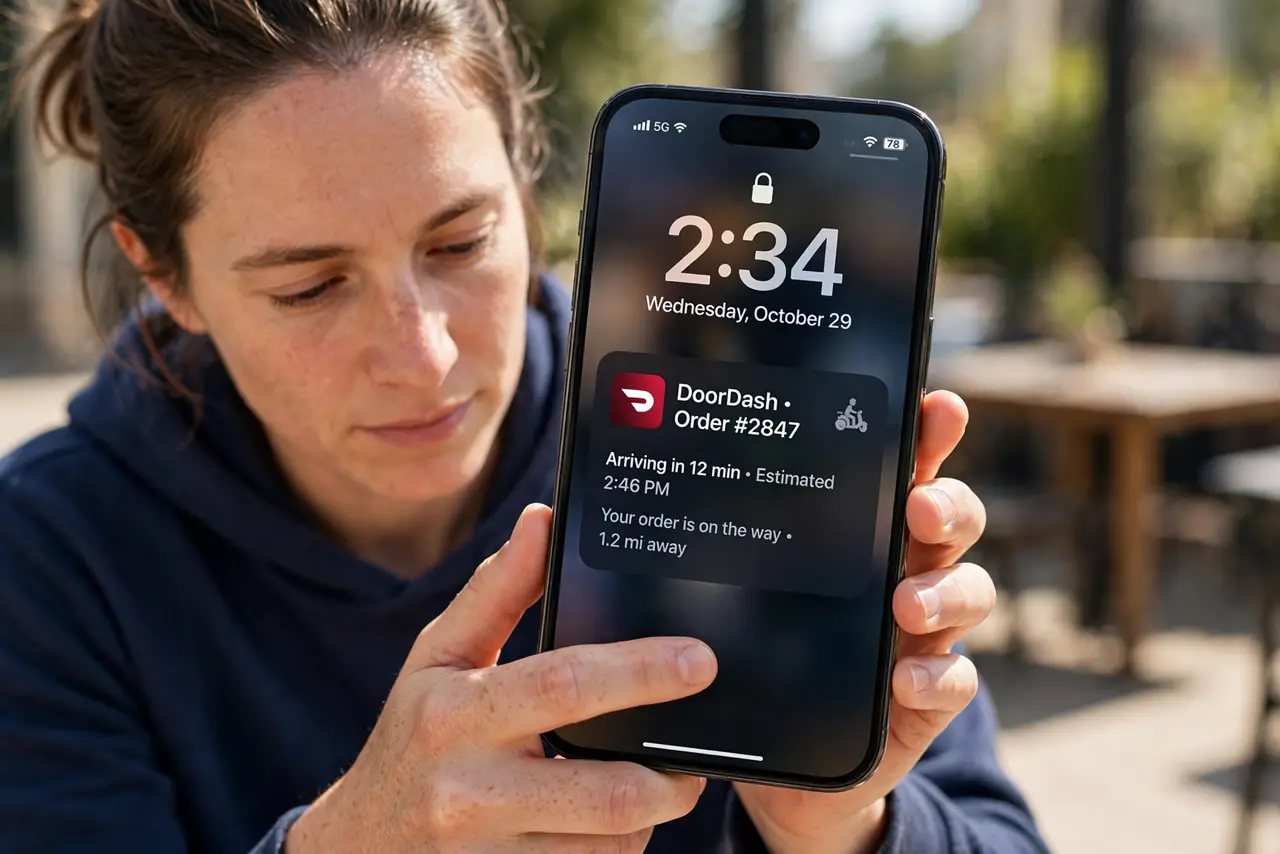
TL;DR / Quick Fix
Quick fix: press and hold the stuck Live Activity and dismiss it, or open the app and end the activity there. Then check the app's Live Activities permission, and restart if the card still will not leave and restart if the stuck card still will not leave.
Follow these steps
- Dismiss the stuck activity. Press and hold the Live Activity on the lock screen and look for a dismiss or close option. Many stuck cards clear with a manual dismiss, even when the app forgot to end them.
- End the activity inside its app. Open the app that started the activity — a delivery, timer, or sports app — and end or cancel the activity there. The lock screen card follows the app's state, so ending it in the app clears the card.
- Check the app's Live Activities permission. Open Settings, then the app, and confirm Live Activities is allowed. A permission changed mid-activity can leave a card that neither updates nor closes cleanly.
- Force-close the app once. Swipe up and close the app fully, then reopen it. Force-closing clears a stuck activity session, and reopening lets the app report its true state to the lock screen.
- Restart the iPhone if the card persists. If the card survives dismissing, ending, and force-closing, restart the iPhone once. A restart clears lock screen cards that no app step can remove.
- Turn off Live Activities for repeat offenders. If one app keeps leaving stuck cards, turn off its Live Activities permission in Settings. You lose its live updates, but you stop the stuck cards that outlive every event.
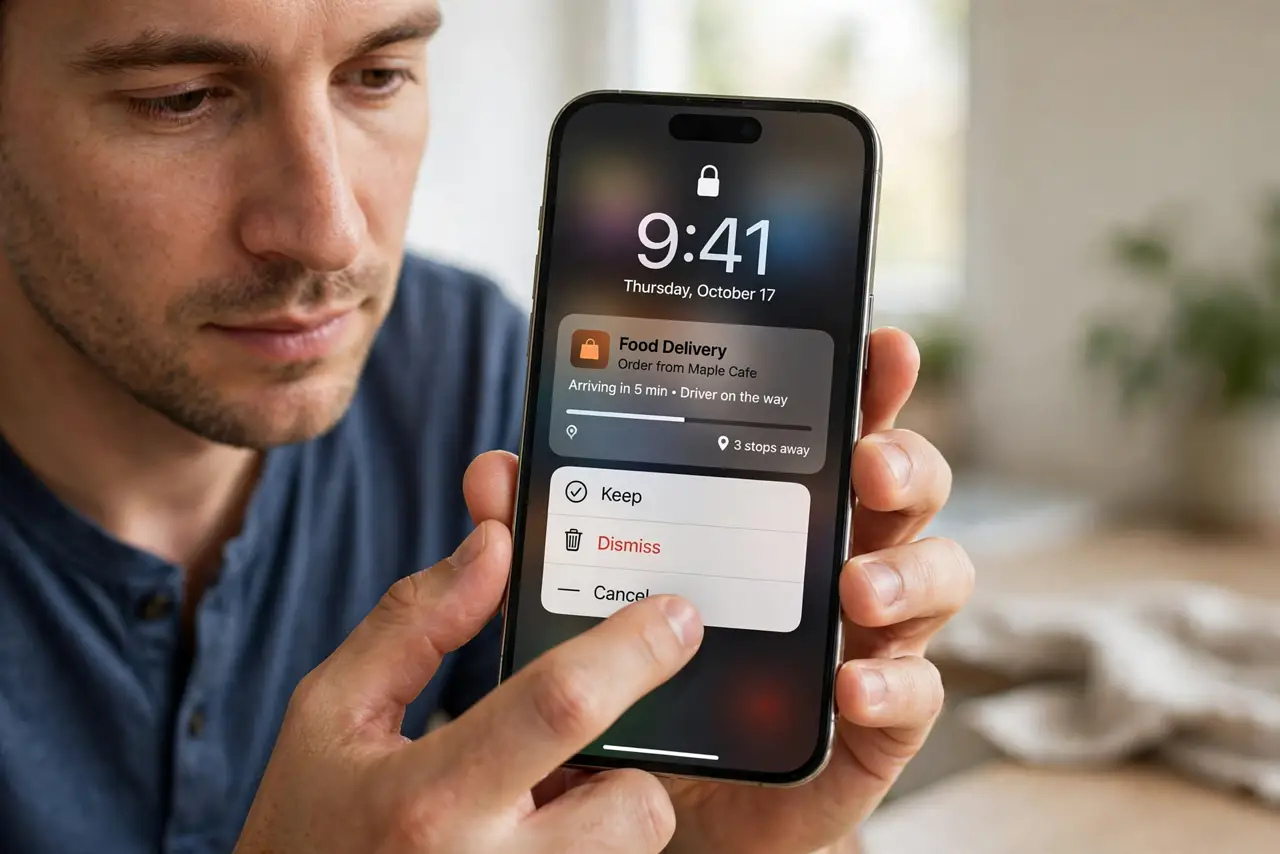
What NOT to do
- Do not delete the app to clear a stuck card. Dismissing the card or ending the activity in the app clears it without losing the app's data.
- Do not turn off all Live Activities over one stuck card. The feature is per-app, so switch off only the app that keeps leaving cards behind.
- Do not assume a stuck card means the event is still running. A delivery can be complete while its card lingers, so check inside the app for the real status.
- Do not ignore a stuck card for days. Dismiss it promptly, since a stale card can hide a newer Live Activity underneath it.
Frequently asked questions
Why does a Live Activity stay after it ends?
Because the app never told the iPhone the activity finished, so the lock screen card has no reason to close.
How do I remove a stuck card?
Press and hold it to dismiss it, or end the activity inside its app, and restart if neither works.
Can I stop one app's Live Activities only?
Yes. Live Activities permission is per-app in Settings, so you can silence one app without affecting the others.