Live Activities? Basics
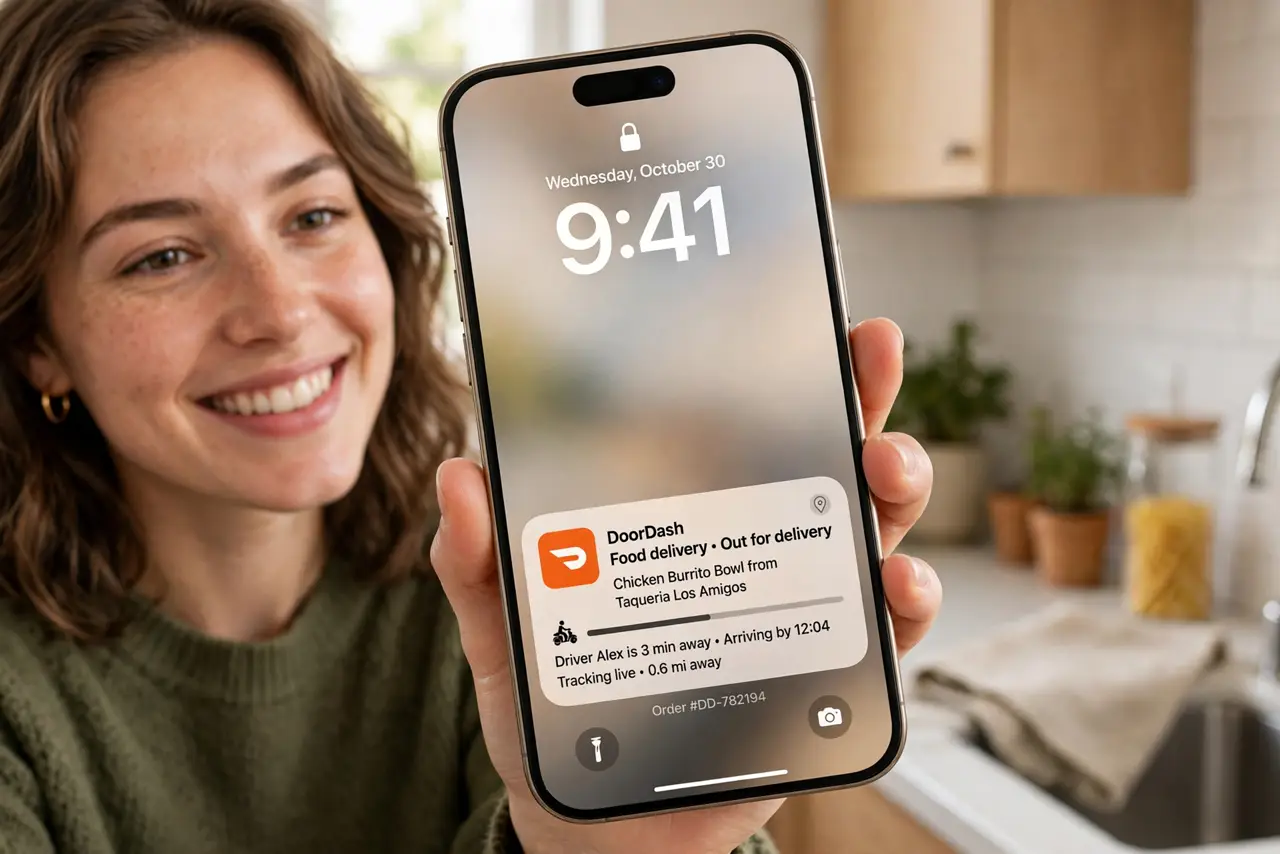
Live Activities are the glanceable updates on your iPhone's Lock Screen and Dynamic Island — a delivery's progress, a sports score, a timer counting down — updating in real time without opening the app. They only work if the app supports them and the setting is on. This guide shows how to enable them, manage them, and fix the common stuck ones.
TL;DR / Quick Fix
Quick fix: Live Activities show real-time updates from apps on your Lock Screen and Dynamic Island. Turn them on under Settings, Face ID and Passcode, then per app. If one gets stuck, force-close the app or restart the phone. They time out after a few hours by design.
Follow these steps
- Check the app supports it. Not every app offers Live Activities — look for the feature in the app's settings or description. Delivery, sports, ride-share, and timer apps are the usual supporters.
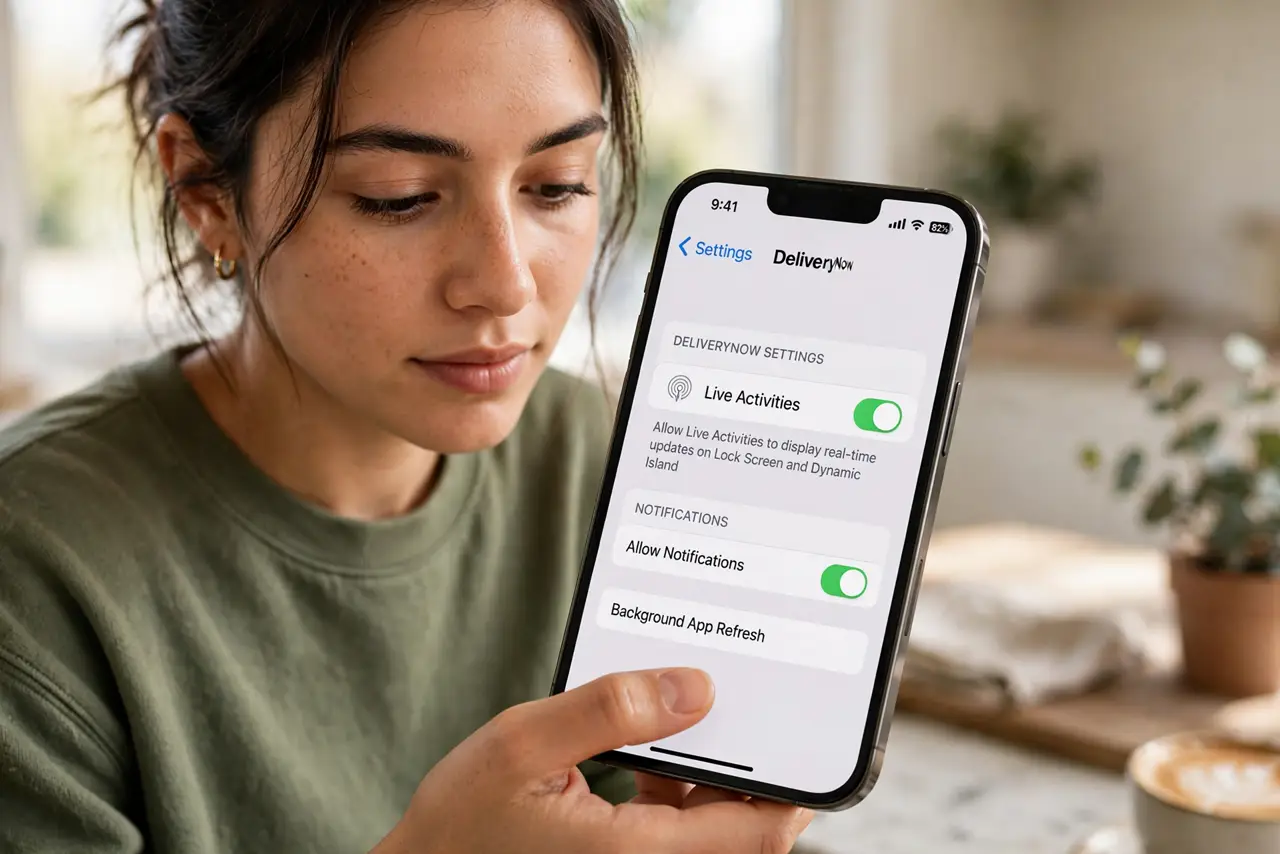
- Enable them in Settings. Go to Settings, then Face ID and Passcode, and make sure Live Activities is on. You can also toggle them per app under each app's own settings page.
- Start one from the app. Order the food, start the timer, open the game — the activity appears on the Lock Screen and in the Dynamic Island automatically once the app begins it.
- Tap to expand, long-press for detail. Tap the Dynamic Island to jump into the app; long-press it to expand the activity inline. On the Lock Screen the full activity shows at a glance.
- Fix a stuck activity by closing the app. If an activity freezes on the Lock Screen, force-close the app that started it — the stuck activity guide has the full walkthrough. If the activity persists, restart the iPhone.
- Know they expire. Live Activities time out after several hours by design — a delivery from yesterday will not haunt your Lock Screen. If one lingers past its event, the app likely failed to end it.
What NOT to do
- Do not expect Live Activities from every app. The app developer has to build support — no setting on your phone can force an old app to offer them.
- Do not leave dozens running. Each active one uses a little battery and Lock Screen space — end them in their apps when the event is over.
- Do not confuse them with notifications. Live Activities update in place silently; notification settings are separate and will not bring a missing activity back.
- Do not factory-reset for a stuck activity. Force-closing the app or restarting the phone clears it — a reset is wildly disproportionate.
Frequently asked questions
Why do I not see Live Activities on my iPhone?
Your iPhone needs iOS 16.1 or later, the setting must be on, and the app must support the feature. Check all three before assuming something is broken.
Do Live Activities drain the battery?
Slightly — they update in real time. One or two are negligible; a dozen active at once is worth trimming.
Can I hide them from the Lock Screen?
Yes. Turn off Live Activities under Face ID and Passcode to keep them off the Lock Screen, or disable them per app while keeping others.