Live Photos Eat Too Much Space? Fix It
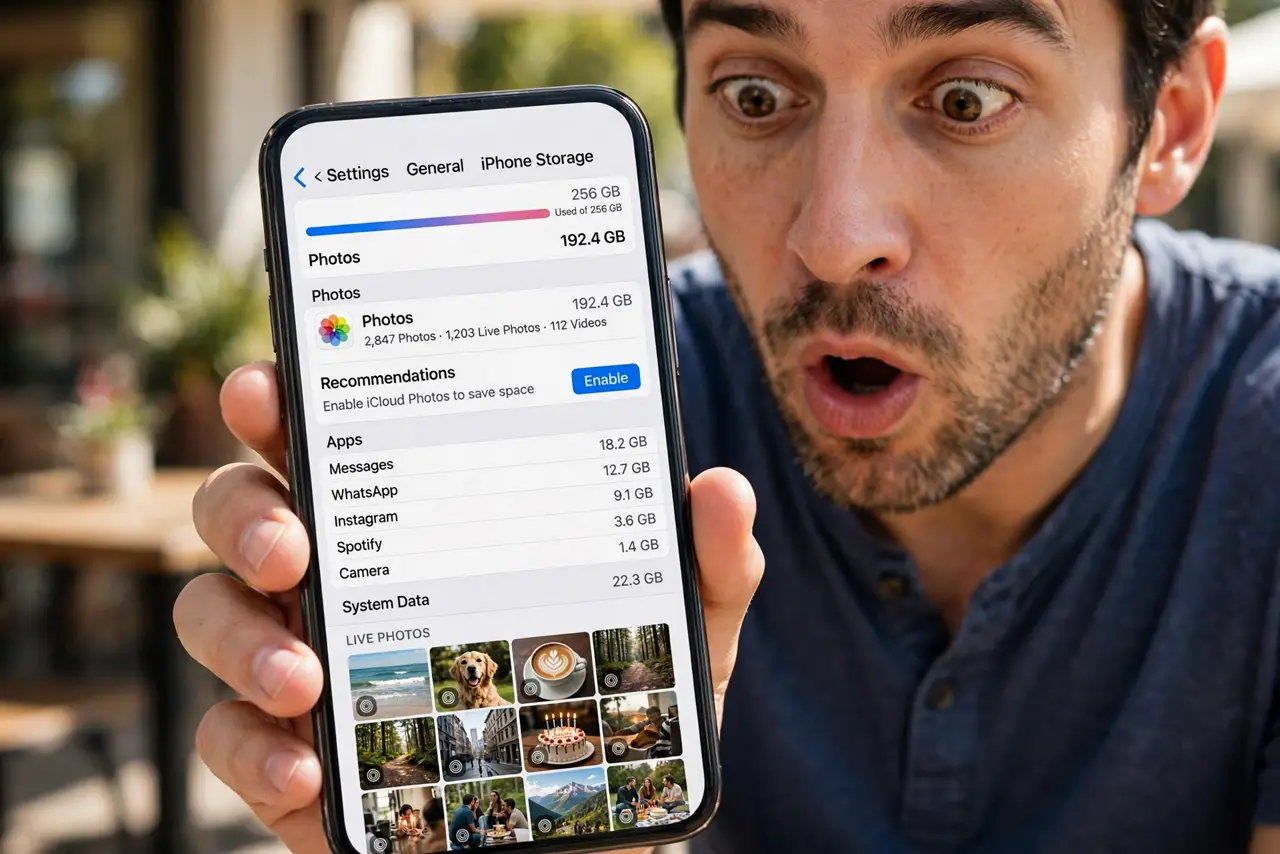
Every photo you take is secretly a short video, doubling its size. Live Photos capture motion and sound with each shot, which is lovely until storage runs out. This guide turns the default off and trims the ones you already have.
TL;DR / Quick Fix
Quick fix: open the Camera app, tap the Live Photo icon to turn it off, and it stays off for future shots. For existing ones, keep the still frame and discard the video part, or convert keepers to stills to reclaim roughly half their space.
Follow these steps
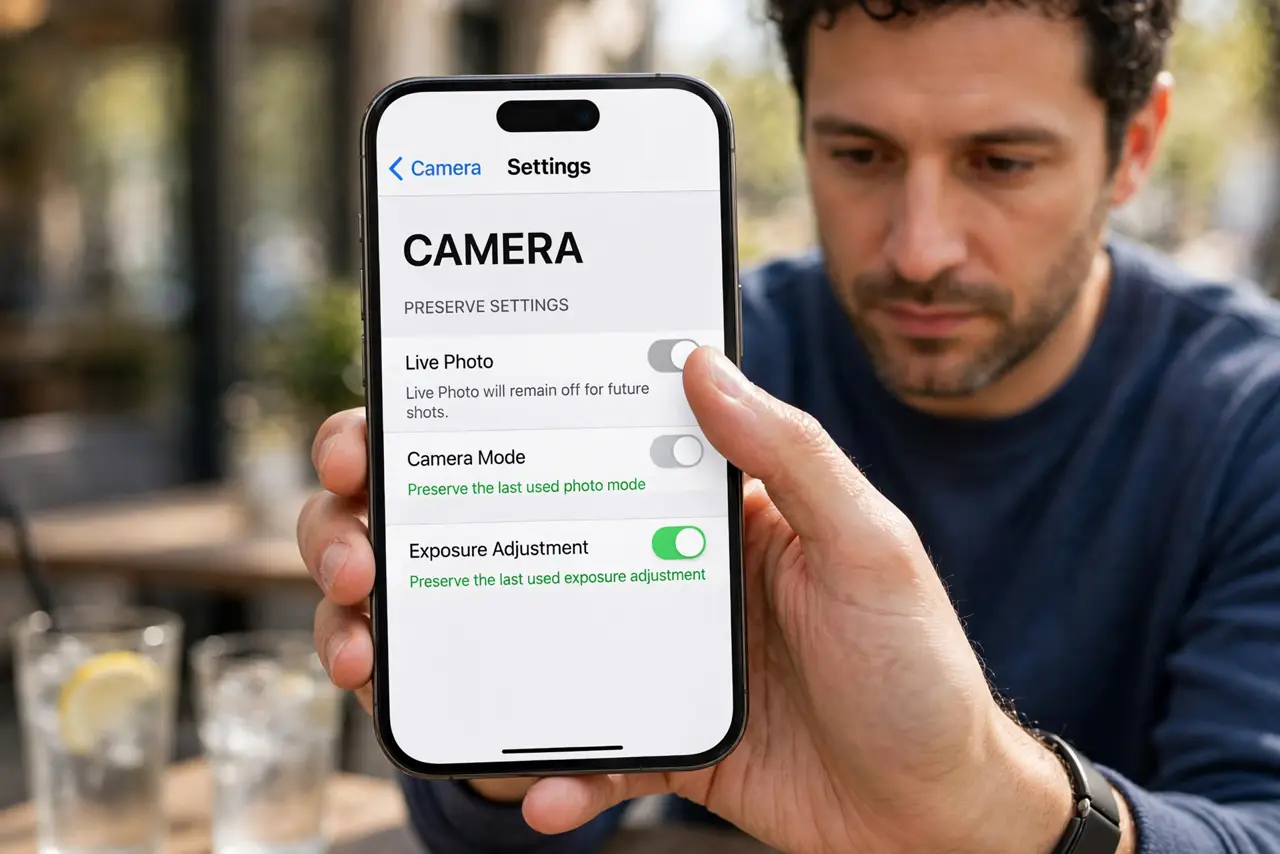
- Turn off Live for future shots. In the Camera app, tap the concentric-circles Live icon until it shows off. The camera remembers, so new photos stay still from now on.
- Understand the size cost. A Live Photo bundles a still plus a short video, roughly doubling the file size. Hundreds of them explain a mysteriously full photo library.
- Convert keepers to stills. Open a Live Photo, tap the Live button, and choose the best frame, or duplicate it as a still. The still keeps the moment at a fraction of the size.
- Delete the video part in bulk. In Photos, filter for Live Photos, review them, and convert or delete ruthlessly. Most Live Photos were never replayed even once.
- Compare with burst photo bloat. Burst sessions multiply storage the same way: dozens of frames per press. Tame both habits together for the biggest savings.
- Check the savings in storage settings. After the cleanup, revisit Settings, then General, then iPhone Storage. The Photos number should drop noticeably, confirming the effort.
What NOT to do
- Do not delete Live Photos before picking keepers. Convert the best frame to a still first, then delete the video part.
- Do not leave Live on for every shot. Reserve it for moments with real motion: kids, pets, and celebrations.
- Do not assume stills lose quality. The key frame of a Live Photo is a full-quality still on its own.
- Do not forget shared albums. Live Photos shared to albums still occupy your library until you clean them.
Frequently asked questions
How much space do Live Photos use?
Roughly twice a normal photo, since each one stores a still plus a short video clip with audio.
Can I turn Live Photos off permanently?
Yes. Turn it off in Camera and it stays off; also disable it in Preserve Settings if it keeps returning.
Will converting lose the photo?
No. The still frame is preserved at full quality; only the motion and sound are discarded.