Speak with Live Speech
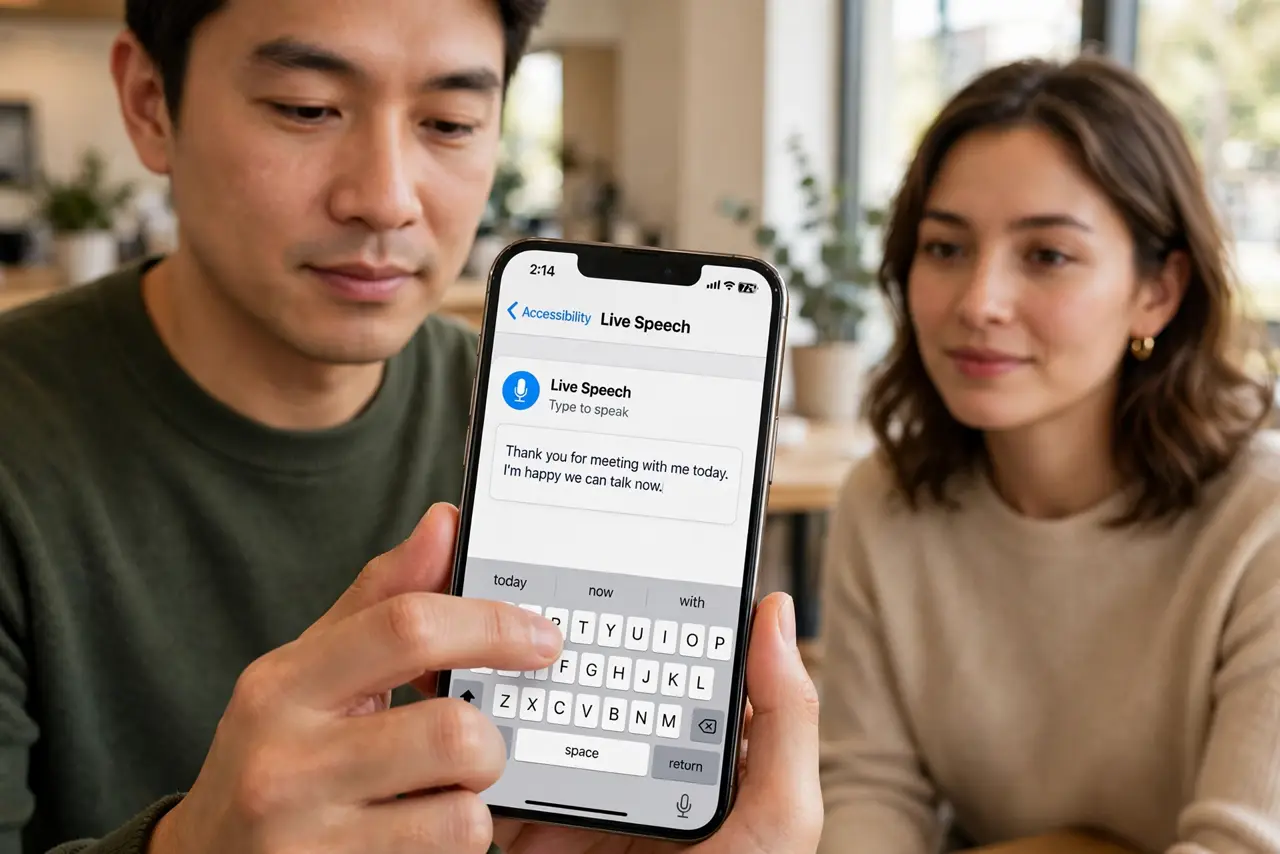
There are moments when your voice is unavailable — laryngitis, a noisy factory floor, a condition that took your speech. Live Speech lets you type and have the iPhone speak for you, in calls and face to face. This guide sets it up for when words will not come out.
TL;DR / Quick Fix
Quick fix: Live Speech types for your voice — enable it in Accessibility, Speech, then triple-click the side button and type what you want said aloud. Pair it with Personal Voice so it speaks in your own voice. It works in calls and in person, even mid-conversation.
Follow these steps
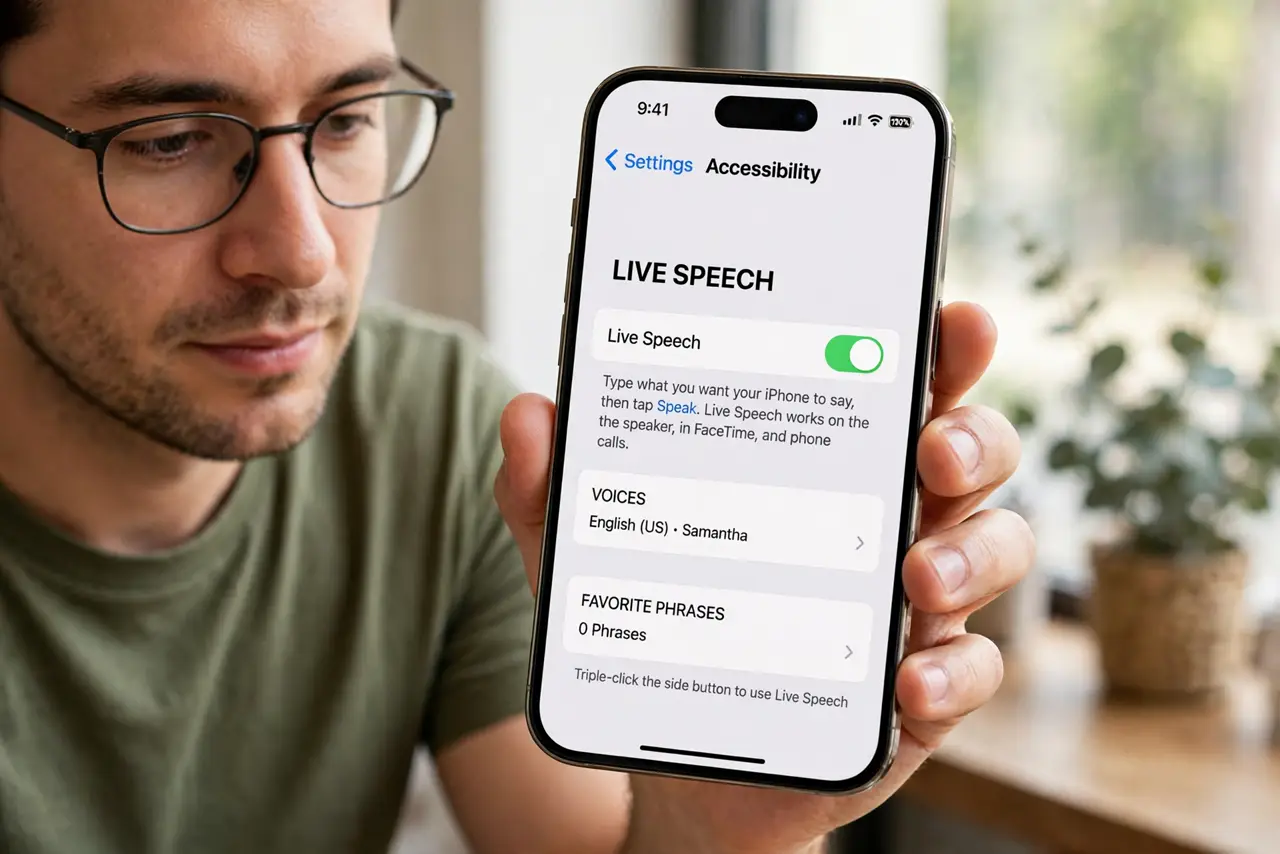
- Enable Live Speech. Go to Settings, Accessibility, Speech, Live Speech. This is the master switch for type-to-speak.
- Set the triple-click shortcut. Assign Live Speech to the Accessibility Shortcut (triple-click side button). In the moment you need it, menu-diving is the last thing you want.
- Type what you want said. Triple-click, type your phrase, and the iPhone speaks it aloud. It works mid-phone-call too — the other person hears the synthesized speech.
- Save favorite phrases. Store common phrases — 'I need help', 'thank you', your coffee order — for one-tap speaking. Favorites turn the feature from tool to reflex.
- Choose your voice. Pick from the system voices, or use your own Personal Voice if you banked one. Your own voice changes everything emotionally.
- Practice before you need it. Run through it once while calm. Accessibility features help most when they are muscle memory, not a first-time experiment in a crisis.
What NOT to do
- Do not wait for the crisis to set it up. Configure and practice while you can — emergencies are bad classrooms.
- Do not forget the shortcut. Triple-click must be configured ahead of time or the feature is unreachable when it matters.
- Do not expect conversation flow. Typed speech is slower than talking — keep phrases short and essential.
- Do not skip favorite phrases. Typing 'I need help' letter by letter in an emergency wastes the seconds that matter.
Frequently asked questions
Does the other caller hear Live Speech?
Yes — on phone and FaceTime calls, the synthesized speech goes to the other person normally.
Can I use it in other languages?
Yes — the voice follows your system voice language settings. Set the language you need before you need it.
Is it only for emergencies?
Not at all — noisy environments, quiet spaces, voice rest days. Any moment typing beats talking.