Lock Apps Behind Face ID
Your photos, banking, and notes apps sit one tap away from anyone holding your unlocked phone. Since iOS 18, you can require Face ID for any app — and optionally hide it from the Home Screen entirely. Two long-presses buy real privacy.
TL;DR / Quick Fix
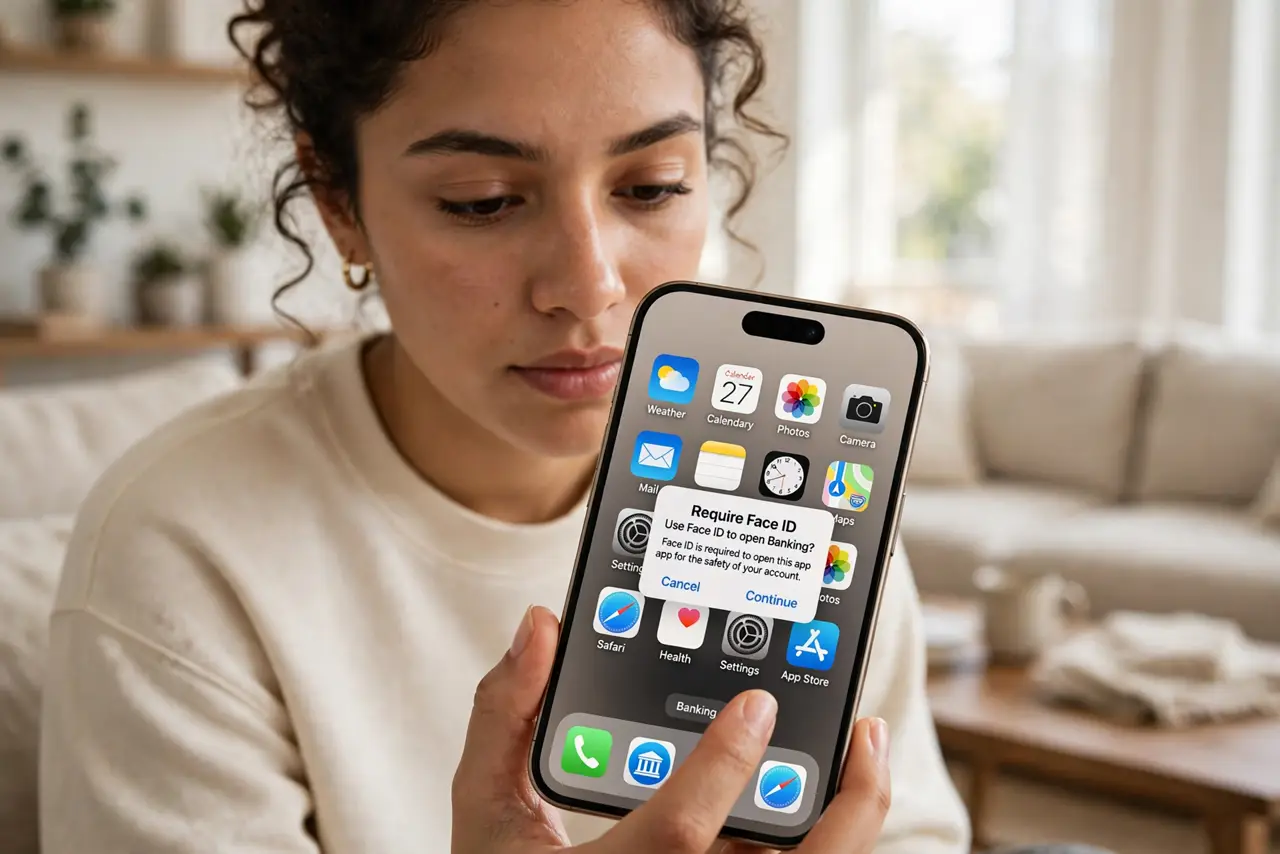
Quick fix: on iOS 18 and later, long-press an app icon on the Home Screen, choose Require Face ID, and confirm. The app then needs Face ID every launch. To hide it completely, choose Hide and Require Face ID instead.
Follow these steps
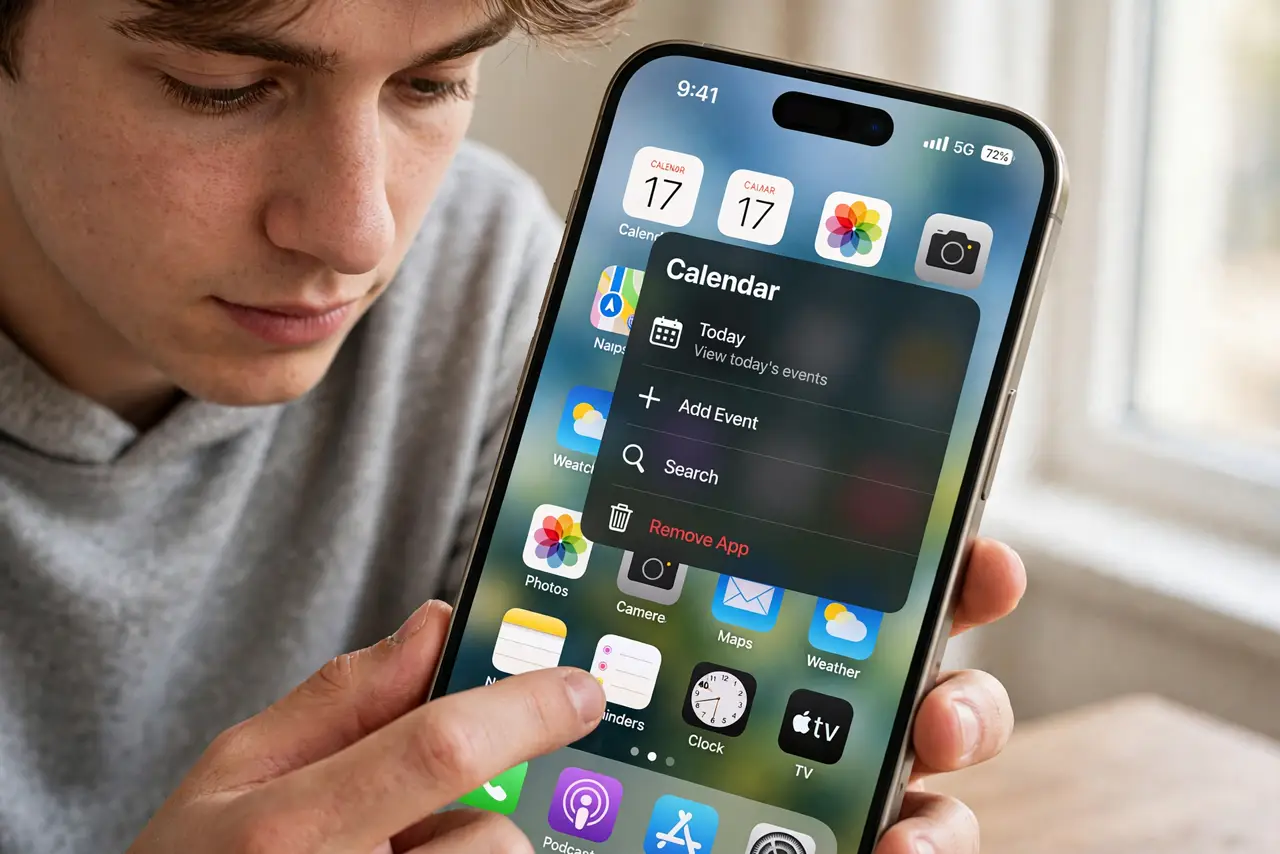
- Long-press the app icon. On the Home Screen, press and hold the app you want to protect until the quick-action menu appears.
- Choose Require Face ID. Tap ‘Require Face ID’ and authenticate once to confirm. From now on, every launch asks for your face.
- Hide it for full privacy. Choose ‘Hide and Require Face ID’ instead, and the app leaves the Home Screen for the Hidden folder in the App Library.
- Test the lock immediately. Lock the phone, unlock it, and open the app. Face ID should prompt before any content appears — verify, don't assume.
- Know what it does not cover. Notifications can still preview content on the lock screen. Tighten notification previews separately for truly sensitive apps.
- Use it for the big three first. Banking, photos, and messaging give the most privacy per tap. Lock those before worrying about the rest.
What NOT to do
- Do not lock every app on the phone. Face ID prompts on 80 apps turn convenience into a chore you will disable.
- Do not hide apps you open ten times a day. The Hidden folder adds friction; reserve hiding for genuinely sensitive apps.
- Do not forget a backup unlock exists. If Face ID fails repeatedly, your device passcode still opens locked apps.
- Do not confuse this with Screen Time locks. App limits restrict usage time; Face ID locks restrict access — different tools.
Frequently asked questions
Can someone bypass the Face ID app lock?
Only with your device passcode, which is the designed fallback. Without your face or passcode, the app stays shut.
Do locked apps still send notifications?
Yes, unless you change it. Go to the app's notification settings and set Show Previews to Never for sensitive ones.
Why can't I lock some Apple apps?
A few system apps cannot be locked or hidden. For those, notification and Screen Time controls are the fallback.