Lock Apps with Face ID
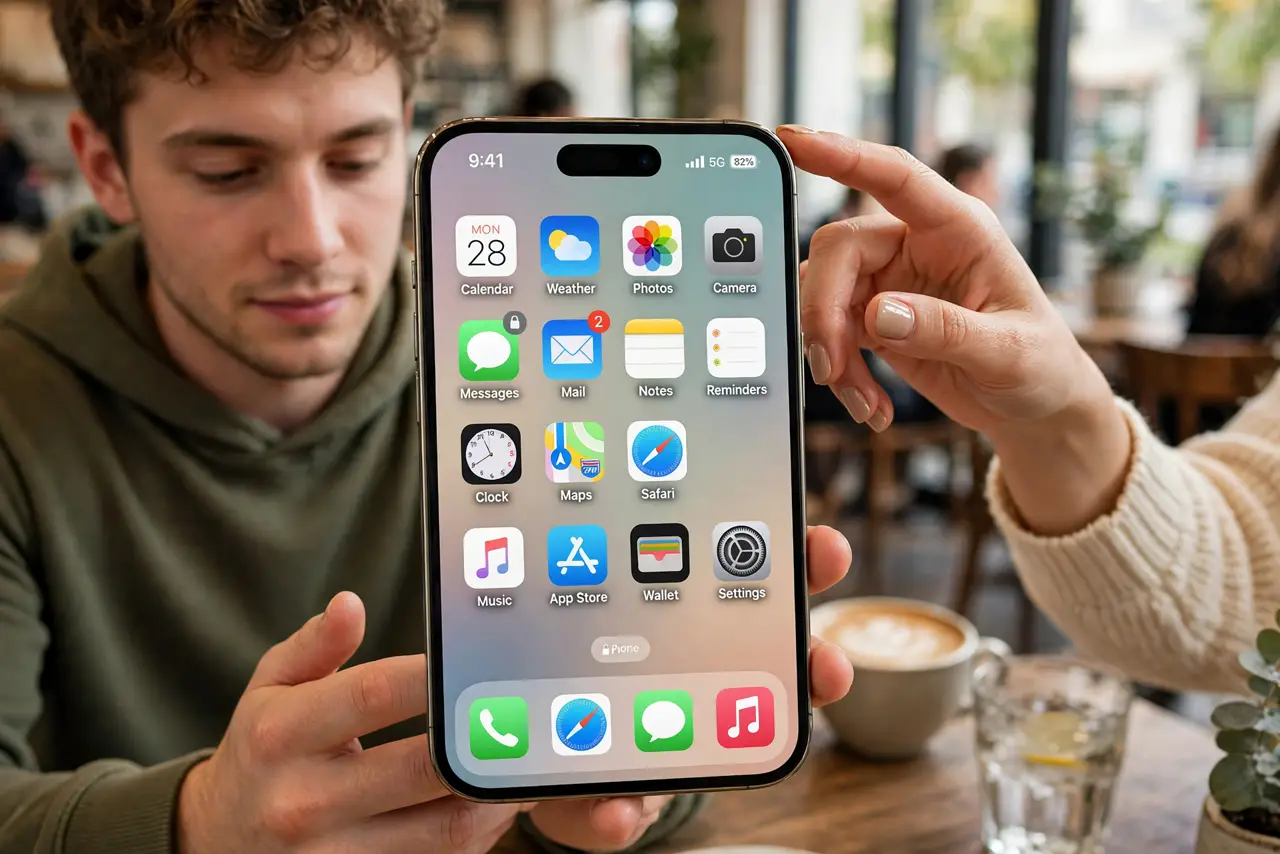
You lend your phone so someone can make a call or see a photo, and suddenly your messages are one tap away from curious eyes. iOS 18 lets you lock any app behind Face ID: the app stays on your home screen but demands your face every time it opens — including hiding its notification previews. Two minutes of setup buys real peace of mind.
TL;DR / Quick Fix
Quick fix: iOS 18 lets you lock any app behind Face ID — long-press the app icon, tap Require Face ID, and confirm. The app then needs your face every time it opens, including its notifications preview. Use it for messages, mail, and banking when others borrow your phone.
Follow these steps
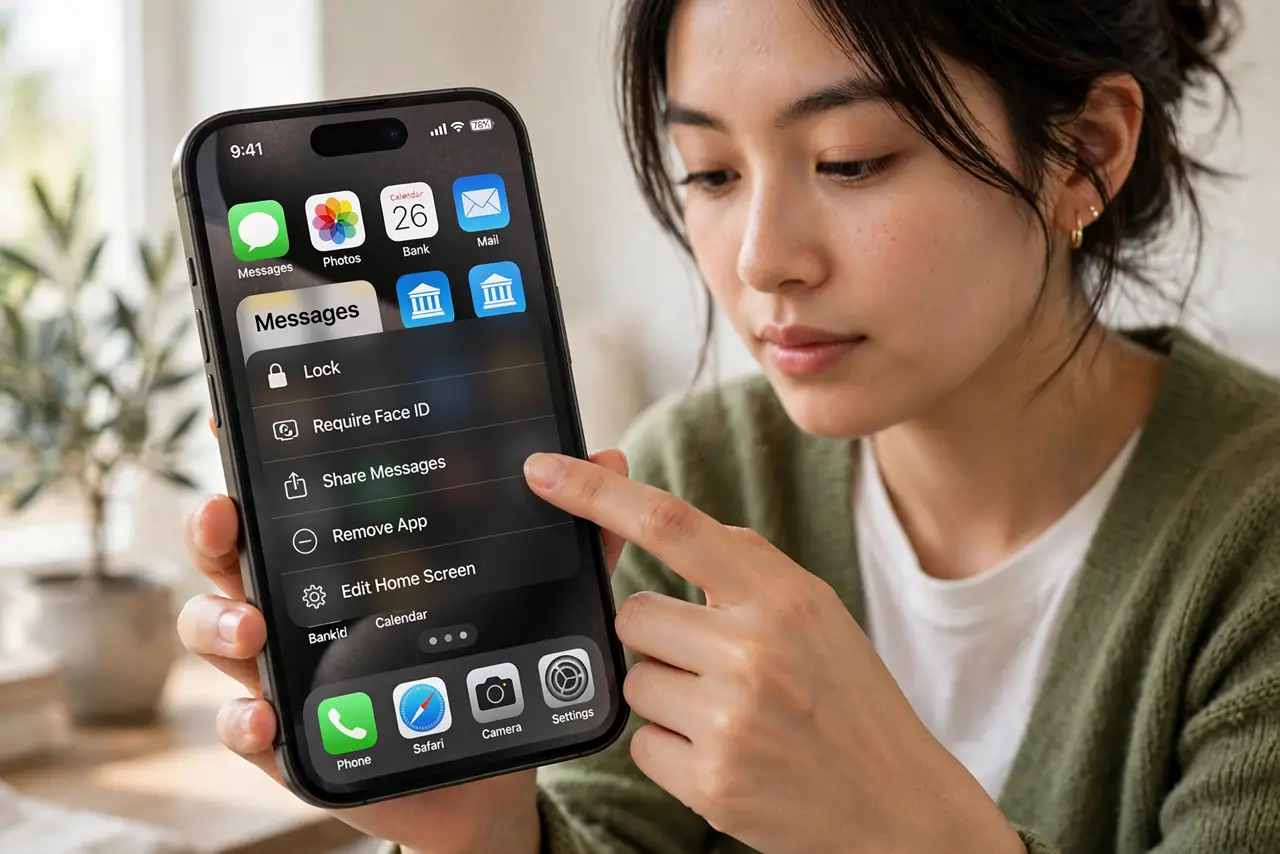
- Long-press the app icon. Press and hold the app you want to protect — Messages, Mail, banking, photos — until the quick menu appears. Most apps support locking; a few system apps do not offer it.
- Tap Require Face ID. Choose the Require Face ID option (not the Hide option) and authenticate once to confirm. From now on, opening the app requires your face — every single time.
- Check notification previews. Locked apps also hide their notification content on the lock screen — previews show as generic 'Notification' until you authenticate. This closes the over-the-shoulder reading gap too.
- Lock the sensitive set. Messages, Mail, banking, authenticator, and photos are the big five. Locking everything is overkill and annoying; locking the apps that expose your life is the sweet spot.
- Know the passcode fallback. If Face ID fails twice, the phone falls back to your device passcode. That means your passcode strength matters — a locked app is only as strong as the passcode behind it.
- Need stronger? Hide instead. Locking keeps the app visible but gated. If even the icon's presence is a problem, the same menu offers full hiding — the app vanishes into the locked Hidden folder entirely.
What NOT to do
- Do not lock apps you need instantly. A locked medical ID or emergency app that fumbles Face ID in a crisis is dangerous — keep emergency access frictionless.
- Do not use a weak device passcode. Face ID's fallback is the passcode; '123456' behind a Face ID lock is decoration.
- Do not expect it to hide the app's existence. The icon stays on the home screen — locking stops opening, not seeing. Hide the app if visibility itself is the issue.
- Do not forget it in Screen Time. A very snoopy person can still see app names in Screen Time reports — locking covers the casual borrower, not a forensic one.
Frequently asked questions
Does locking an app log me out?
No. It only gates opening the app — sessions, logins, and data stay exactly as they were. It is a door lock, not a logout.
Can I lock apps with a passcode instead of Face ID?
The feature uses Face ID (or Touch ID) with device-passcode fallback — there is no separate per-app passcode. The fallback is your normal unlock passcode.
Will locked apps still update in the background?
Yes. Locking affects opening the app, not its background activity — mail still arrives, backups still run.