Change the Lock Screen Buttons
For years the iPhone lock screen forced flashlight on the left and camera on the right — tap the wrong one and you blind yourself at midnight. Since iOS 18 you can swap both buttons for any Control Center control, or remove them entirely. Thirty seconds, and the lock screen finally matches how you actually use the phone.
TL;DR / Quick Fix
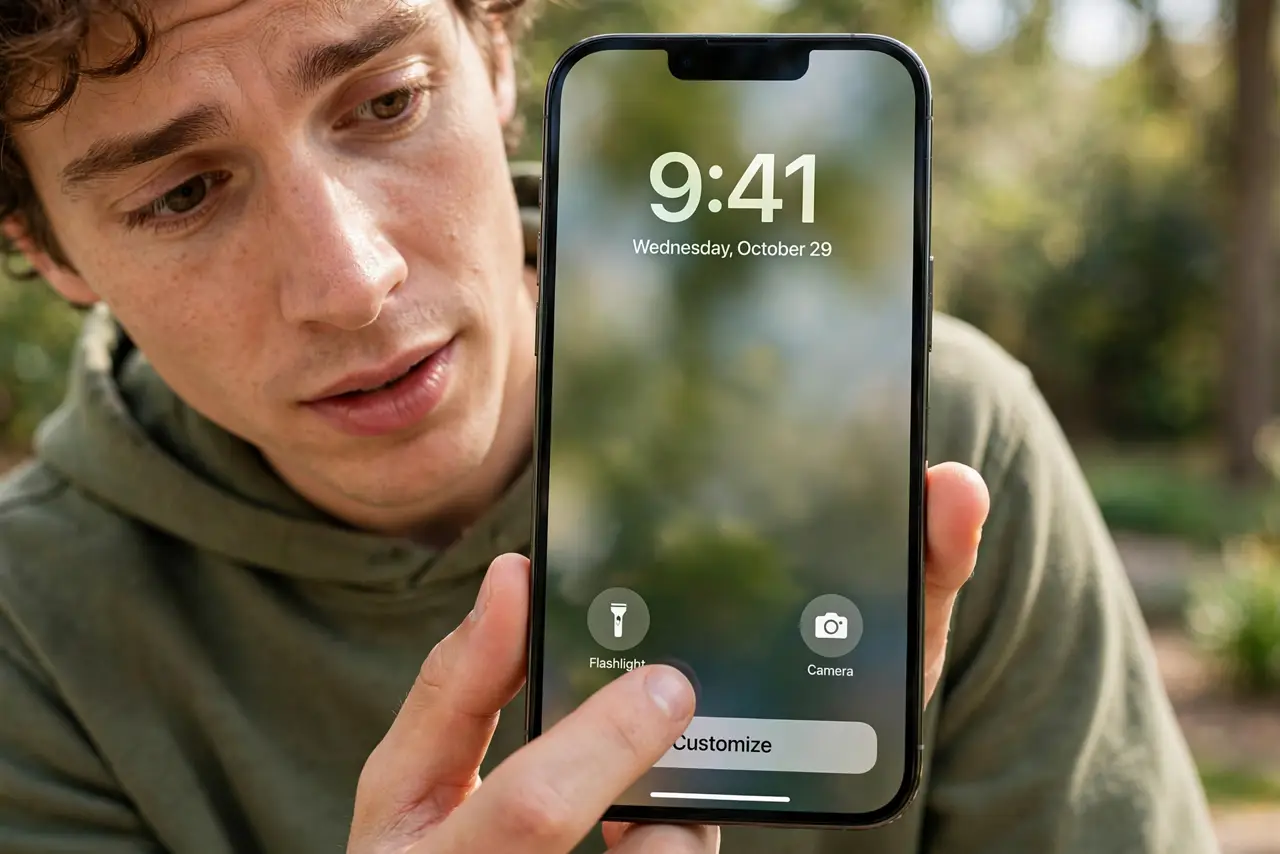
Quick fix: long-press the lock screen, tap Customize, choose Lock Screen, then tap the minus on the flashlight or camera button and tap the empty slot to pick any control. You need iOS 18 or later. Removing both buttons gives the cleanest look — the camera stays one swipe away.
Follow these steps
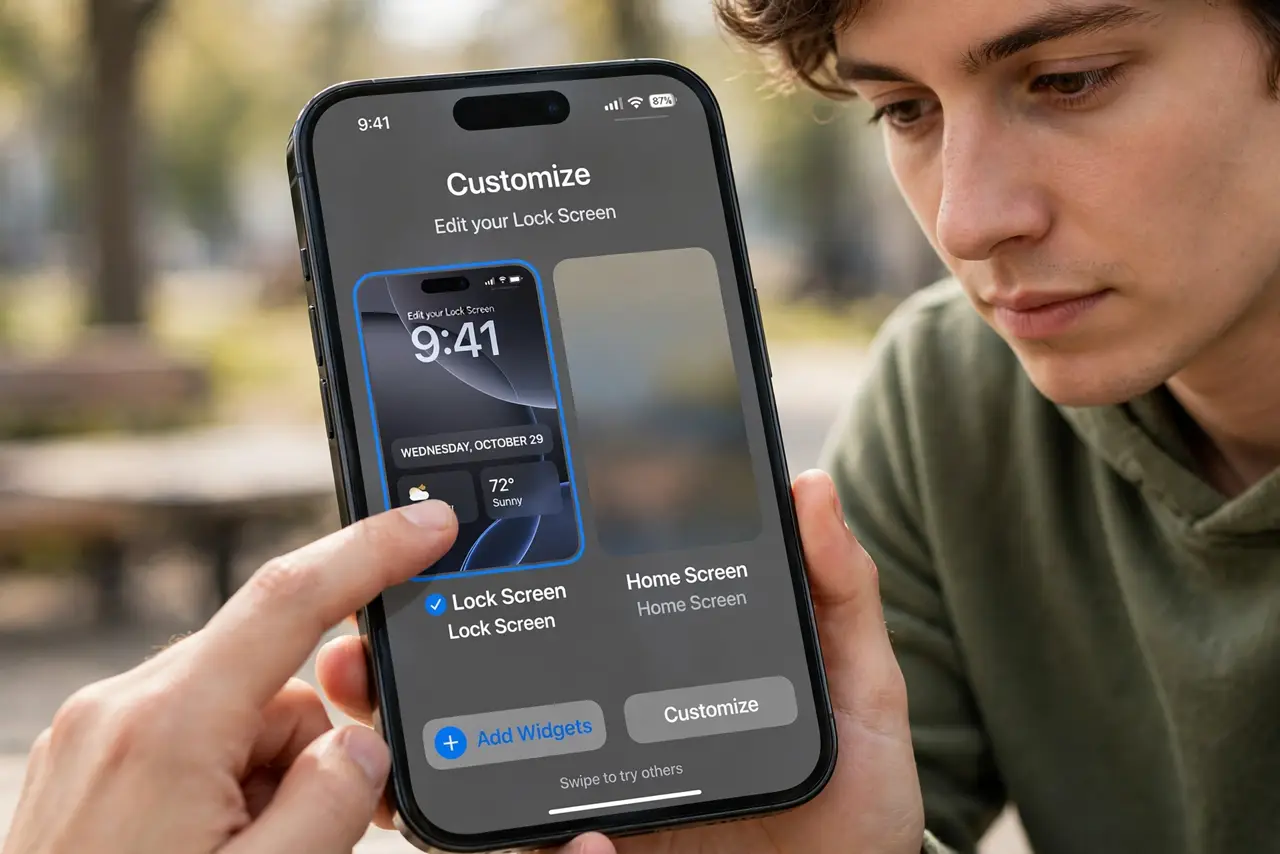
- Enter lock screen editing. Long-press the lock screen, tap Customize at the bottom, then choose Lock Screen — not Home Screen.
- Remove a default button. Tap the minus badge on the flashlight or camera button. The slot empties, waiting for your pick.
- Pick your replacement. Tap the empty slot and choose any control — calculator, translate, dark mode, voice memos, even a shortcut. The list is the full Control Center catalog.
- Try the clean look. Remove both buttons for a minimal lock screen. The camera stays one swipe left away, and Control Center still holds the flashlight.
- Confirm you are on iOS 18+. Settings > General > Software Update. On older iOS the buttons are fixed — this customization does not exist there.
- Test with the screen locked. Lock the phone and try the new buttons. A control that needs the phone unlocked will say so — pick another if that annoys you.
What NOT to do
- Do not remove the camera button and then panic. Swipe left on the lock screen — the camera was always there too.
- Do not pick a control that needs unlocking if that bothers you. Some controls demand Face ID first; test before committing.
- Do not expect the change on older iPhones stuck below iOS 18. The feature needs the newer system.
- Do not confuse lock screen buttons with widgets. Buttons are the two bottom corners; widgets live in the row under the clock.
Frequently asked questions
Can I put any app on the lock screen buttons?
Any Control Center control — which covers many apps' actions and all Shortcuts. Full arbitrary apps are not on the list.
Why can't I change the buttons?
You need iOS 18 or later. Update first; on older versions the flashlight and camera are permanent.
Will removing the flashlight button break Control Center?
No — Control Center keeps its own flashlight toggle. The lock screen buttons are independent.