Turn On Lockdown Mode
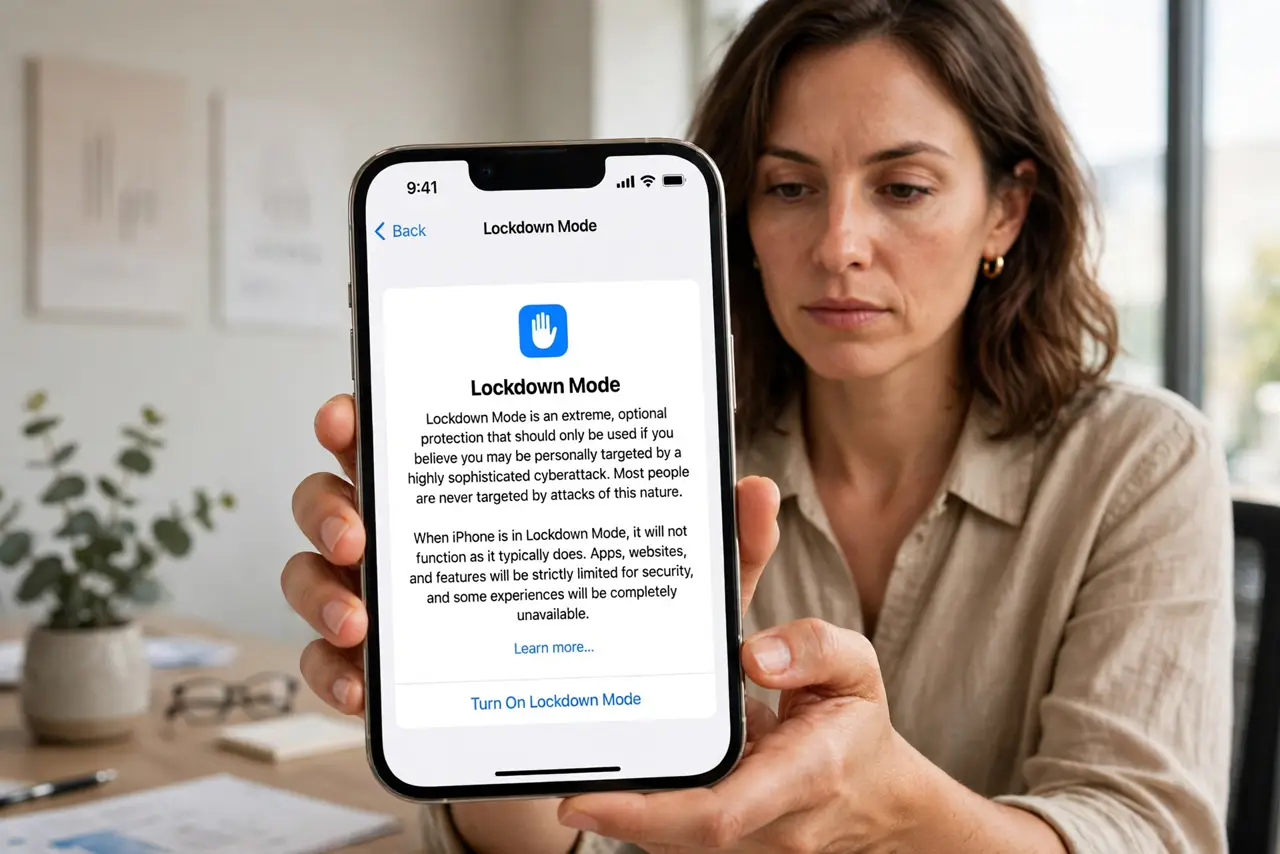
Most iPhone security advice is for everyday threats. Lockdown Mode is different: Apple's extreme hardening for people who genuinely fear targeted attacks — journalists, activists, or anyone who believes a sophisticated attacker is after them. It disables risky features across the phone. Most people should not turn it on. Also see the Mac version and Apple lockdown details.
TL;DR / Quick Fix
Quick fix: Lockdown Mode is Apple's protection for people who fear targeted attacks — it hardens the iPhone by disabling risky features like message attachments and link previews. Most people do not need it. Turn it on only if you have a real reason to believe you are a target.
Follow these steps
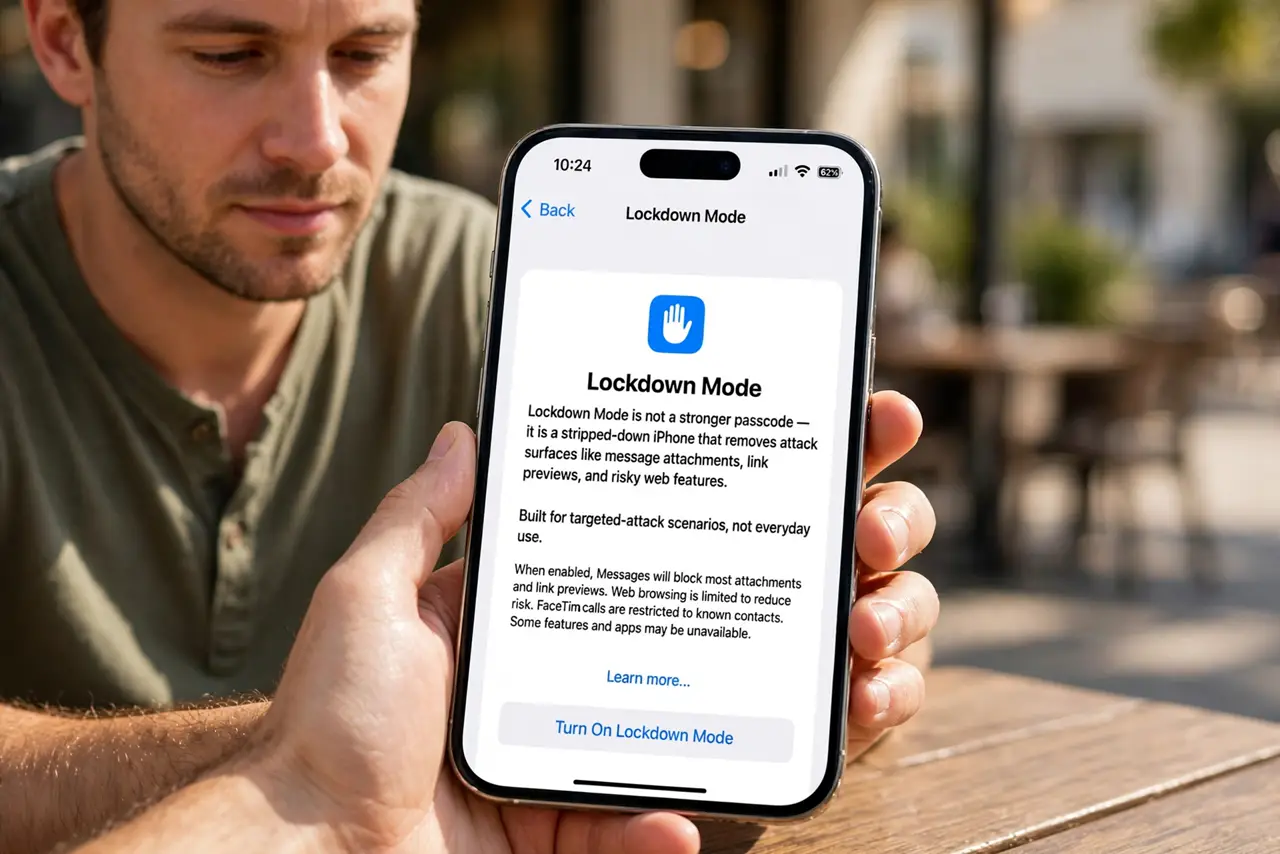
- Understand what it is for. Lockdown Mode is not a stronger passcode — it is a stripped-down iPhone that removes attack surfaces like message attachments, link previews, and risky web features. It is built for targeted-attack scenarios, not everyday use.
- Open the setting. Go to Settings, then Privacy and Security, then Lockdown Mode. Read Apple's explanation screen carefully before proceeding — it lists exactly what gets limited.
- Turn it on and restart. Confirm, and your iPhone restarts into Lockdown Mode. The change is obvious immediately: many small conveniences stop working.
- Learn what breaks. Most message attachments are blocked, link previews disappear, FaceTime calls from unknown contacts are silenced, and some web technologies are disabled. Apps keep working, but with guardrails.
- Browse with the limits in mind. Websites may behave oddly with certain features disabled. For trusted sites you can exclude them from the restrictions in Safari settings.
- Turn it off when the threat passes. Lockdown Mode is reversible from the same screen. If your situation changes, turn it off and your iPhone returns to normal — nothing is deleted.
What NOT to do
- Do not enable it out of general anxiety. For everyday threats, a strong passcode and updates protect you without breaking features.
- Do not expect apps to behave normally. Many conveniences are intentionally disabled — that is the point, and it can frustrate.
- Do not use it as a substitute for Safety Check in personal-safety situations. If someone you know is the threat, review sharing controls instead.
- Do not forget it is device-wide. The restrictions apply everywhere on the phone, not just in one app.
Frequently asked questions
Who actually needs Lockdown Mode?
Very few people — those who have concrete reason to believe they face targeted digital attacks. For everyone else it is overkill that degrades the phone.
What exactly gets disabled?
Message attachments (mostly), link previews, incoming FaceTime from strangers, risky web tech, and some configuration profiles. Apple documents the full list on the settings screen.
Can I turn it off again?
Yes, anytime, from the same Settings screen. Your data and apps are untouched — only the restrictions lift.