Lockdown Mode? What It Does
An optional Apple feature that dramatically hardens your devices — at the cost of convenience most people will not accept. Lockdown Mode exists for a tiny audience: people who might be personally targeted by sophisticated attackers. Everyone else should understand it, admire it, and leave it off.
TL;DR / Quick Fix
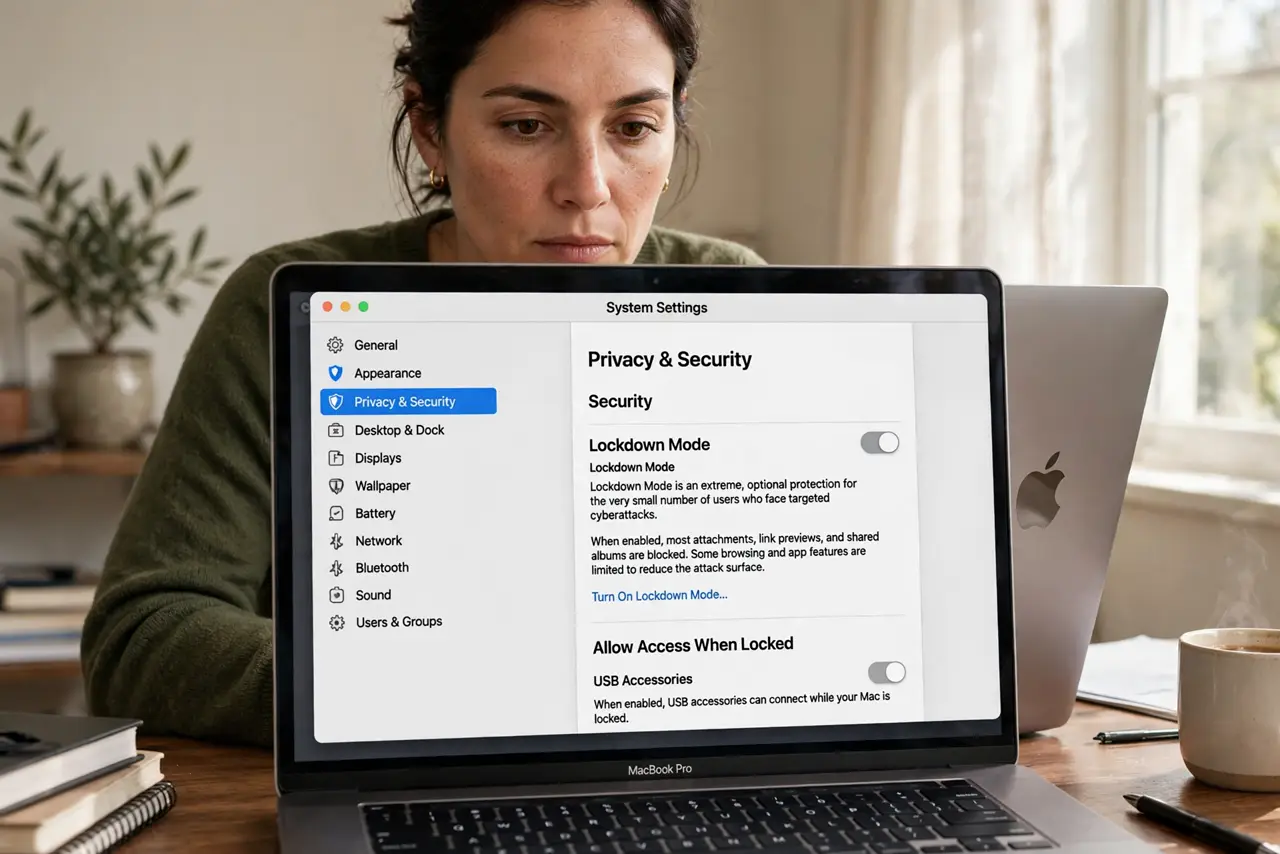
Quick fix: Lockdown Mode is an extreme protection setting for people facing targeted attacks — journalists, activists, dissidents. It disables message attachments, link previews, and other common attack routes. Turn it on in Privacy and Security settings, but leave it off for everyday use.
Follow these steps
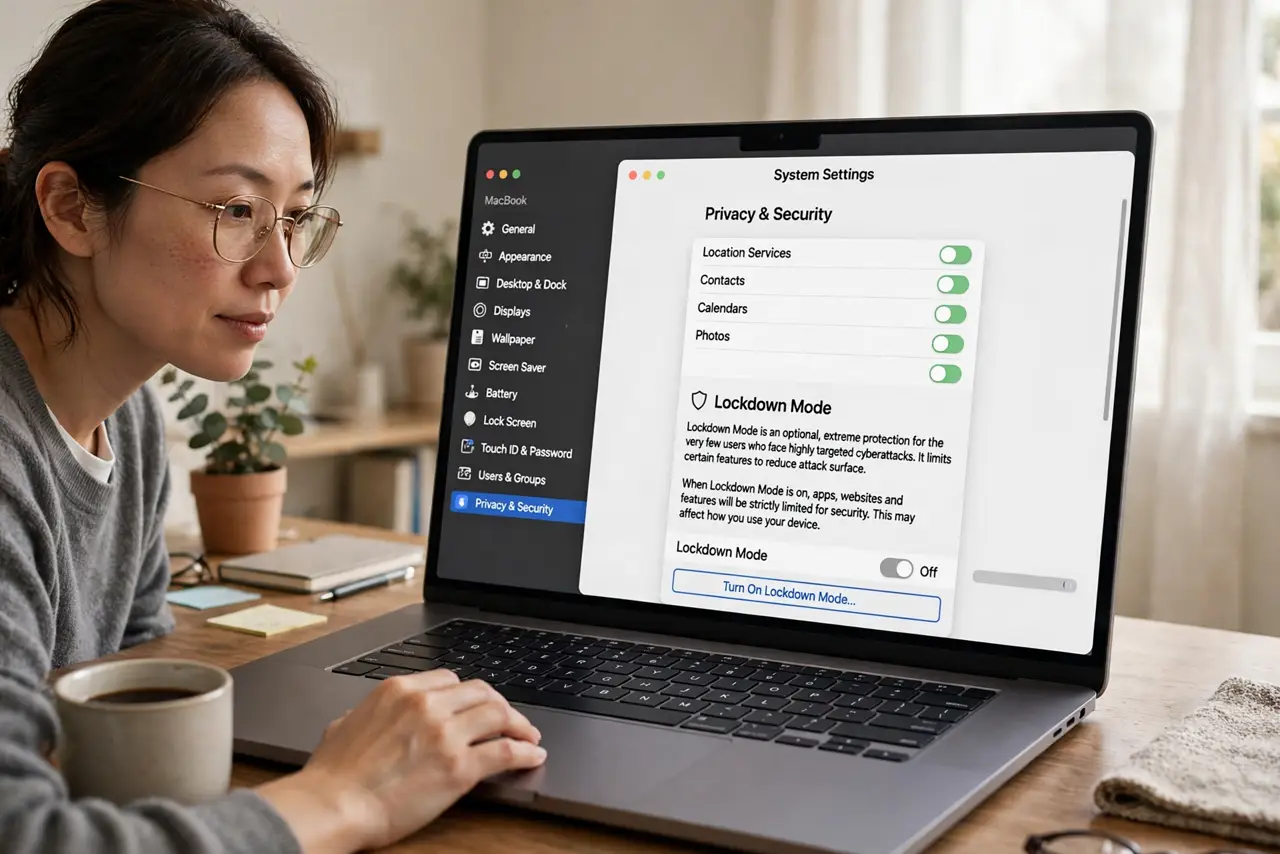
- Find it in Privacy and Security. In System Settings, go to Privacy and Security and scroll to Lockdown Mode. Apple buries it deliberately — it is not for casual toggling.
- Understand what it disables. Message attachments, link previews, FaceTime from unknown contacts, and several web technologies get blocked. These are the most common sophisticated-attack routes.
- Know who it is for. Journalists, activists, dissidents, executives — people who might be individually targeted by well-funded attackers. Not for general malware worry.
- Expect daily friction. Websites lose features, shared albums stop working fully, and some calls will not connect. This is the price, and it is steep.
- Turn it off when the threat passes. Lockdown Mode is a posture, not an identity. Disable it when the specific risk ends and reclaim normal functionality.
- Use the firewall for everyday threats. Normal users facing normal risks need the firewall, updates, and good habits — Lockdown Mode is overkill by design.
What NOT to do
- Do not enable it 'to be extra safe.' The friction will annoy you daily while protecting against threats you do not face.
- Do not enable it on a family member's Mac without explaining. They will think the Mac is broken when attachments stop working.
- Do not treat it as antivirus. It hardens against targeted exploits; it does nothing about phishing, which is how most people actually get compromised.
- Do not forget it syncs consequences. Enabling it affects Messages and FaceTime behavior across your Apple ID experience.
Frequently asked questions
Will Lockdown Mode stop phishing?
No — phishing attacks you, not your device. No device setting stops a convincing fake login page; skepticism does.
Can I enable it temporarily?
Yes — toggle it on for a risky trip or period, then off again. It is designed to be a temporary posture.
Does it affect all my Apple devices?
It is per-device. Enabling it on your Mac does not enable it on your iPhone — configure each device separately.