Stop Macro Mode Switching on Its Own
You frame a shot, and the lens visibly jumps — the image shifts, the perspective changes, and your composition is ruined. That is the iPhone auto-switching to its macro lens as you get close. Sometimes you want macro; often you do not. The Macro Control toggle puts the decision back in your hands.
TL;DR / Quick Fix
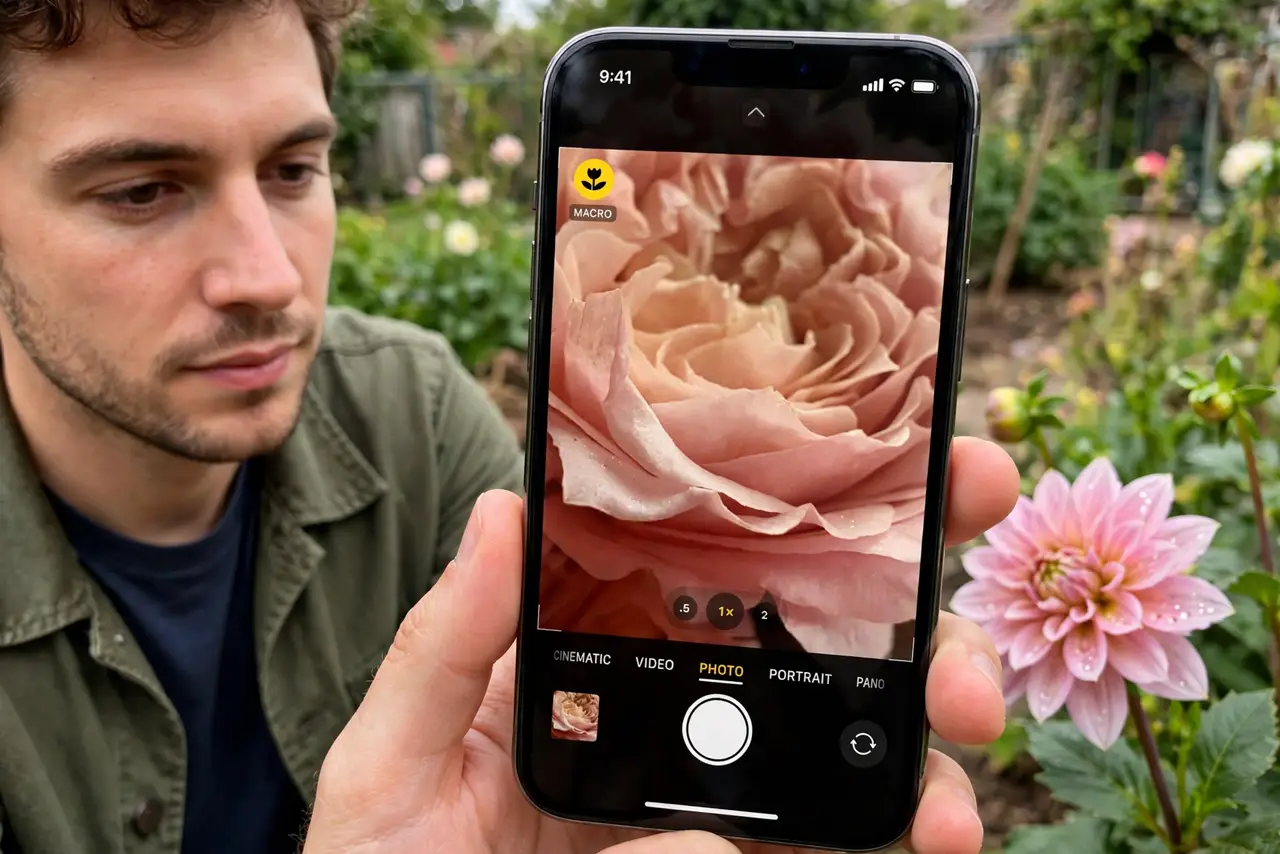
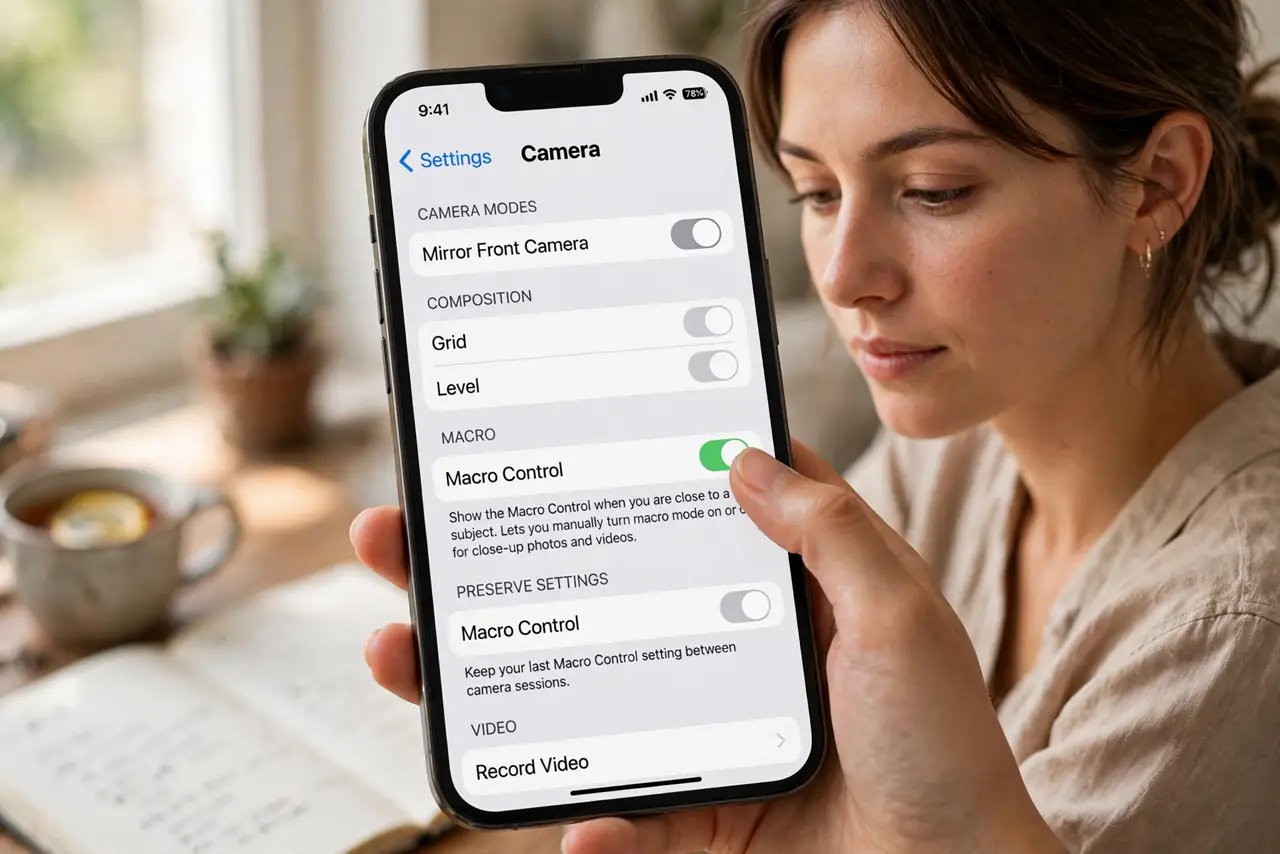
Quick fix: open Settings > Camera and turn on Macro Control. A small flower icon then appears whenever the camera wants to switch to macro — tap it to block the switch and stay on the main lens. Without the toggle, the lens swaps automatically and your framing jumps.
Follow these steps
- Enable Macro Control. Open Settings > Camera and switch Macro Control on. The flower icon now appears in the camera app near the zoom indicator.
- Read the flower icon. When the camera wants macro, the flower lights up. Tap it to stay on the main lens; leave it to accept the macro switch.
- Get close deliberately for macro. With control enabled, move in close and let the flower engage when you actually want those extreme close-ups.
- Know which iPhones have it. Macro photography needs the ultra-wide lens of an iPhone 13 Pro or newer. Older phones never switch, so they never need this toggle.
- Keep the lens clean. Macro magnifies every smudge. A quick wipe matters more at macro distance than anywhere else.
- Use good light. Macro shots need plenty of light — the tiny focus distance plus a shadow from the phone itself is the classic ruined macro.
What NOT to do
- Do not fight the auto-switch by pulling back. Enable Macro Control once and tap the flower — that is the designed solution.
- Do not expect macro on older iPhones. Without the hardware, no setting conjures it.
- Do not shoot macro in dim rooms. The results disappoint without strong light — take the subject to a window.
- Do not confuse the flower icon with a filter. It is a lens switch, not an effect — tapping it changes optics, not colors.
Frequently asked questions
Why does my camera keep switching lenses by itself?
The iPhone auto-engages macro when you get close. Macro Control in Settings > Camera replaces the automatic jump with a tap-to-confirm flower icon.
Can I force macro mode on?
Move close to the subject with the flower engaged. There is no manual macro button — proximity plus the toggle is the mechanism.
Does macro work for video?
Yes — the same auto-switching applies in video, and Macro Control governs it there too.