Use iPhone as Magnifier
Restaurant menus in tiny print, serial numbers on the router, medicine labels — squinting is optional. Your iPhone is a superb magnifier with zoom, freeze-frame, and a light built in. This guide turns it on and makes it one triple-click away.
TL;DR / Quick Fix
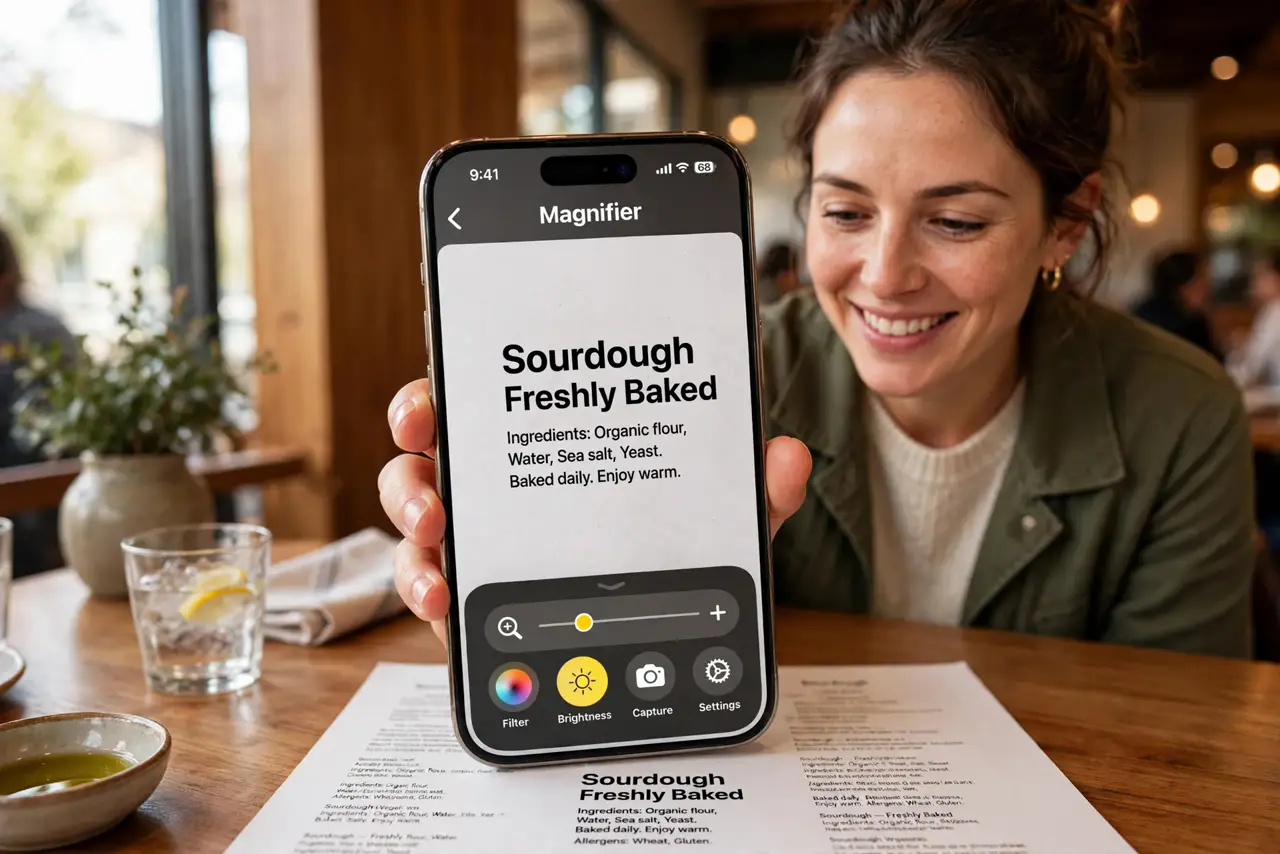
Quick fix: turn your iPhone into a magnifier — triple-click the side button (set Magnifier as the Accessibility Shortcut) or open the Magnifier app. Point at tiny print, pinch to zoom, and freeze the frame to read comfortably. Turn on the flashlight for dark menus.
Follow these steps
- Open the Magnifier app. Find Magnifier in the App Library or search for it. It is a real app, not just an accessibility toggle — open it once to see the controls.
- Set the Accessibility Shortcut. In Settings, Accessibility, Accessibility Shortcut, choose Magnifier. Triple-click the side button now launches it from anywhere — even the lock screen.
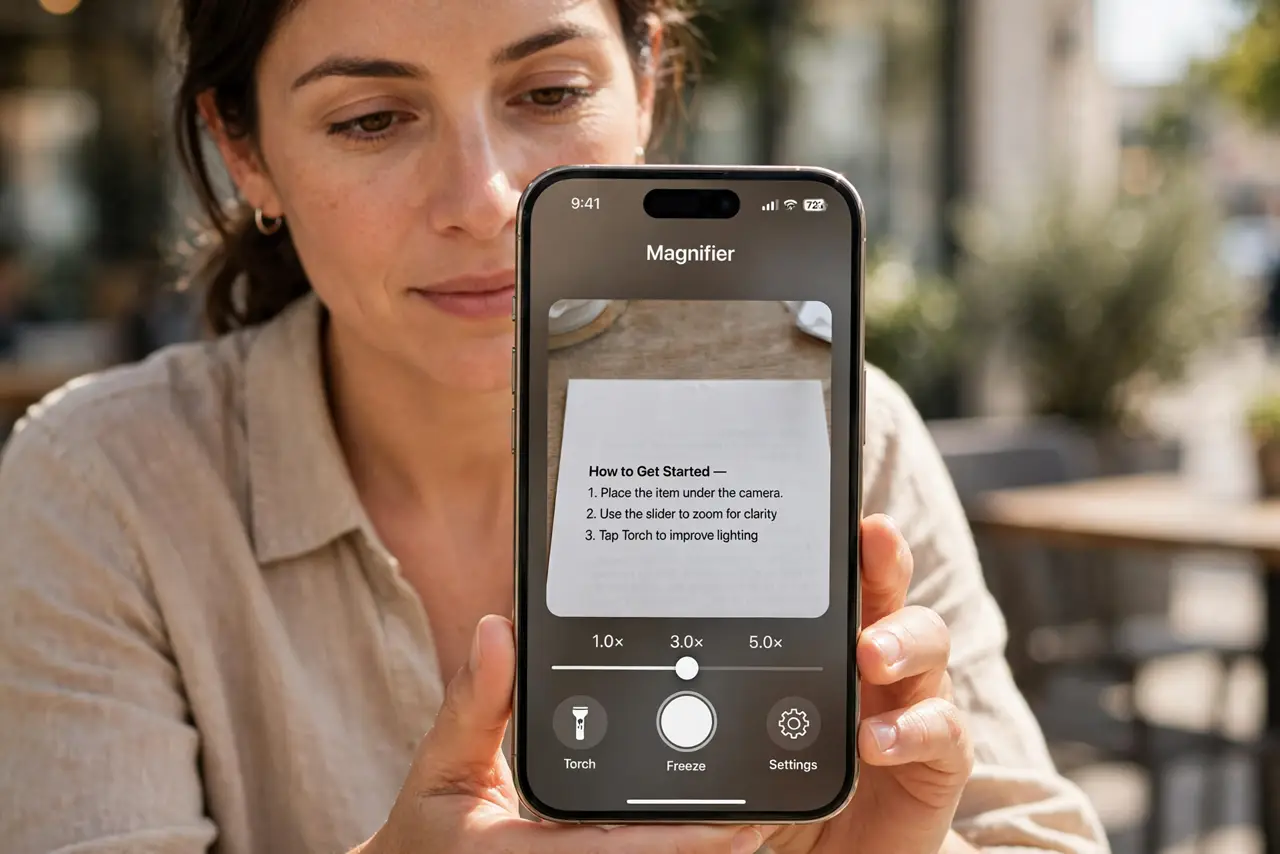
- Point and pinch to zoom. Aim at the tiny print and pinch to magnifier deeper. The zoom slider gives fine control when fingers are clumsy.
- Freeze the frame to read. Tap the freeze button to capture the view, then zoom and pan the frozen image comfortably. Reading a still beats chasing a live camera.
- Turn on the light. The flashlight button illuminates dark menus and labels. Magnifier plus light solves nearly every low-light reading situation.
- Go deeper with Zoom if needed. For maximum magnification with fine control, the full Zoom Controller accessibility feature takes over where Magnifier leaves off.
What NOT to do
- Do not hold the phone inches away unsteadily. Brace your hands on the table — stability matters more than closeness.
- Do not forget freeze-frame. Trying to read a shaking live view is miserable; freeze, then read.
- Do not use it for distance. Magnifier is for close print — for across-the-room, the camera zoom is the tool.
- Do not skip the shortcut setup. Triple-click access is what makes it actually used instead of forgotten.
Frequently asked questions
Is Magnifier different from camera zoom?
Yes — Magnifier adds freeze-frame, filters, brightness, and flashlight control in one purpose-built interface.
Can I save what I magnify?
Yes — capture the frozen frame to Photos. Handy for labels you will need again.
Does it work in the dark?
With the flashlight on, remarkably well. Total darkness still defeats it — some ambient light helps.