Route EV Charging
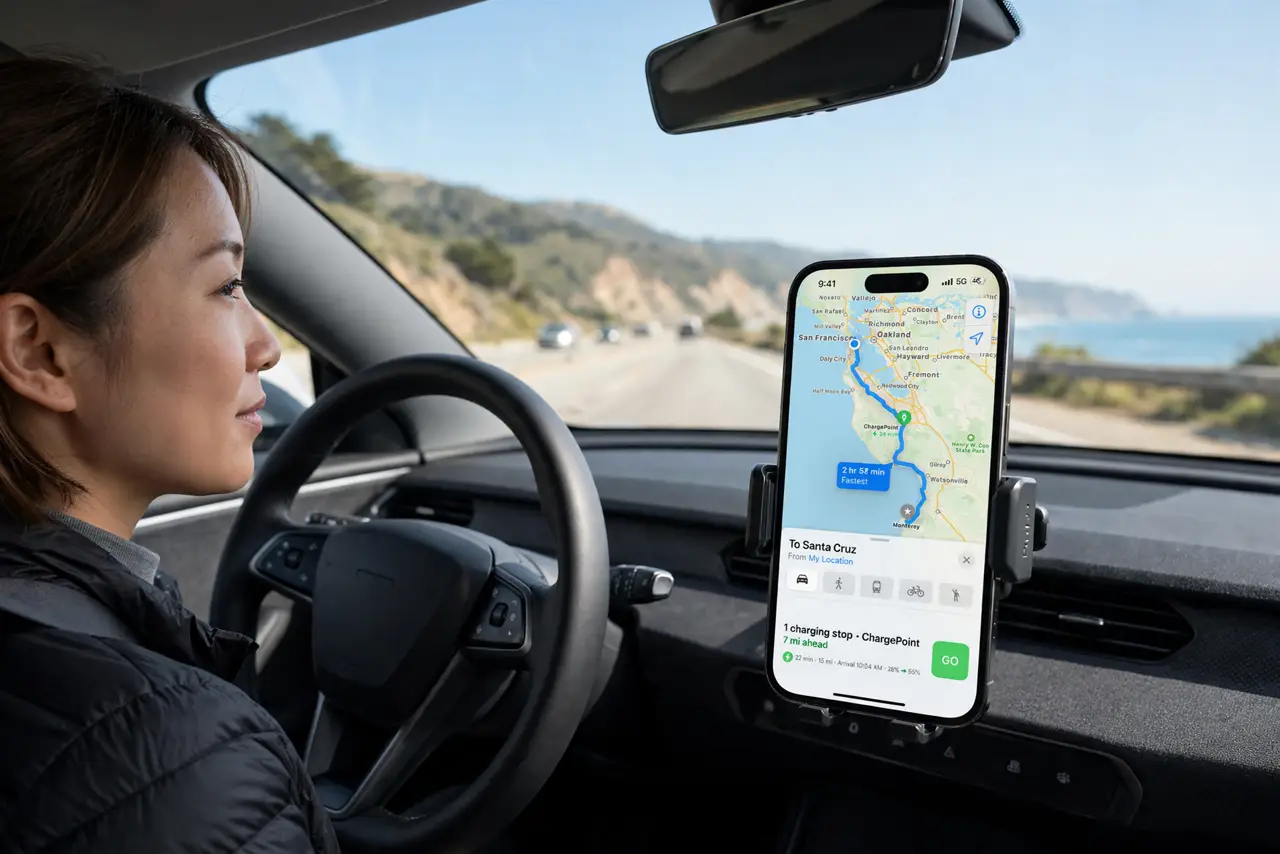
Driving electric means planning around chargers, not just distance — and guessing wrong means a stressful detour. Apple Maps can plan EV routes with charging stops built in, showing charger availability and adding charging time to your arrival estimate. Here is how to set up your vehicle and route with confidence.
TL;DR / Quick Fix
Quick fix: in Apple Maps, search your destination and tap Add Stop to add charging stations along the route — Maps shows charger availability and adds charging time to your ETA. Set your vehicle in Maps settings so it plans around your range. Always have a backup charger in mind.
Follow these steps
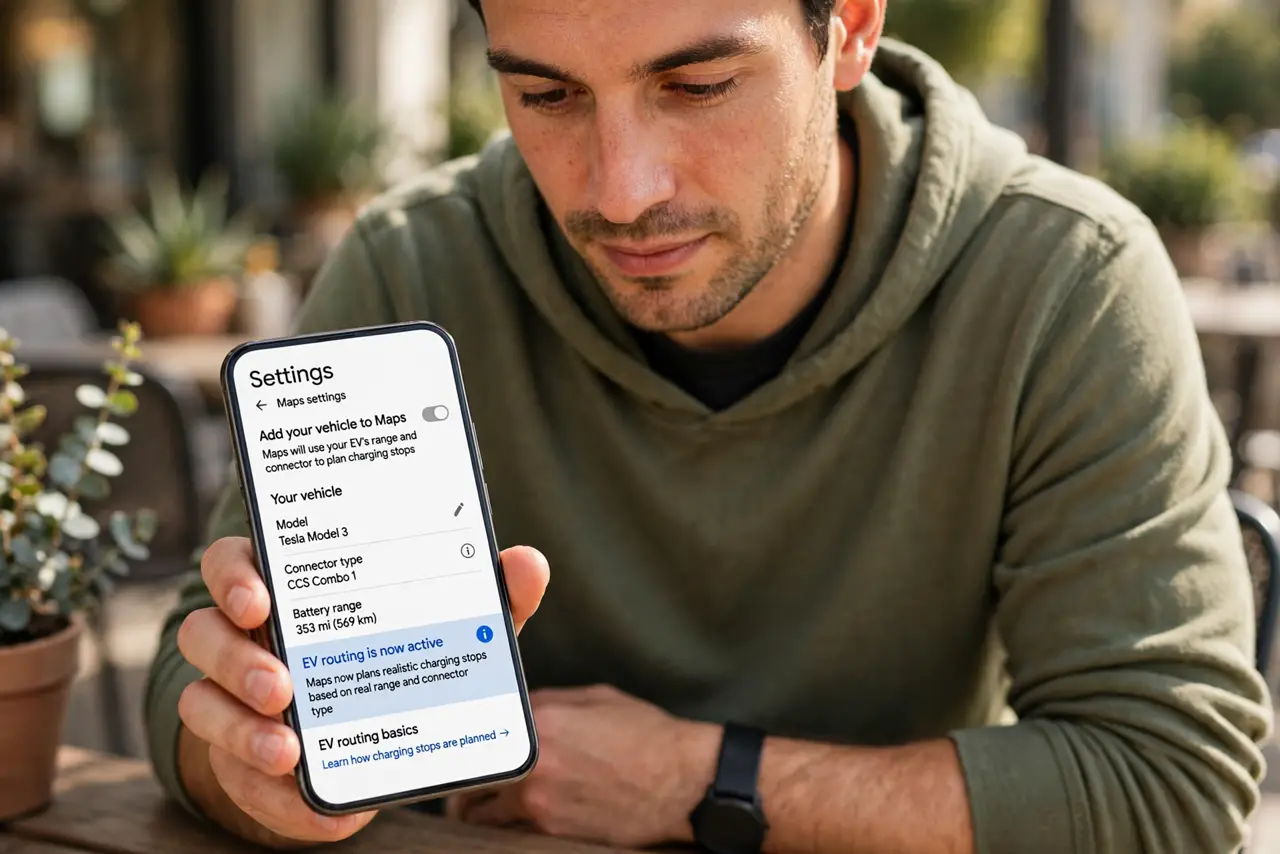
- Add your vehicle to Maps. Open Maps settings and add your EV model. Maps uses its real range and connector type to plan realistic charging stops — see the EV routing basics for the setup details.
- Plan the route normally. Search your destination and start directions. With your vehicle set, Maps automatically inserts charging stops where needed — no separate charger app required.
- Check charger availability. Tap a charging stop to see live availability and connector types. A station with one broken charger and a queue is worse than the next option five miles on.
- Add charging time to your plan. Maps includes estimated charging time in the ETA. Treat it as a minimum — busy stations and cold batteries charge slower.
- Keep a backup charger in mind. Note the charger after your planned one. If your first choice is full or broken, you want plan B already on the map, not discovered in a panic.
- Precondition in cold weather. Cold batteries charge slowly. If your car preconditions the battery for fast charging, start it before arrival — winter range surprises are the classic EV stress.
What NOT to do
- Do not trust a single charger blindly. Chargers break and queues form — always know your backup stop before you need it.
- Do not run the battery to zero chasing the plan. Keep a buffer; detours, weather, and headwinds eat range faster than estimates assume.
- Do not forget your charging accounts. Some networks need an app or RFID card — set those up at home, not at a dark charger at midnight.
- Do not ignore cold weather. Winter can cut range significantly — plan shorter legs and longer charges when it is freezing.
Frequently asked questions
Does Apple Maps show live charger availability?
Yes, for many networks — tap the stop to see it. Coverage varies by region and network.
What if my EV model is not listed?
Pick the closest match for range and connector type, and double-check the connector at each stop manually.
Can I prefer certain charging networks?
Maps generally picks by route efficiency. For network loyalty, cross-check with the network's own app.