Send Message Effects
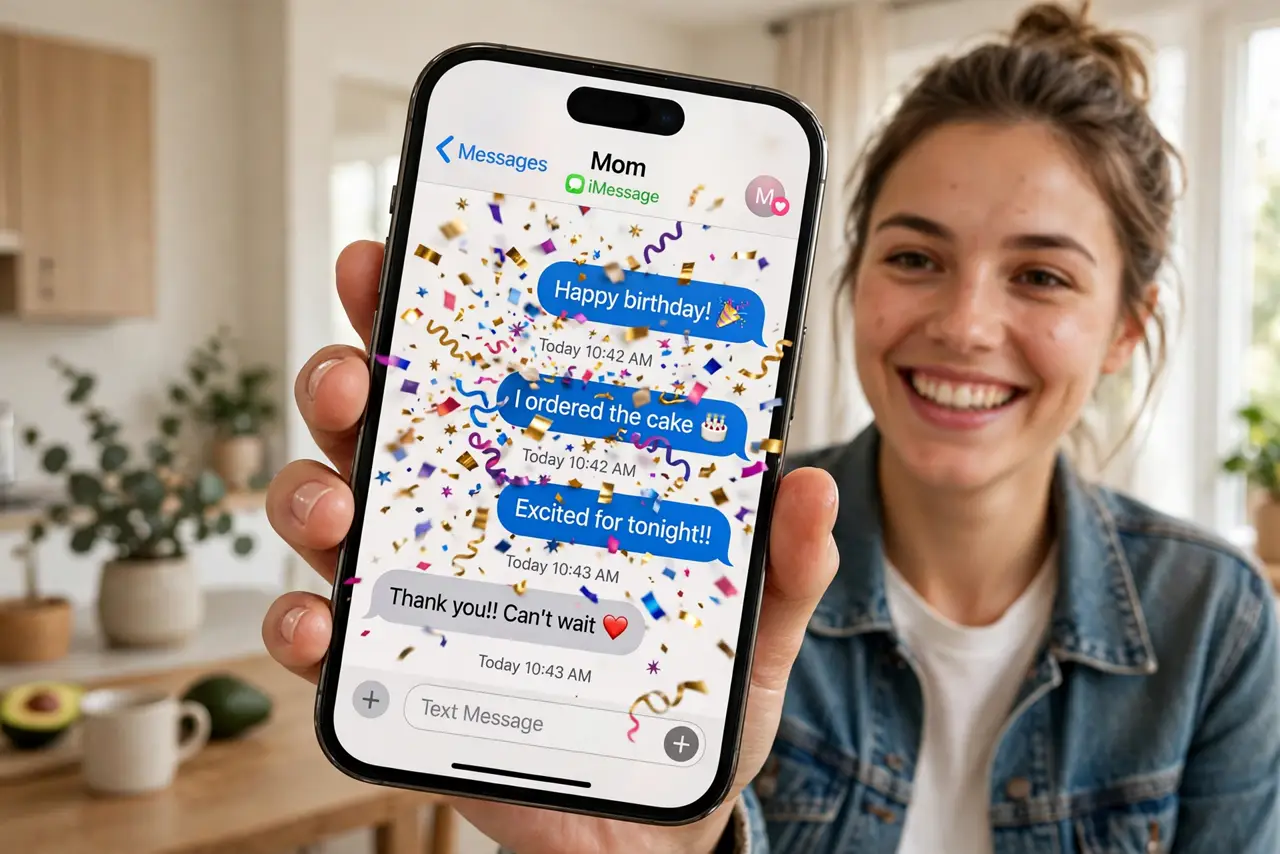
A plain 'happy birthday' text lands flat, but the same words exploding in confetti across the screen get a real reaction. iPhone message effects — balloons, confetti, lasers, and the invisible-ink surprise — turn ordinary texts into little events. Most people know one or two and miss the rest. This guide sends every effect, triggers the secret keyword ones, and knows when restraint wins. For quick reactions instead, react with Tapback.
TL;DR / Quick Fix
Quick fix: in Messages, type your text, then press and hold the send arrow to open effects — pick Bubble for text animations or Screen for full-screen celebrations. Words like 'happy birthday' and 'congratulations' trigger effects automatically. Effects need iMessage; green-bubble SMS friends see plain text.
Follow these steps
- Open the effects picker. Type your message in a Messages conversation, then press and hold the blue send arrow. The effects screen appears with Bubble and Screen tabs.
- Try bubble effects. Bubble animates just your message: slam, loud, gentle, invisible ink. Invisible ink blurs the text until the recipient swipes — perfect for surprises.
- Try screen effects. Screen takes over the whole display: balloons, confetti, lasers, fireworks. Pick the one that matches the news — lasers for excitement, gentle for sympathy.
- Use the magic words. Certain phrases auto-trigger effects: 'happy birthday' launches balloons, 'congratulations' launches confetti. No picker needed — just send the words.
- Reply with effects too. Effects work on replies and Tapbacks as well. A confetti-filled 'thank you' in a group chat lands better than plain text every time.
- Know the limits. Effects require iMessage (blue bubbles). SMS/MMS conversations — green bubbles, Android friends — receive plain text with no effects.
What NOT to do
- Do not send screen effects for serious news. Lasers over condolences is a tone disaster — match the effect to the message.
- Do not assume Android friends see them. Green-bubble conversations strip all effects; they just get your words.
- Do not overuse invisible ink. Fun once, annoying as a habit — especially for anything the recipient needs to read quickly.
- Do not forget effects need a data connection. On flaky networks the effect may not render — the text still arrives.
Frequently asked questions
Why did my effect not send?
You are likely in an SMS conversation (green bubbles) or have low connectivity. Effects are iMessage-only.
Can I turn off incoming effects?
Yes — in Settings, then Accessibility, then Motion, turn on Reduce Motion. It calms effects without blocking messages.
Do effects cost extra?
No. They ride on your normal iMessage data — no charges beyond your data plan.