iPhone Data Works but Wi-Fi Does Not? Fix Wi-Fi
Mobile data works fine, but Wi-Fi will not connect or loads nothing, even though the icon shows. That split proves the iPhone internet works and the Wi-Fi path is the problem. Rejoin the network, check the router, and test another Wi-Fi network.
TL;DR / Quick Fix
Quick fix: turn Wi-Fi off and on, forget the network and rejoin it with the correct password, then test a website. If it still fails, test another Wi-Fi network to separate phone from router trouble. Then test the fix for a full day before changing anything else.
Follow these steps
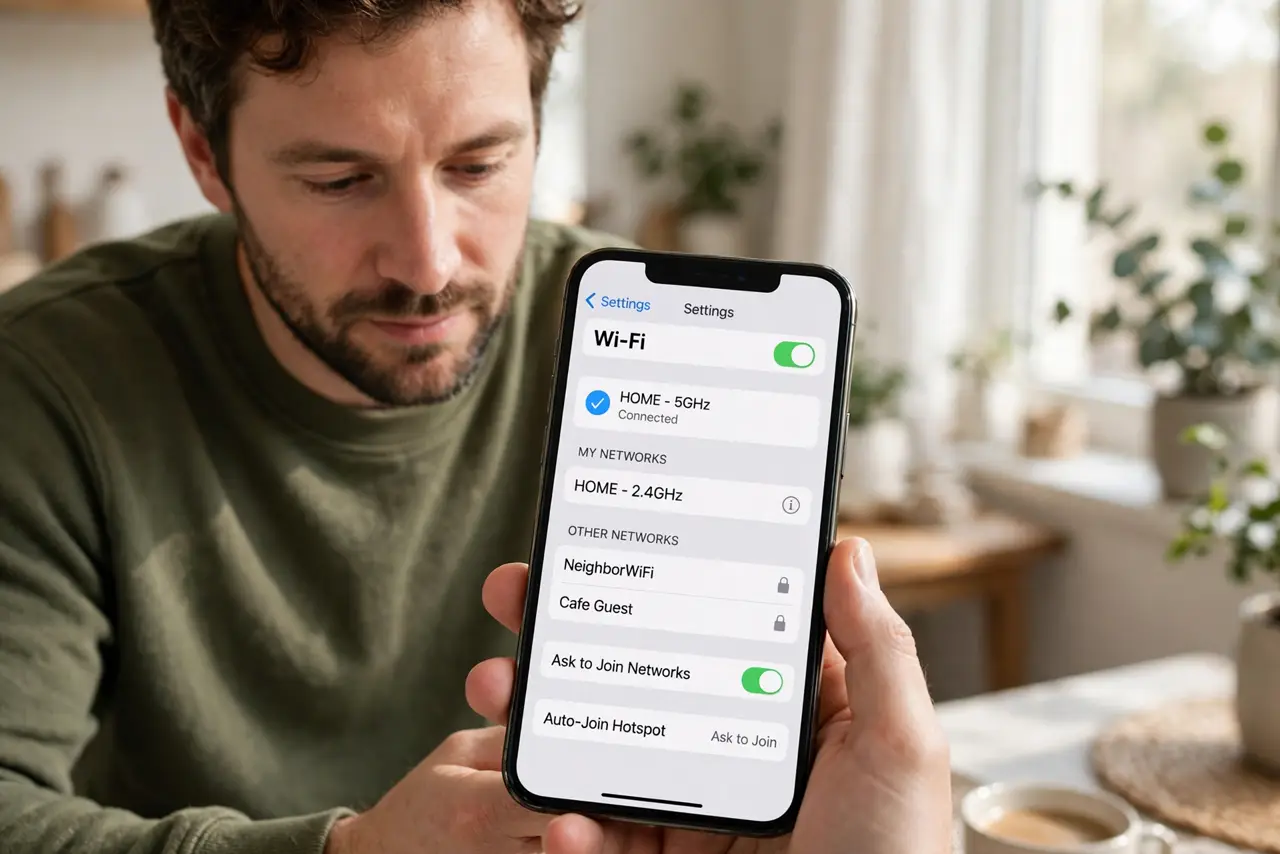
- Toggle Wi-Fi off and on. Open Settings, then Wi-Fi, turn it off, wait a few seconds, then turn it back on. A fresh Wi-Fi session clears many stuck connections.
- Forget and rejoin the network. Tap your network, choose Forget This Network, then join it again and enter the password carefully. A fresh join clears bad saved details.
- Test a website, not just the icon. Open Safari and load a website. A Wi-Fi icon alone does not prove internet works; a loaded page does.
- Restart the router. Unplug the router, wait thirty seconds, plug it back in, and wait for it to fully restart. Then rejoin Wi-Fi on the iPhone and test again.
- Test another Wi-Fi network. Join a different Wi-Fi network, such as a trusted friend network or workplace network. If that works, your home router is the suspect, not the iPhone.
- Check for a router block. If other devices work but the iPhone does not, check the router for device blocks or parental controls affecting the iPhone. Remove any block for testing.
What NOT to do
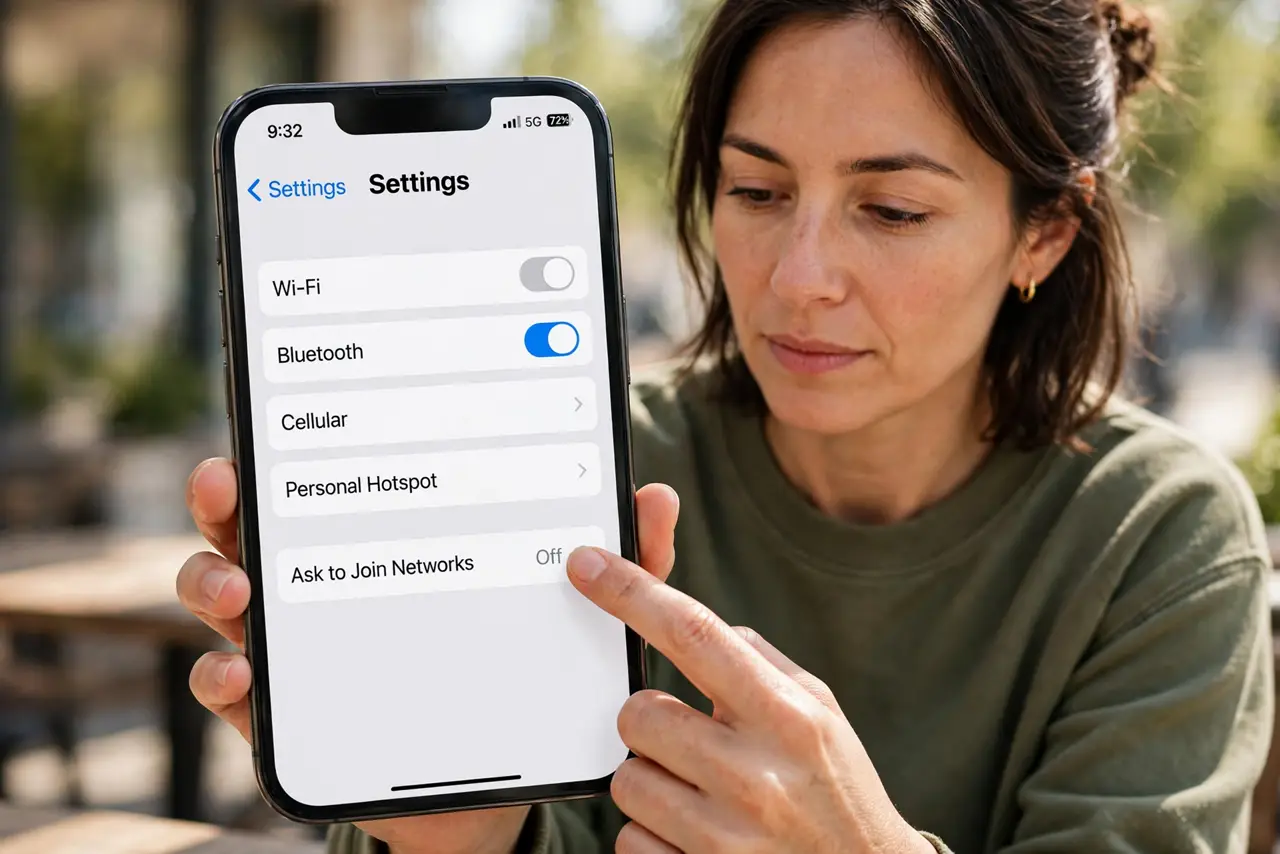
- Do not reset network settings as a first step. Toggling, rejoining, and a router restart fix most Wi-Fi-only failures first.
- Do not use mobile data forever as a workaround. Mobile data costs add up, while Wi-Fi trouble is usually fixable at the router or join step.
- Do not enter the Wi-Fi password repeatedly without checking it. A wrong password repeated many times does not become right.
- Do not ignore the other-network test. Testing another network is the fastest way to tell phone trouble from router trouble.
Frequently asked questions
Why does data work but Wi-Fi not?
Mobile data and Wi-Fi are separate paths. Working data proves the iPhone works, so the fault is in the Wi-Fi network or join.
What if the Wi-Fi icon shows but nothing loads?
The iPhone joined the network but has no internet through it. Restart the router and rejoin the network.
What if another Wi-Fi network works?
Your home router or its settings are the cause. Restart it and check for blocks on the iPhone.