Night Mode Photos Come Out Too Yellow
Night Mode brightens dark scenes, but warm streetlights and indoor lamps can turn the whole photo yellow. The light in the scene — not a broken camera — usually sets that tint.
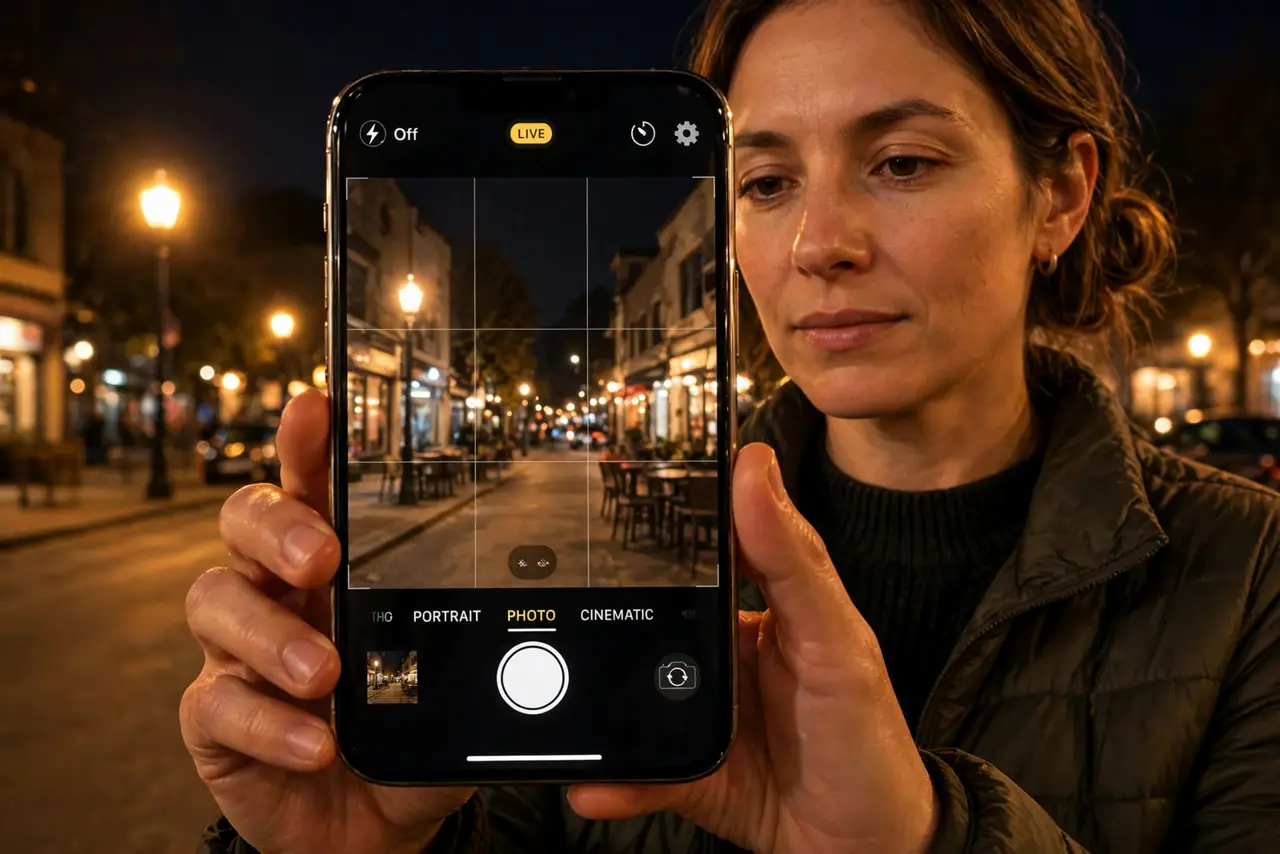
TL;DR / Quick Fix
Quick fix: turn Night Mode off for one test photo under the same lights and compare the two. Then adjust white balance in editing, or move toward cooler light for the real shot and compare the edited photo with the original scene.
Follow these steps
- Compare with Night Mode off. Take the same scene once with Night Mode and once without it. If both look yellow, the lighting is the cause, and Night Mode is only brightening an already warm scene.
- Move toward cooler light if you can. Step toward daylight, a cooler lamp, or a less orange streetlight for the real shot. Cooler light in the scene beats any editing fix after the fact.
- Adjust white balance in editing. Open the photo in Photos, then Edit, and shift white balance cooler. A small cooler shift removes the yellow cast without turning the photo blue.
- Turn off warm indoor lamps for portraits. For a night portrait, switch off the nearest warm lamp and use the iPhone flash or a cooler light instead. One warm lamp near a face tints the whole portrait.
- Check for a warm screen filter at night. If your screen itself looks warm at night, that is Night Shift on the display, not the photo. View the photo in daylight or with Night Shift paused to judge its true colors.
- Keep Night Mode for truly dark scenes. Use Night Mode where it helps — dark streets and dim rooms — and switch it off where warm lights already dominate. The right tool depends on the light, not on habit.
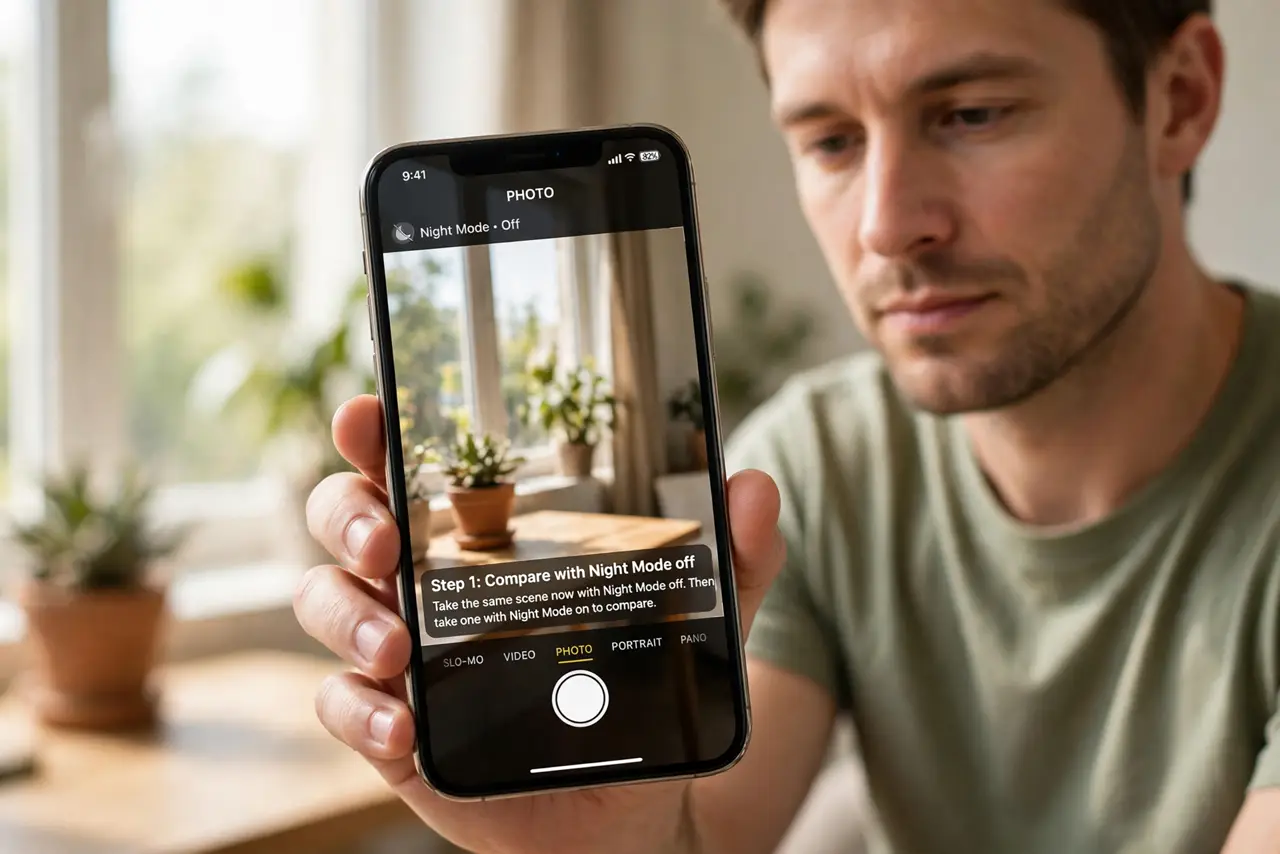
What NOT to do
- Do not blame the camera for a yellow photo under orange lights. The lights set the color, and the camera faithfully records the warmth it sees.
- Do not crank white balance fully cool in editing. Overcorrecting turns a yellow photo blue, which looks just as wrong as the original cast.
- Do not judge photo colors on a warm night screen. Night Shift warms the display itself, so check colors with it paused or in daylight.
- Do not leave Night Mode on for every night shot. In warm-lit scenes it amplifies the yellow, so test it off before committing to it.
Frequently asked questions
Why are my night photos so yellow?
Because warm streetlights and lamps tint the scene, and Night Mode brightens that warm light along with everything else.
Will editing fix a yellow night photo?
A small cooler white balance shift helps, but moving toward cooler light for the shot works better.
Is my screen making photos look yellow?
Possibly. Night Shift warms the display at night, so judge photo colors with it paused.