The Notes App? Basics
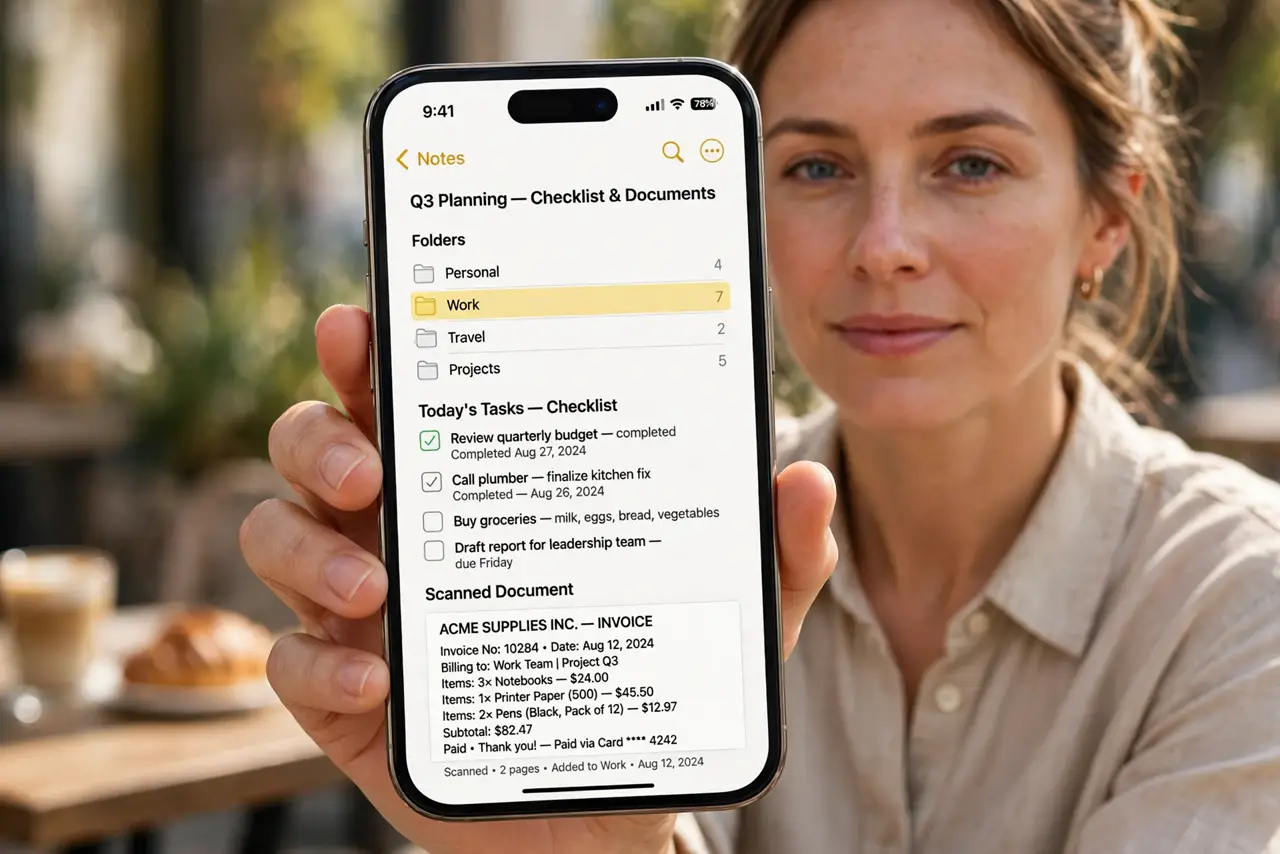
The Notes app on your iPhone is far more than a digital sticky note — checklists, document scanning, locked notes, folders, and collaboration are all built in, free. Most people use 10% of it. Here is the tour that turns it from a junk drawer into a genuinely useful system.
TL;DR / Quick Fix
Quick fix: the iPhone Notes app handles checklists, sketches, scanned documents, locked private notes, and shared collaborative notes — all free and synced via iCloud. Organize with folders, pin important notes to the top, and use the in-note scanner instead of a separate app.
Follow these steps
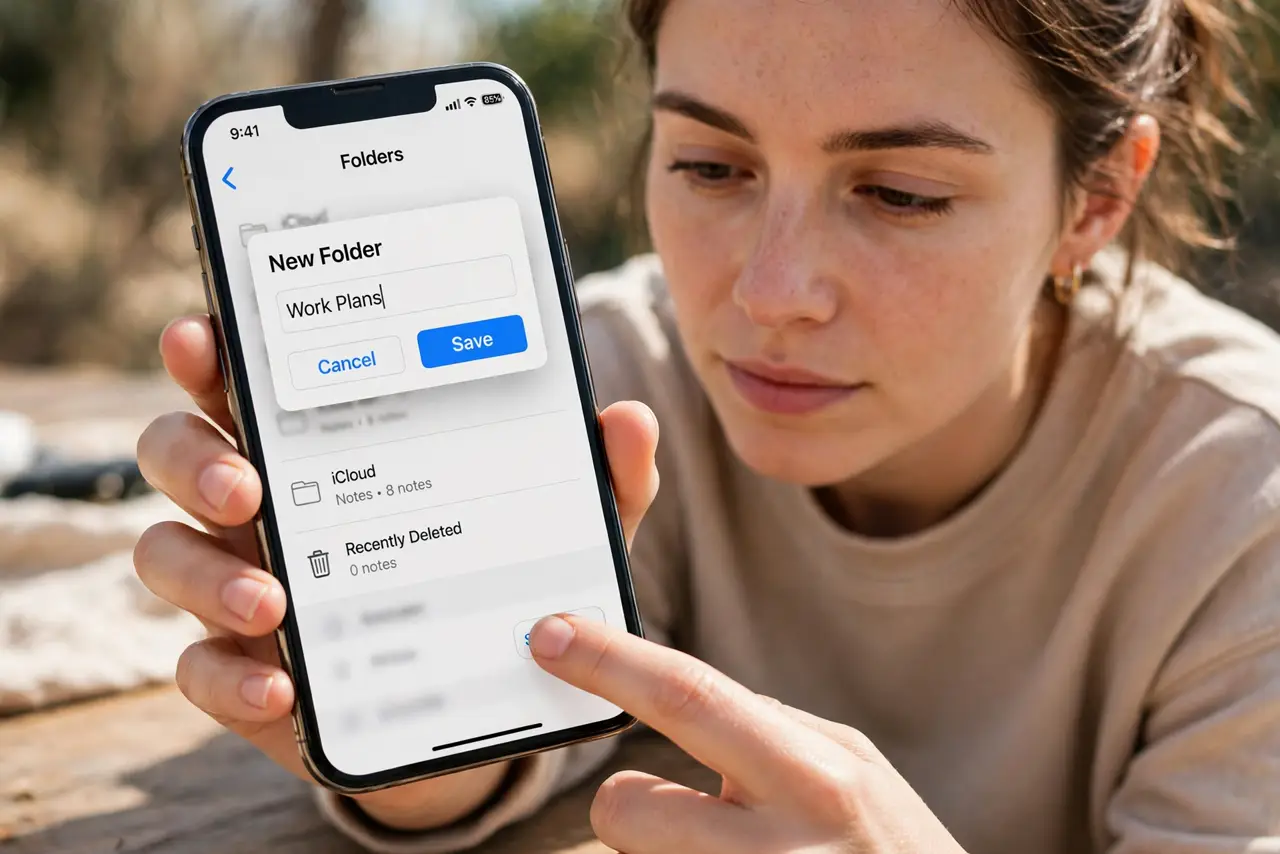
- Organize with folders first. Create folders for areas of life — work, home, travel — and move notes into them. A folder system you actually use beats a perfect system you abandon; see Freeform for visual brainstorming instead.
- Make checklists that work. Tap the checklist button to turn lines into tappable circles. Grocery lists, packing lists, and to-dos all live happily here with automatic strike-through.
- Scan documents in-note. Tap the camera icon in a note to scan pages — the iPhone crops, straightens, and saves them as PDF-ready scans. It replaces a scanner for receipts and forms.
- Lock sensitive notes. Swipe or use the share menu to lock a note with Face ID — journals, passwords hints, and private lists stay private even if someone borrows your phone.
- Pin and search like a pro. Swipe right to pin key notes to the top. Search finds text even inside scanned documents and handwriting — the search is far better than it looks.
- Share and collaborate. Invite others to a note for shared lists and trip plans — changes sync live. If notes ever vanish, check the disappeared-notes fixes before panicking.
What NOT to do
- Do not keep everything in one giant note. Long mega-notes get slow and hard to search — split by topic.
- Do not store real passwords in Notes, even locked ones. A password manager is the right tool for secrets.
- Do not ignore the iCloud vs On-My-iPhone split. Local notes do not sync or back up — use iCloud folders by default.
- Do not forget to back up before major iOS updates. iCloud sync is usually flawless, but a backup is cheap insurance.
Frequently asked questions
Are my notes backed up?
If they are in iCloud folders, yes — they sync across devices and restore with your Apple Account. On-My-iPhone notes live only on that phone.
Can I recover a deleted note?
Yes, within 30 days — check the Recently Deleted folder in the Notes app. After 30 days it is gone for good.
Notes vs Freeform — which should I use?
Notes for lists, documents, and writing; Freeform for visual brainstorming on an infinite canvas. They complement each other.