iPhone Notes Disappear After Sync? Find Them
Notes vanish after syncing, and a note you need is nowhere in the list. The note is often in another account folder, such as On My iPhone instead of iCloud, or in Recently Deleted, rather than truly deleted.
TL;DR / Quick Fix
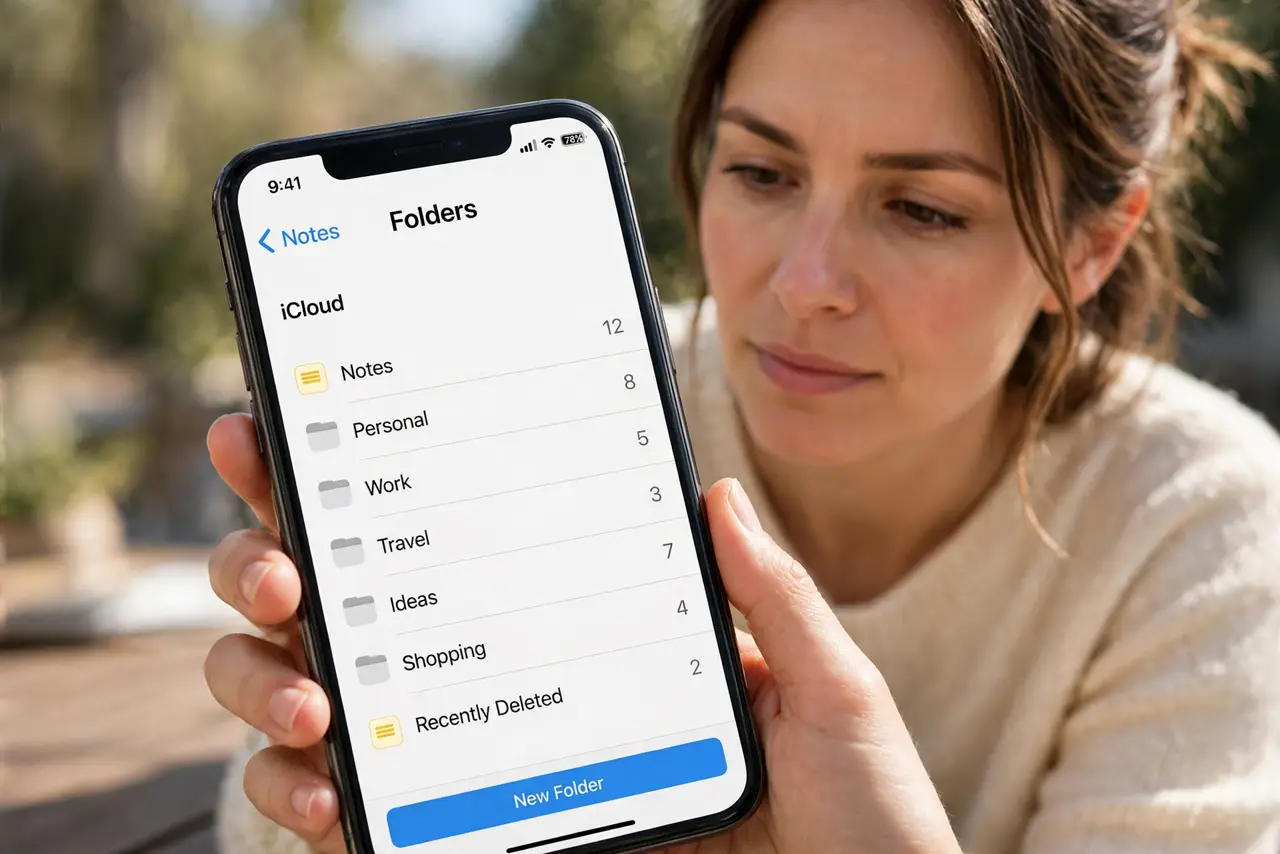
Quick fix: open Notes, tap Folders, and check every account folder, including iCloud and On My iPhone. Then open Recently Deleted, search for the note title, and check another device signed into the same account. Test once more after a restart. Write down what worked for next time.
Follow these steps
- Check every Notes folder. Open Notes, tap Folders, and look under each account, including iCloud and On My iPhone. A note saved to one account does not appear in another account's folder.
- Open Recently Deleted. In Notes folders, open Recently Deleted and look for the missing note. Notes there can be recovered for a limited time, so check soon after the note disappears.
- Search for a word from the note. Use search in Notes and type a distinctive word from the missing note. Search looks across folders, so it can find a note hiding in an unexpected folder.
- Check Notes sync for each account. Open Settings, then Apps, then Notes, then Accounts, and confirm Notes sync is on for the account that held the note. Sync turned off hides newer notes on other devices.
- Check another device or the web. Open Notes on another device or on the web with the same account. If the note is there, the phone simply has not synced it yet, and the note itself is safe.
- Back up before changing accounts. Before turning sync off or removing an account, confirm your important notes are backed up or visible elsewhere. Changing account settings first can make a hidden note harder to recover.
What NOT to do
- Do not remove a Notes account before you find the note. Removing the account can hide its notes and make recovery harder.
- Do not empty Recently Deleted while searching. That folder may hold the exact note you are looking for.
- Do not rewrite the note from memory and delete the old one. Keep searching first, since the original may reappear once sync catches up.
- Do not turn sync off and on repeatedly. Give sync time to finish once, or you may create conflicting copies of the same note.
Frequently asked questions
Where do disappeared notes usually go?
Into another account folder, such as On My iPhone instead of iCloud, or into Recently Deleted. Check both before assuming loss.
How long do deleted notes stay recoverable?
Recently Deleted keeps notes for a limited time. Check it soon, since older deletions disappear for good.
Why is a note on my other device but not my phone?
The phone has not synced yet, or its Notes sync is off for that account. Check sync settings and wait for sync to finish.