Tame Notifications with Summaries
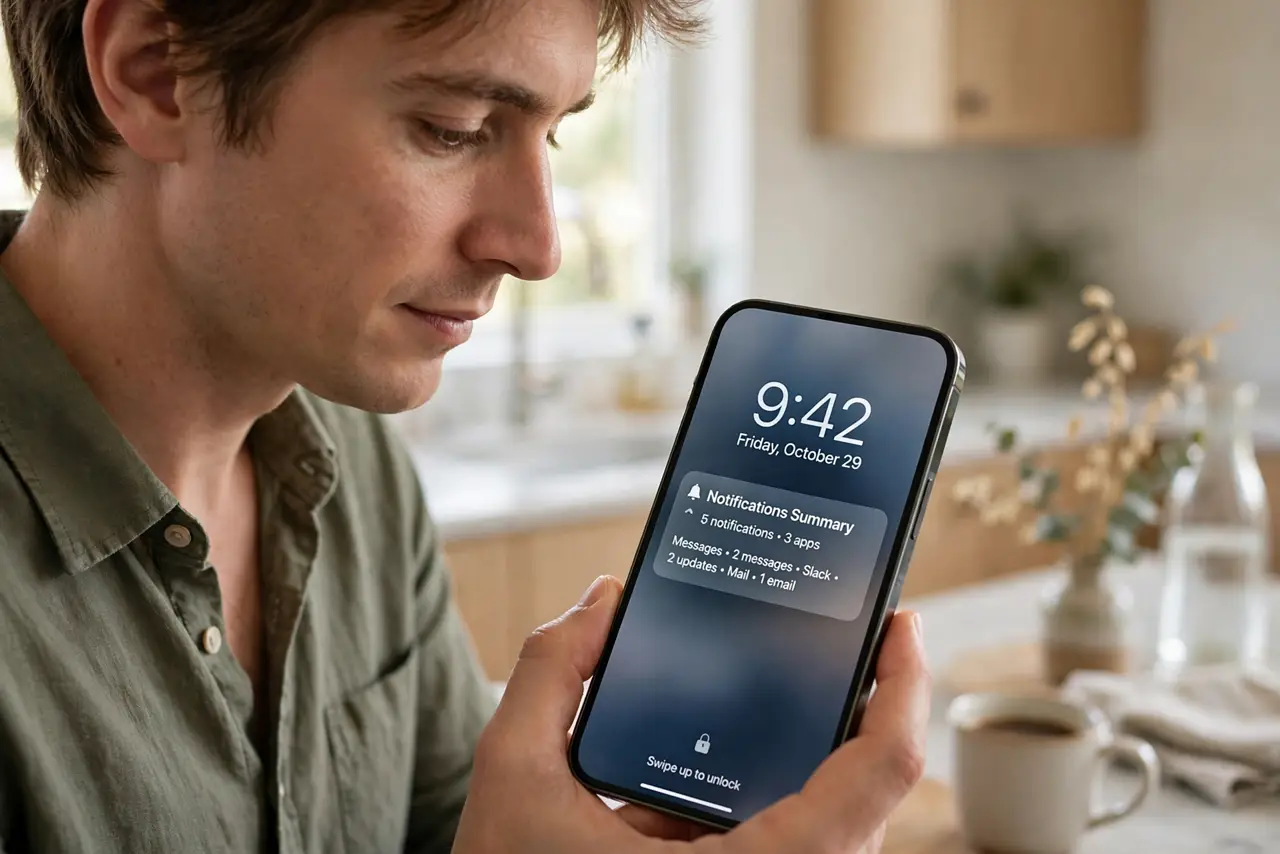
Your lock screen is a slot machine of pings — group chats, news, promos — and checking each one eats the day. Notification summaries bundle the noise: instead of twelve separate alerts, you get one smart digest saying what actually happened. This guide turns summaries on and tunes them so only the important stuff breaks through.
TL;DR / Quick Fix
Quick fix: on iPhone, go to Settings, then Notifications, then Scheduled Summary, and turn it on — pick the apps to bundle and delivery times. On Android, check notification settings for summary options. Urgent apps like phone and messages stay instant; everything else waits for the digest.
Follow these steps
- Open notification settings. On iPhone: Settings, then Notifications. On Android: Settings, then Notifications — look for summary, digest, or bundle options, which vary by maker.
- Turn on Scheduled Summary (iPhone). Tap Scheduled Summary and enable it. Choose two or three delivery times — morning, lunch, and evening work well for most people.
- Choose which apps get bundled. Add noisy apps — social, news, shopping — to the summary. Keep messaging, phone, and calendar out so genuinely urgent things still ping instantly.
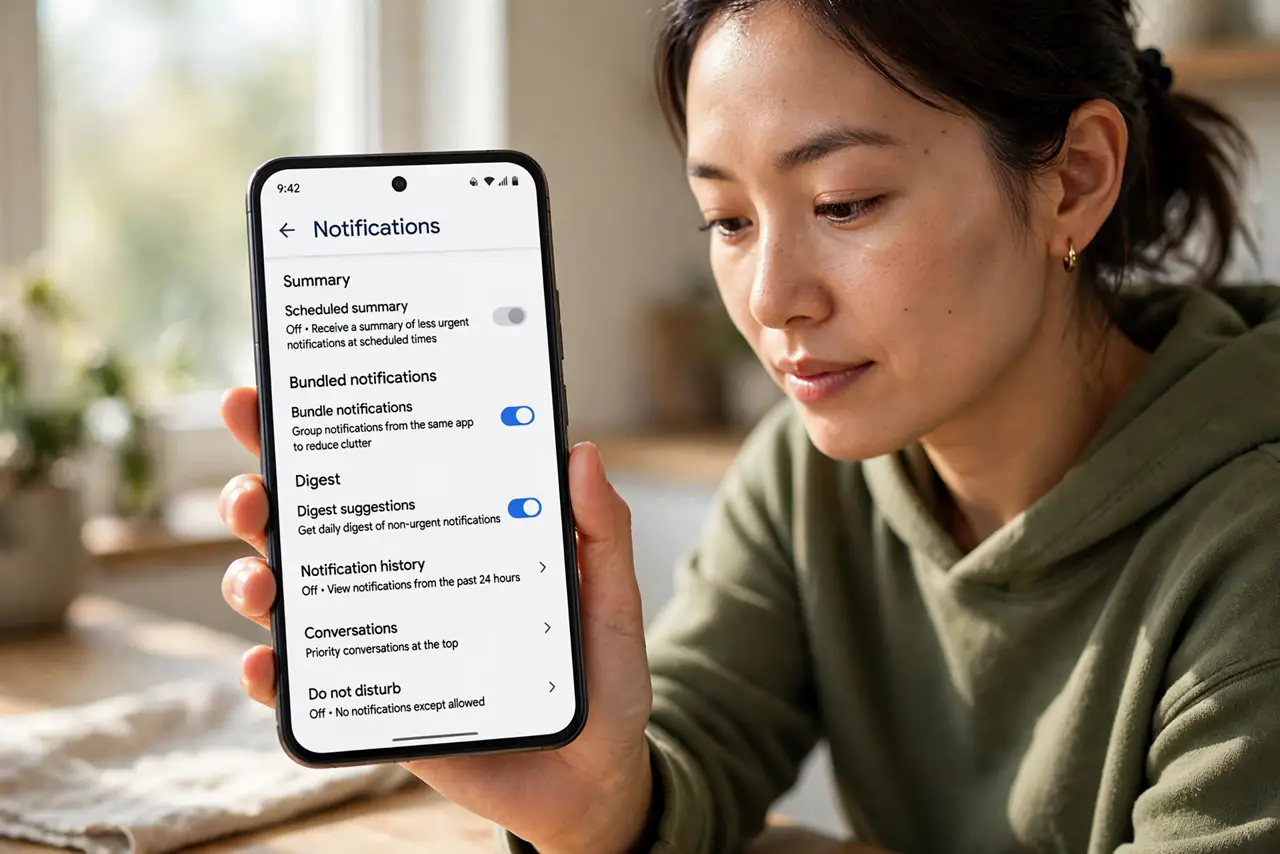
- Set Android summaries if available. On Pixels and many Android phones, notification grouping and priority settings achieve the same effect: noisy apps bundled quietly, important apps allowed through.
- Review the summary, not every ping. When the digest arrives, scan it once and clear it. The habit shift — from reacting to reviewing — is where the time savings live.
- Tune weekly for a month. If something important got buried, promote that app to instant. If noise still leaks through, demote the offender. The system gets smarter as you tune it.
What NOT to do
- Do not bundle your messaging apps. Texts and calls from real people should stay instant — summaries are for the noise, not the signal.
- Do not set twelve summary times. Two or three digests a day is the point; hourly summaries are just notifications again.
- Do not ignore the summary entirely. An unread digest pile becomes its own anxiety — scan and clear each one when it arrives.
- Do not expect perfection on day one. The first week needs tuning as you learn which apps deserve instant delivery.
Frequently asked questions
Will I miss urgent messages?
Not if you set it up right — keep phone, messages, and calendar on instant delivery. Only the non-urgent apps get bundled.
Can I still see individual notifications?
Yes — expand the summary to see every bundled alert individually. Nothing is hidden, just grouped.
Does this work on older iPhones?
Scheduled Summary has been around for several iOS versions; the newer AI-powered summaries need a recent iPhone with Apple Intelligence.