Point Camera to Learn More
You are staring at a plant, a landmark, a weird error light on the dashboard — and you want answers now, not after ten minutes of searching. Visual Intelligence on recent iPhones lets you point the camera at something and get instant information about it. This guide shows how to trigger it and get useful results.

TL;DR / Quick Fix
Quick fix: on a supported iPhone, long-press the Camera Control button (or the Action button, depending on your model) to open Visual Intelligence, then point the camera at the object. Tap the shutter to analyze — you get business details, plant or animal identification, text translation, and smart follow-up actions.
Follow these steps
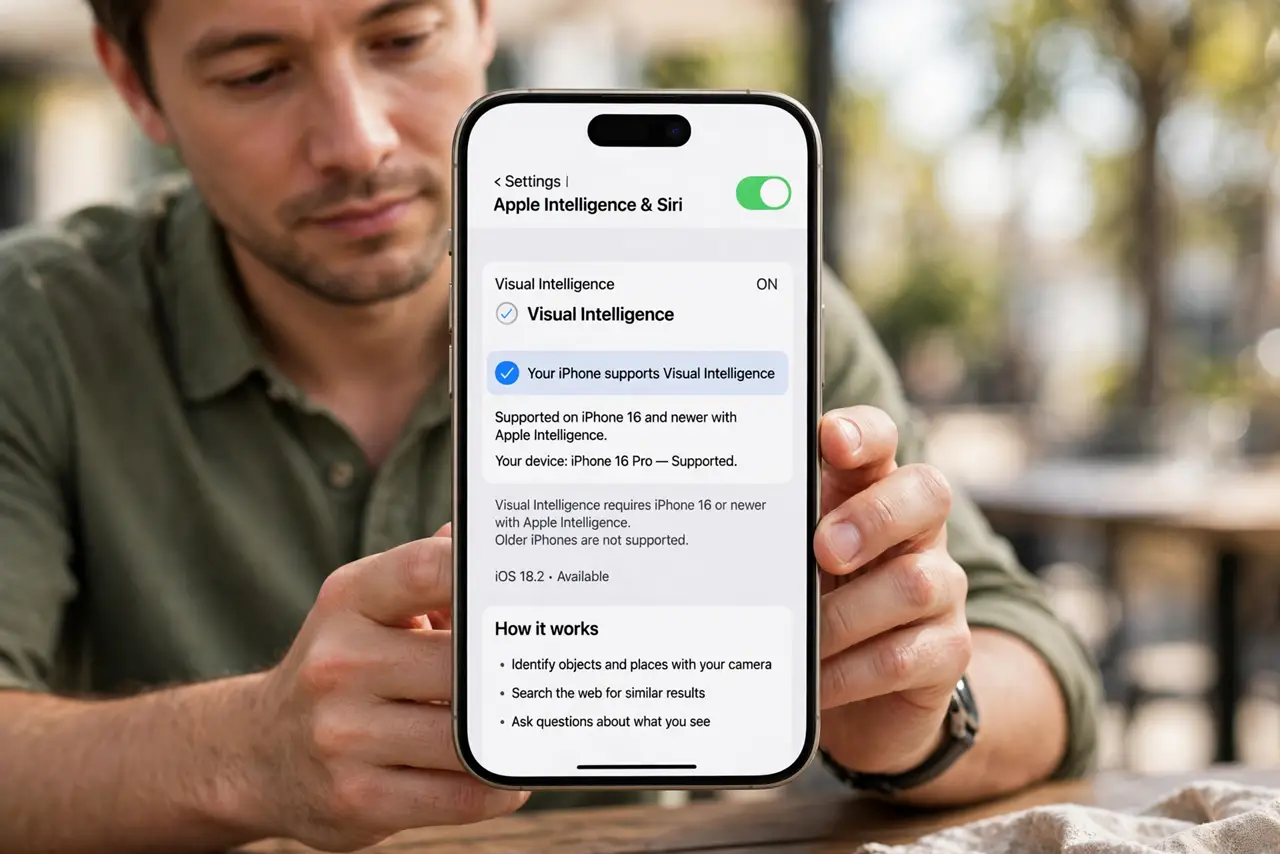
- Check your iPhone supports it. Visual Intelligence needs a recent iPhone with Apple Intelligence — the iPhone 16 lineup and newer. Older iPhones do not have the feature.
- Open it with the camera button. Long-press the Camera Control button to launch Visual Intelligence directly. It opens a camera viewfinder ready to analyze.
- Point at the subject. Aim at the plant, landmark, product, or sign. The viewfinder highlights what it recognizes as you move.
- Tap to analyze. Tap the shutter button to capture and analyze. Results appear as cards: business hours, species names, translated text, or product matches.
- Use the follow-up actions. Results include smart actions — call the business, get directions, add a calendar event from a poster, or translate the text in the image.
- Try it on everyday mysteries. Plant labels, restaurant hours, that blinking router light, a foreign menu — pointing the camera beats typing a vague description into search.
What NOT to do
- Do not point it at people for identification. Identifying strangers without consent is creepy and, in some places, illegal.
- Do not trust it blindly for important IDs. It can misidentify plants, mushrooms, and medications — verify anything safety-critical another way.
- Do not forget it needs a connection for full results. Basic recognition works on-device, but rich business details need the internet.
- Do not confuse it with the regular camera. Visual Intelligence is the analysis mode — your normal photos are untouched.
Frequently asked questions
Which iPhones have Visual Intelligence?
The iPhone 16 series and newer models with Apple Intelligence. It is not available on older iPhones.
Can it translate text in the camera view?
Yes — point at foreign text and it offers translation, similar to the Translate app's camera mode.
Does it save the photos it analyzes?
It analyzes in the moment; nothing is added to your photo library unless you take a regular photo separately.