Download Maps for Offline Use
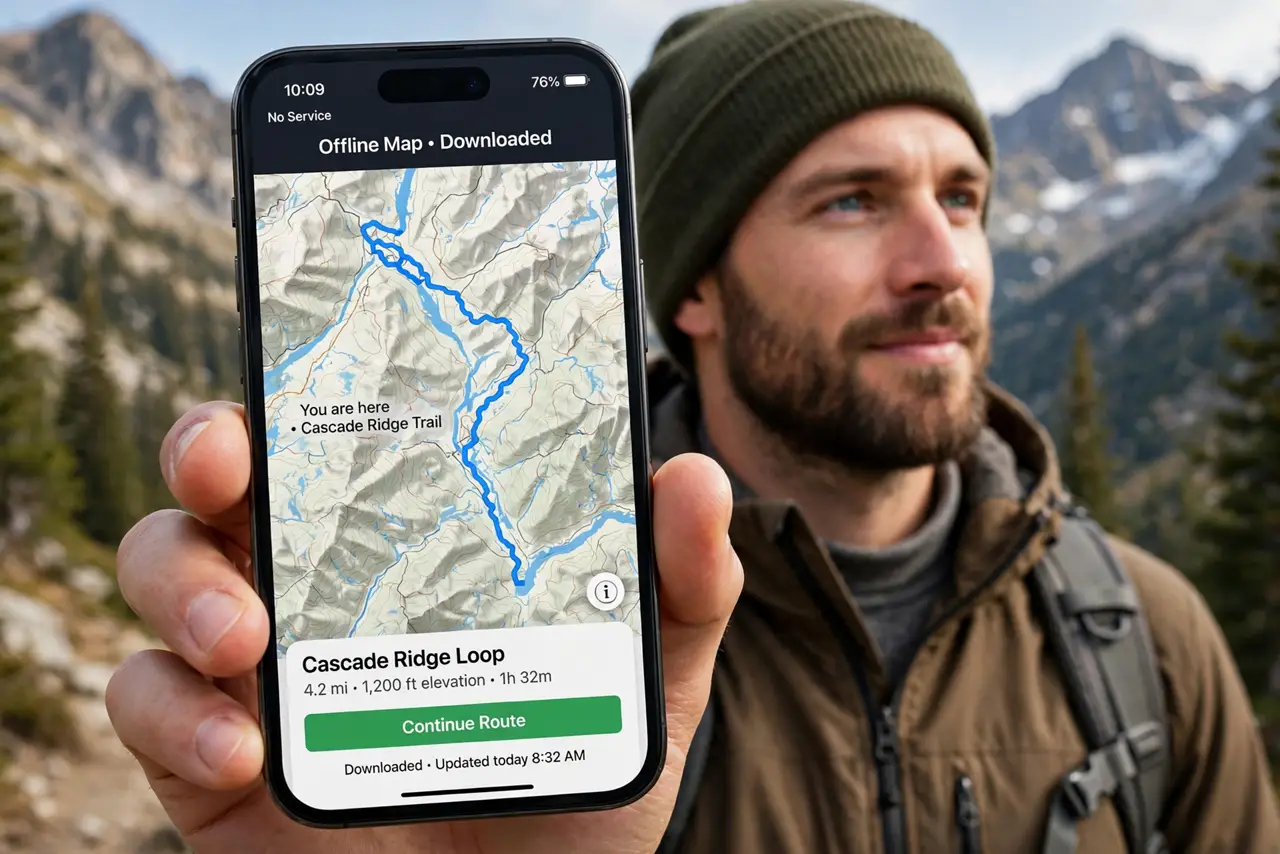
No signal in the mountains, no Wi-Fi abroad, and your maps go blank exactly when you need them most. Apple Maps lets you download entire regions to the iPhone beforehand — roads, search, and turn-by-turn all work offline. Download on Wi-Fi, and the dead zone becomes a non-event.
TL;DR / Quick Fix
Quick fix: in Apple Maps, tap your profile picture, choose Offline Maps, tap Download New Map, and frame the area — city-sized regions work best. Download on Wi-Fi before the trip. The map includes roads and search, but live traffic needs a connection.
Follow these steps
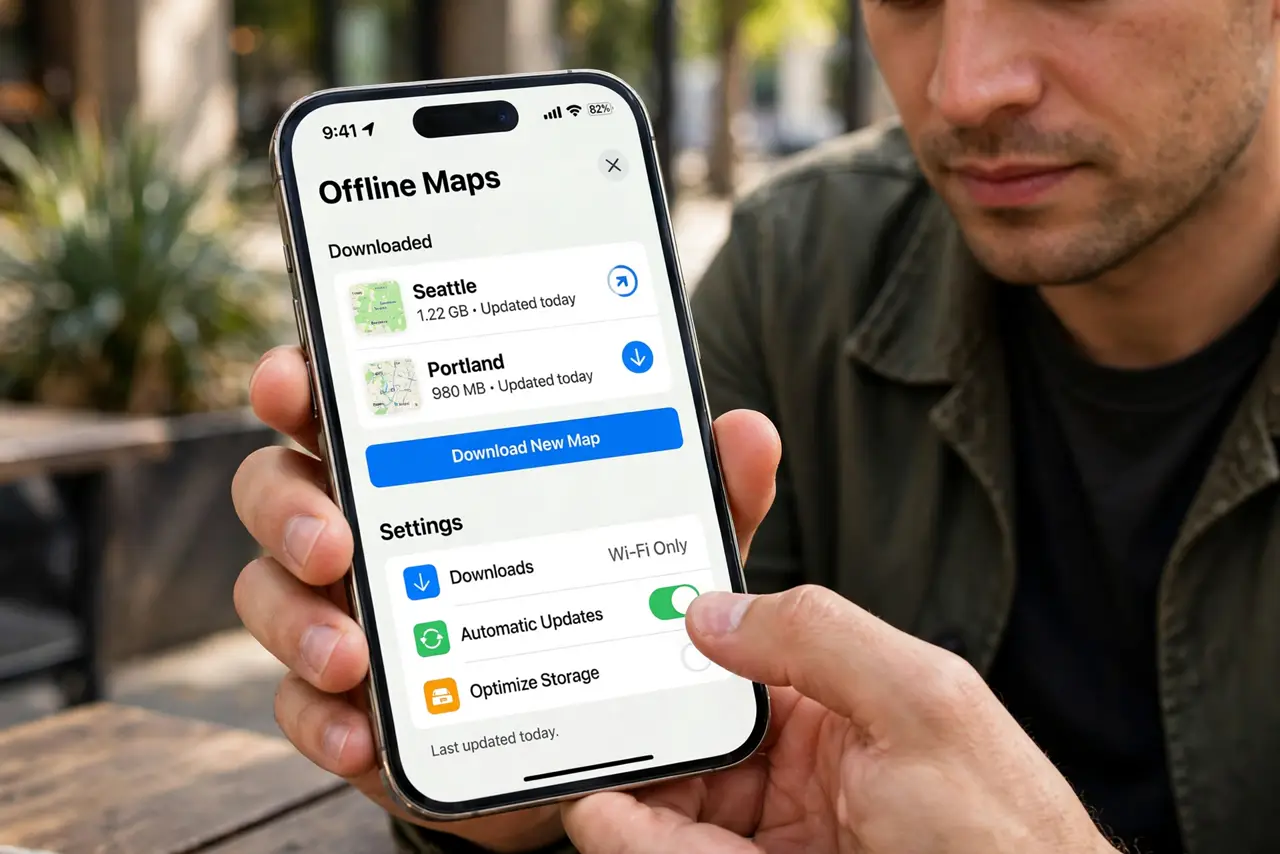
- Open Offline Maps. In Apple Maps, tap your profile picture, then Offline Maps. Your downloaded regions live here.
- Download a new region. Tap Download New Map, then drag and zoom to frame the area. City-sized regions balance detail against storage — regions can run hundreds of megabytes.
- Download on Wi-Fi. Start the download on Wi-Fi before the trip. The phone warns you on cellular — offline maps are the thing you prepare, not improvise.
- Use it like normal maps. Search addresses, get directions, navigate turn-by-turn — all offline. The blue dot still tracks via GPS, which needs no data.
- Know what is missing offline. Live traffic, transit departures, and business hours need a connection. Roads, routing, and saved places work fully.
- Manage regions over time. Rename regions clearly, delete old trip areas, and re-download yearly — maps go stale as roads change.
What NOT to do
- Do not wait until the dead zone to download. Offline maps must be fetched beforehand — obvious, yet the classic mistake.
- Do not download a whole country. Huge regions eat gigabytes and update slowly — frame the area you will actually visit.
- Do not expect live traffic offline. The map routes fine; it just cannot see the jam ahead. Build in buffer time.
- Do not forget downloaded maps expire in usefulness. Roads change — refresh regions before each big trip.
Frequently asked questions
How much storage do offline maps use?
A city region runs 100–500 MB depending on detail. Rural areas are lighter. Check the size estimate before downloading.
Do offline maps include walking directions?
Yes — driving, walking, and cycling routing all work offline. Transit needs a connection.
Why is my offline map not working?
Usually an expired or partially downloaded region. Re-download on Wi-Fi, and confirm Location Services is on for the blue dot.