Set Up Passkeys on iPhone
Passkeys are the replacement for passwords: a cryptographic key pair where your phone holds the private half and unlocks it with Face ID. No password to phish, forget, or reuse. Setting them up on iPhone takes two minutes per site, and signing in afterward is one glance.
TL;DR / Quick Fix
Quick fix: on iPhone, passkeys live in iCloud Keychain and need iOS 16 or later with two-factor authentication on. Sign in to a site that supports passkeys, choose the passkey option, and confirm with Face ID. Android stores them in Google Password Manager instead.
Follow these steps
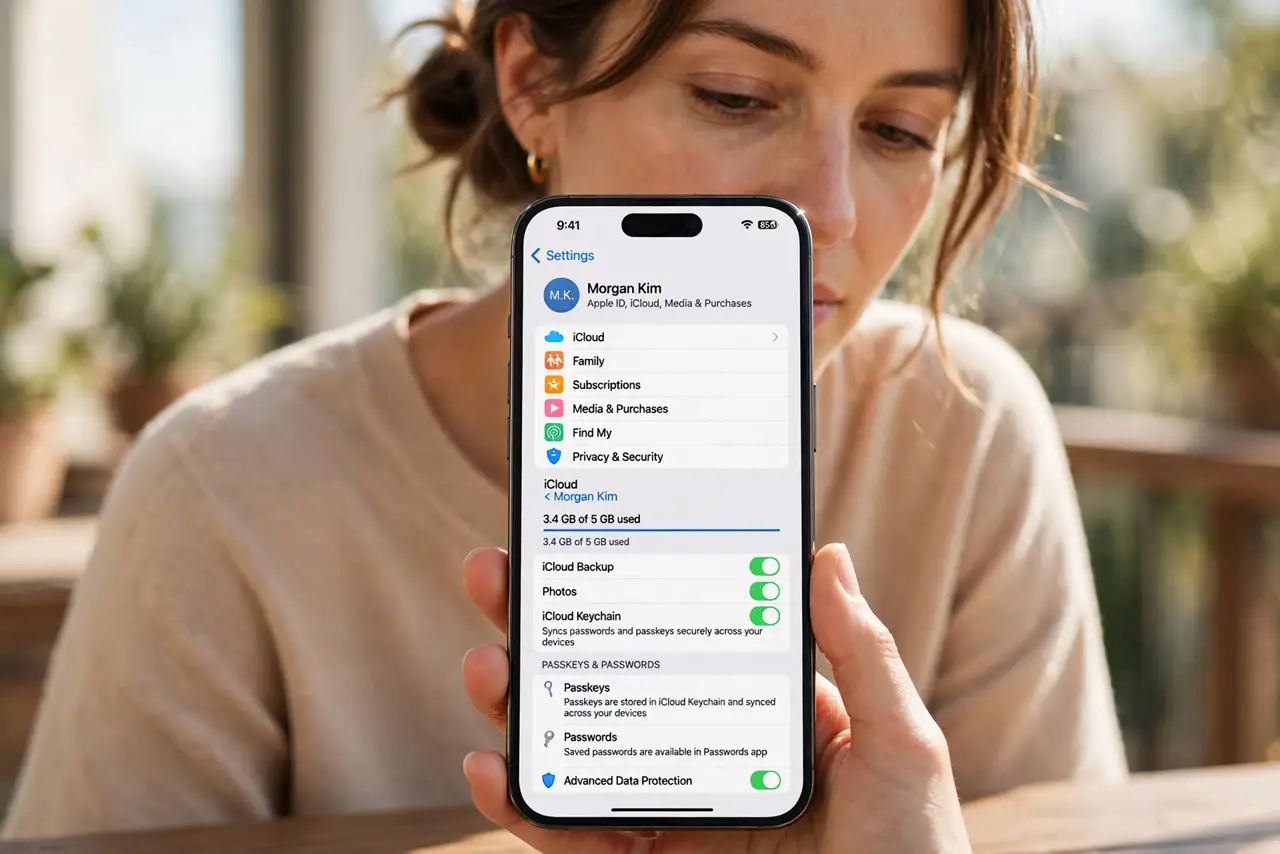
- Check the prerequisites. You need iOS 16 or later, iCloud Keychain on, and two-factor authentication for your Apple ID. Find all three under Settings > your name > iCloud and Passwords.
- Sign in to a supporting site. Open the site or app that offers passkeys — many banks, Google, and Apple itself do. Sign in with your password one last time.
- Choose the passkey option. Look in the account security settings for ‘Create a passkey’ or ‘Sign in with a passkey’. The wording varies by site.
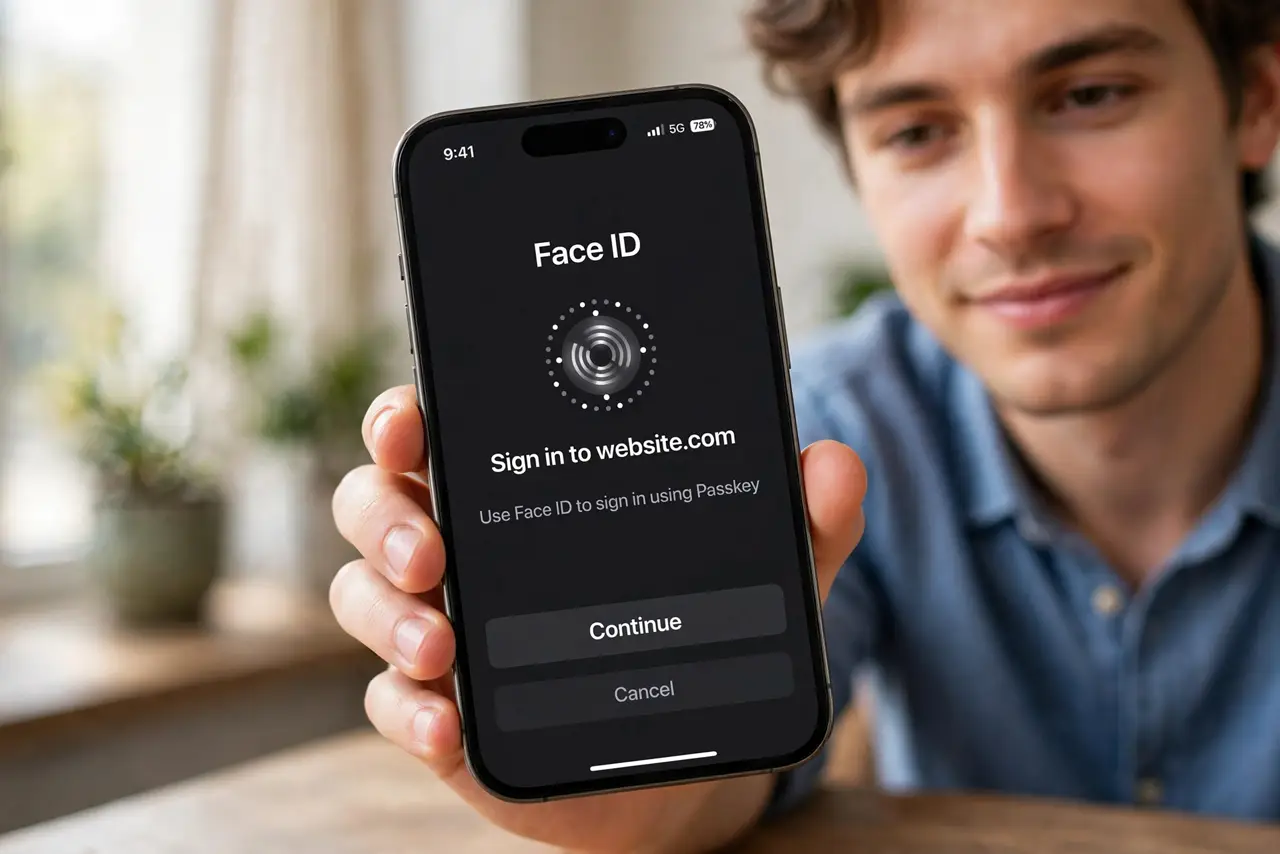
- Confirm with Face ID. The phone prompts for Face ID or your device passcode. One glance creates the key pair and saves the private half to iCloud Keychain.
- Test signing in with it. Sign out and sign back in choosing the passkey. It should take one Face ID glance — no password typed.
- Know the Android equivalent. On Android the same flow saves to Google Password Manager; see the Android passkey guide if you carry both platforms.
What NOT to do
- Do not delete the passkey thinking it is a duplicate password. It is the credential now; deleting it locks you out until you re-enroll.
- Do not set up passkeys on a shared iPad. Whoever unlocks the device can use them — keep passkeys on personal devices.
- Do not turn off iCloud Keychain afterward. Your passkeys sync through it; disabling it strands them on one device.
- Do not assume every site supports passkeys yet. Keep your password manager active for the long tail of sites that don't.
Frequently asked questions
What happens to my passkeys if I lose my iPhone?
They sync through iCloud Keychain to your other Apple devices. Sign in to a new iPhone with your Apple ID and they return.
Can I use an iPhone passkey on a Windows PC?
Yes — the site shows a QR code, you scan it with the iPhone, and confirm with Face ID over Bluetooth.
Are passkeys really safer than passwords?
For phishing, yes: there is no password to steal or trick out of you, and each key works only on its real site.