iPhone Photos Won't Upload? Fix the Sync
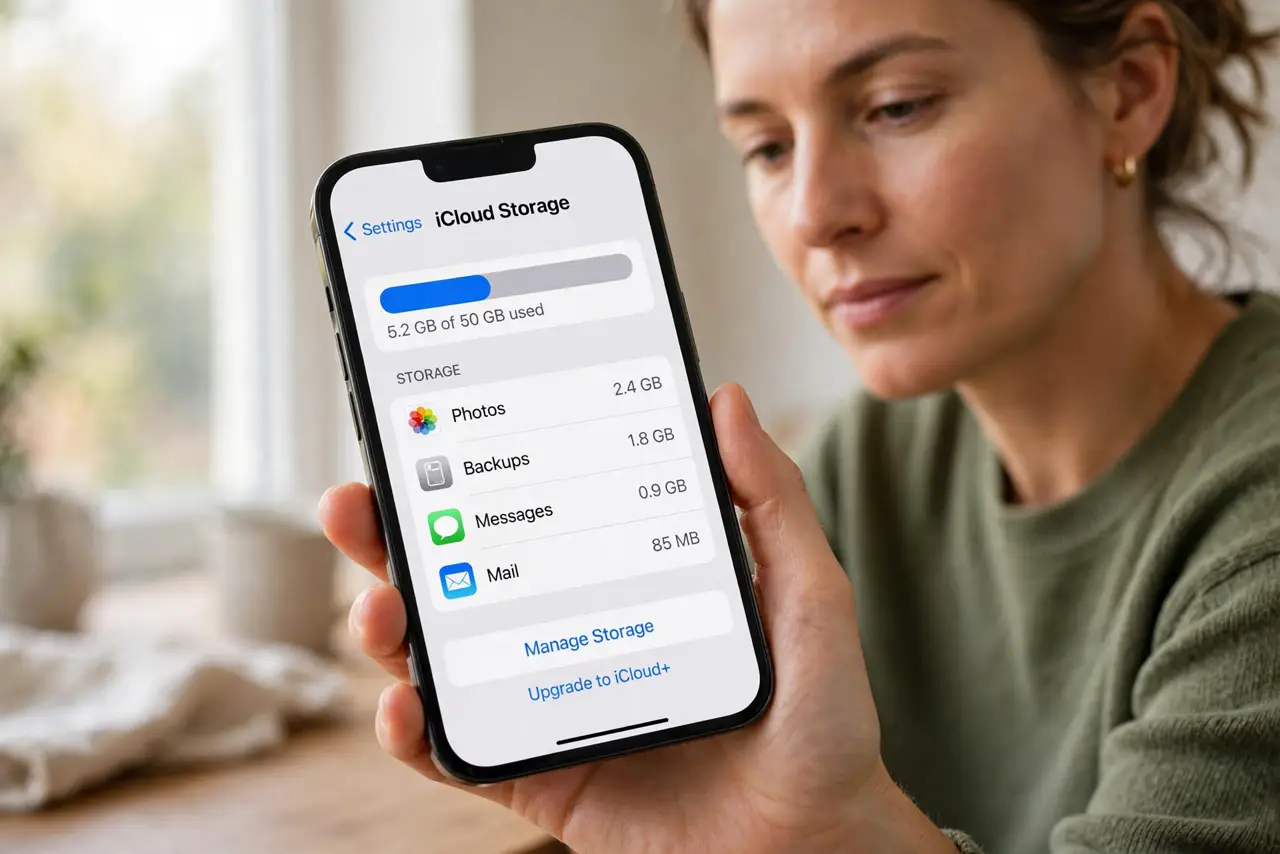
Your photos sit on your phone but never appear on your other devices. The upload queue usually stalls for a boring reason: full storage, a paused sync, or a power-saving mode. Before you delete anything, check the sync itself, because full iCloud storage is the most common blocker of all.

TL;DR / Quick Fix
Quick fix: connect to Wi-Fi and power, turn off Low Power Mode, confirm iCloud Photos is on, free up iCloud storage if it is full, check the Photos app for a paused sync, and update iOS if uploads still stall.
Follow these steps
- Check iCloud storage first. Open Settings, tap your name, then iCloud, and check the storage bar. If iCloud is full, uploads stop silently. Free space or remove large backups before anything else.
- Confirm iCloud Photos is on. Open Settings, then Photos, and make sure Sync this iPhone is on. If it was off, turning it on starts the upload queue, which can take a while for a large library.
- Connect to Wi-Fi and plug in power. Uploads pause on weak mobile data and when battery is low. Connect to stable Wi-Fi, plug the phone in, and leave it for an hour to let the queue catch up.
- Turn off Low Power Mode and Low Data Mode. Open Settings, then Battery, and turn off Low Power Mode. Then check Settings, then Mobile Data, and turn off Low Data Mode, since both can pause uploads.
- Check the Photos app for a paused sync. Open Photos, then Library, and look at the bottom for a syncing or paused message. Tap it for details, and tap Resume if the sync was paused.
- Update iOS if uploads still stall. Open Settings, then General, then Software Update, and install any update. A stale iOS version can stall sync, and an update often clears it without touching your photos.
What NOT to do
- Do not delete photos to fix a failed upload. Deleting the only copy before it uploads loses the photo for good.
- Do not sign out of iCloud as a first step. Signing out can interrupt the queue and complicate the library, so check storage and sync first.
- Do not turn iCloud Photos off and on repeatedly. Toggling it restarts the queue and can make a slow upload look stuck.
- Do not rely on mobile data for a huge backlog. A large library can eat a data plan fast, so use Wi-Fi for the catch-up.
Frequently asked questions
Why do some photos upload but not others?
The queue may have paused on a large video or when storage filled up. Clearing the blocker lets the rest follow.
Will my photos be lost if I free up iCloud storage?
No, if you remove backups or files you do not need. Do not delete photos from the library itself until they have uploaded.
How long should a big upload take?
It can take hours on Wi-Fi, depending on library size. Plug in, stay on Wi-Fi, and check again later.