Portrait Depth Edit Is Greyed Out
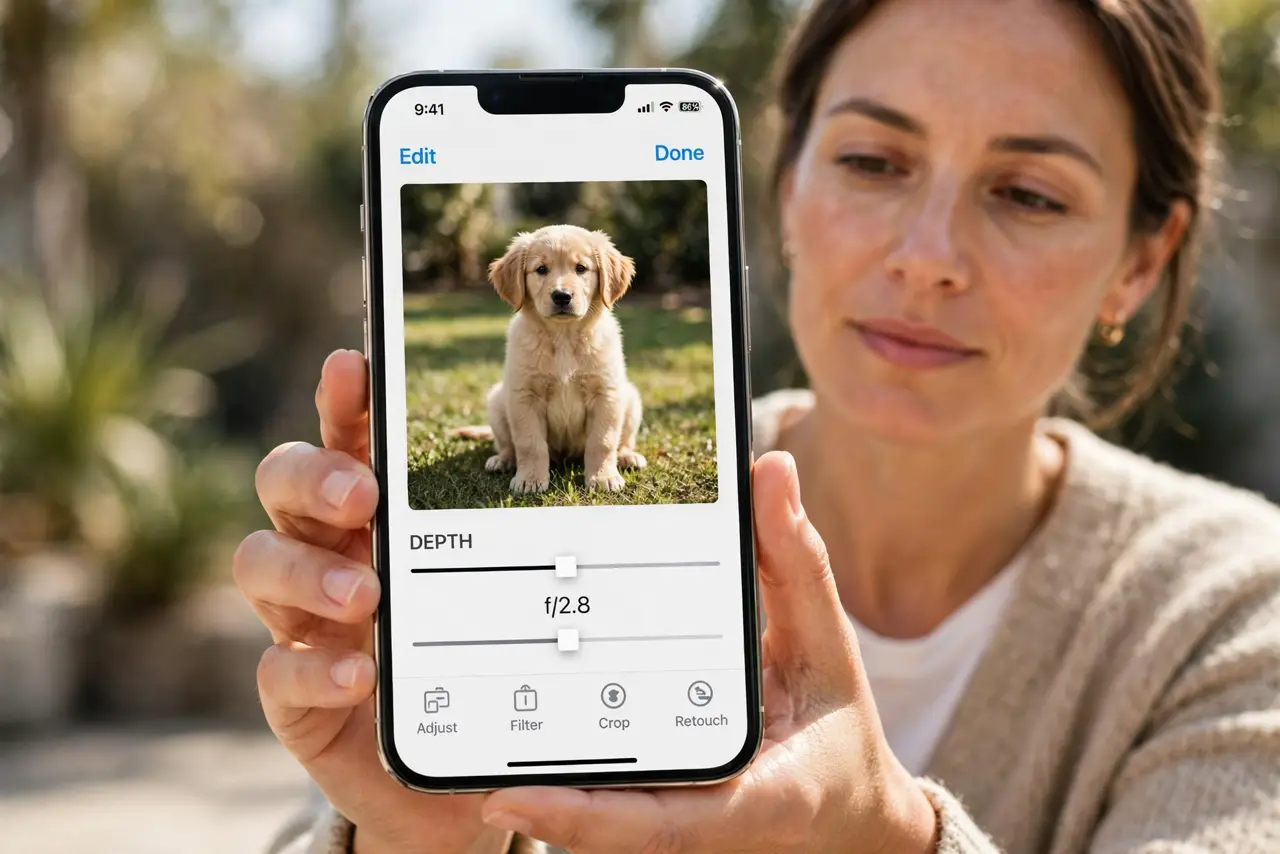
You open a portrait photo to change its blur, but the depth control is greyed out and will not move. The photo, its depth data, or the editing path is usually the reason.
TL;DR / Quick Fix
Quick fix: open the photo in Photos, tap Edit, and confirm it is a true Portrait Mode photo. If depth is greyed out, check whether the photo was copied, shared, or saved in a way that stripped its depth data.
Follow these steps
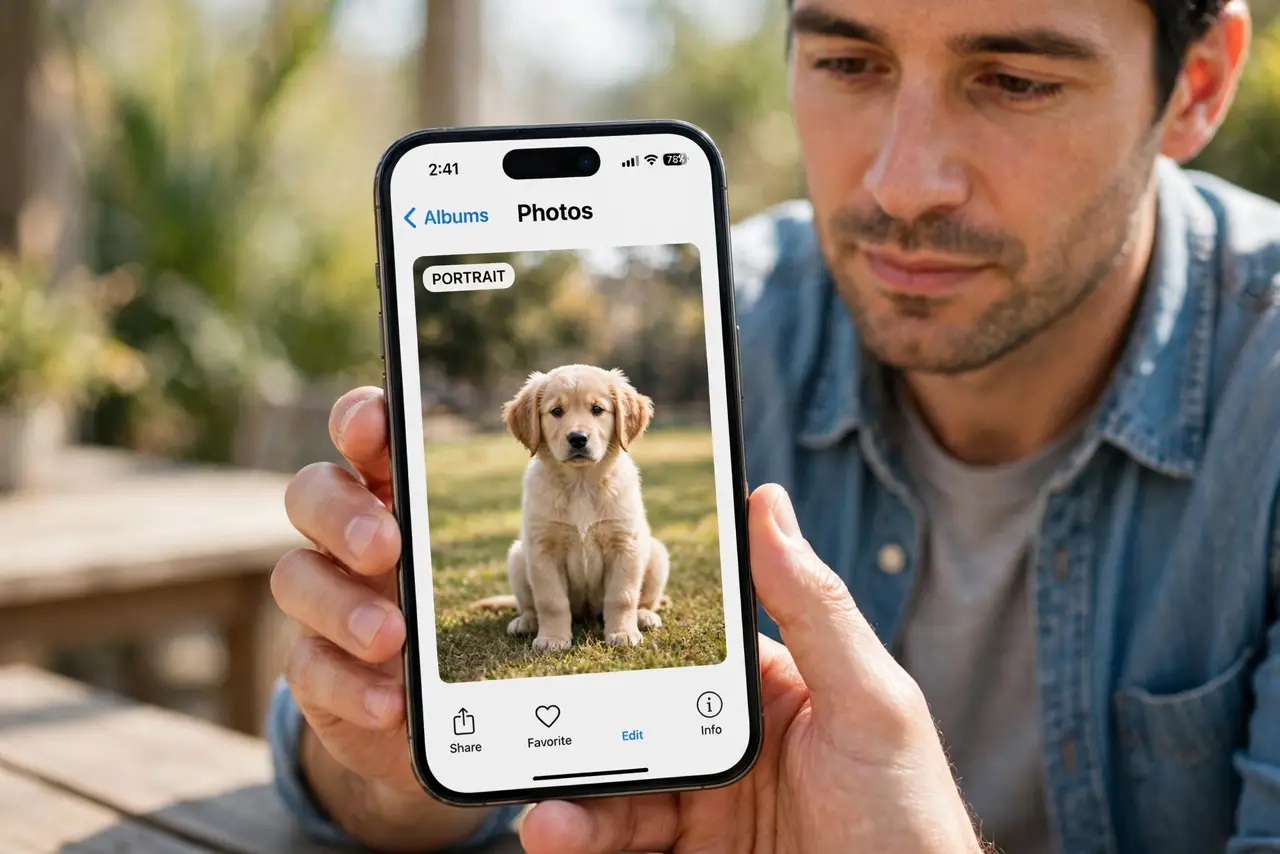
- Confirm it is a Portrait Mode photo. Open the photo and check for the Portrait label in Photos. Only true Portrait Mode photos carry depth data, so a normal photo edited to look portrait-like has no depth control to adjust.
- Edit the original, not a copy. Edit the original photo in your library, not a copy sent through a message or saved from elsewhere. Copies and shares often strip depth data, which greys out the depth control.
- Check the photo was not cropped by another app. If another app edited or re-saved the photo, it may have dropped the depth map. Return to the original in Photos and edit depth there instead.
- Update iOS if depth editing misbehaves. Open Settings, then General, then Software Update, and install any update. Depth editing bugs are fixed in updates, and an old version can grey out controls that should work.
- Restart Photos if the control stays grey. Close Photos fully and reopen it, then open the portrait again. A stuck Photos session can grey out editing controls that work fine after a fresh launch.
- Retake the portrait if depth data is gone. If the depth data was stripped by a copy, no setting restores it for that file. Retake the portrait in Portrait Mode, and edit depth on the original from then on.
What NOT to do
- Do not edit a shared copy and expect depth control. Shared copies often lose depth data, so always edit the original in your library.
- Do not assume depth editing is broken on every photo. Check the Portrait label first, since only true portraits carry the depth data the control needs.
- Do not delete the original portrait over a greyed control. The original holds the depth data, and deleting it removes the only version that can be depth-edited.
- Do not use a third-party editor to force depth back. An editor cannot invent depth data that a copy lost, so retaking the portrait is the honest fix.
Frequently asked questions
Why is depth edit greyed out?
Because the photo is not a true Portrait Mode original, or its depth data was stripped when it was copied or shared.
Can I restore depth data to a copy?
No. Once depth data is stripped, it cannot be recreated for that file, so retake the portrait instead.
Does editing in another app remove depth?
It can. Re-saving a photo in another app often drops the depth map, so edit depth in Photos on the original.