Reach the Top With Reachability
Modern iPhones are glorious slabs that no thumb can fully reach. Reachability slides the whole screen down so the top half — the address bar, the back button, the notification shade — lands within thumb range. It takes one setting and one gesture to enable.
TL;DR / Quick Fix
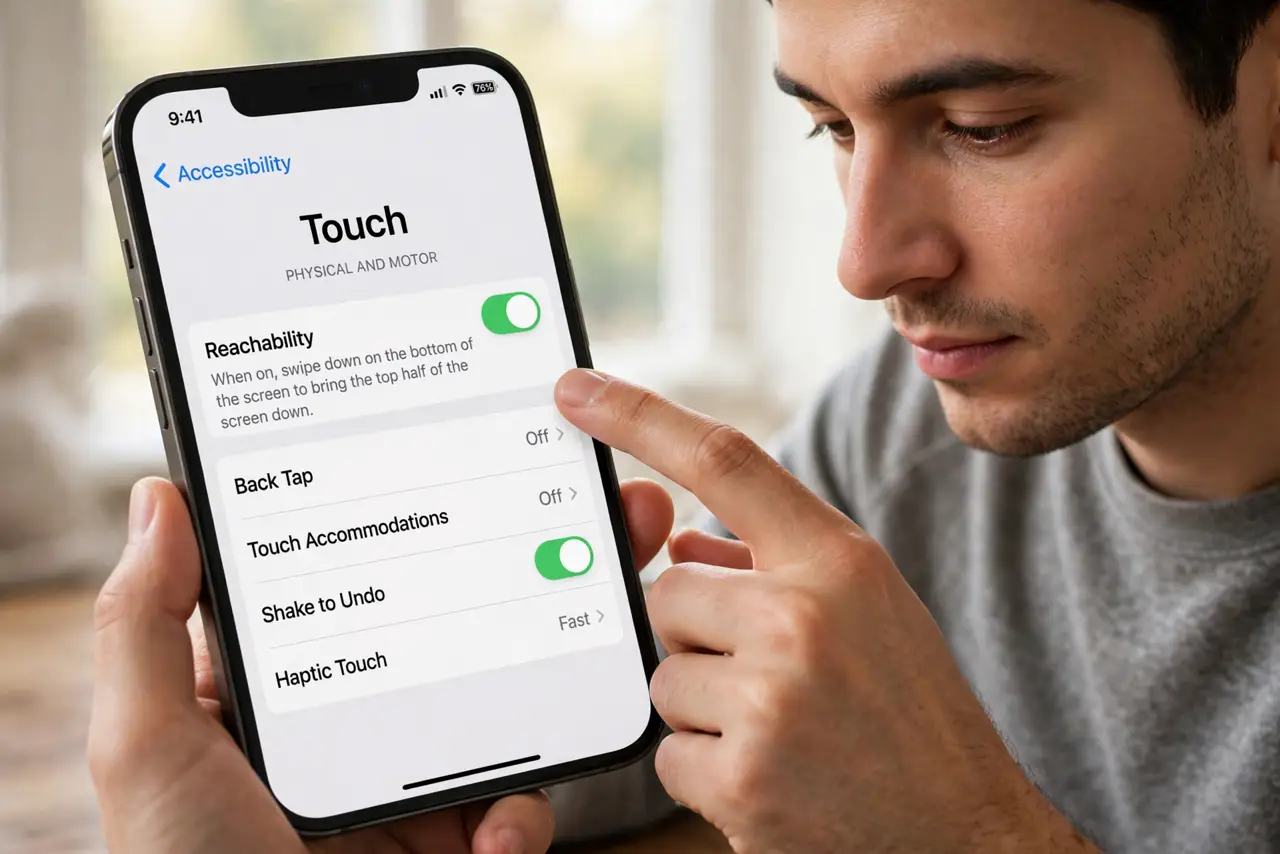
Quick fix: open Settings > Accessibility > Touch and turn on Reachability. Swipe down on the bottom edge of the screen to pull the top half down within thumb range. Swipe up or tap the arrows to return. It helps one-handed use on large iPhones.
Follow these steps
- Turn on Reachability. Open Settings > Accessibility > Touch and toggle Reachability on. Nothing visible changes yet — the gesture is what activates it.
- Swipe down on the bottom edge. Swipe down on the gesture bar at the very bottom of the screen. The whole display slides down about halfway.
- Tap what was unreachable. The address bar, the in-app back button, and the top-row icons are now under your thumb. Use them normally.
- Swipe up or tap an arrow to restore. Swipe up from the bottom edge, or tap the chevron arrows at the side, to slide everything back up.
- Use it with the one-handed keyboard. Reachability plus the shrunken keyboard covers the two biggest one-handed pain points together.
- Know it is per-activation. Reachability does not stay on. Each swipe-down is one temporary shift — which is why Android's persistent one-handed mode feels different.
What NOT to do
- Do not expect it on the Home button models the same way. Older iPhones with a Home button use a double-touch of the button, not a swipe.
- Do not swipe from the middle of the screen. The gesture must start on the bottom edge bar or it just scrolls the app.
- Do not leave it shifted and wonder why taps land wrong. Tap an arrow to restore before doing precise work.
- Do not confuse it with zoom. Reachability shifts the screen; it never changes text size.
Frequently asked questions
Why won't Reachability activate when I swipe?
The swipe must begin on the bottom edge gesture bar. Starting even slightly above it scrolls the app instead — start lower and try again.
Does Reachability work in every app?
Yes, it is system-wide. Any screen — apps, Settings, the Home Screen — slides down the same way.
Can I keep the screen shifted permanently?
No, Reachability is temporary by design. For a permanently smaller screen area, Android's one-handed mode is the closer match.