Get Roadside Help via Satellite
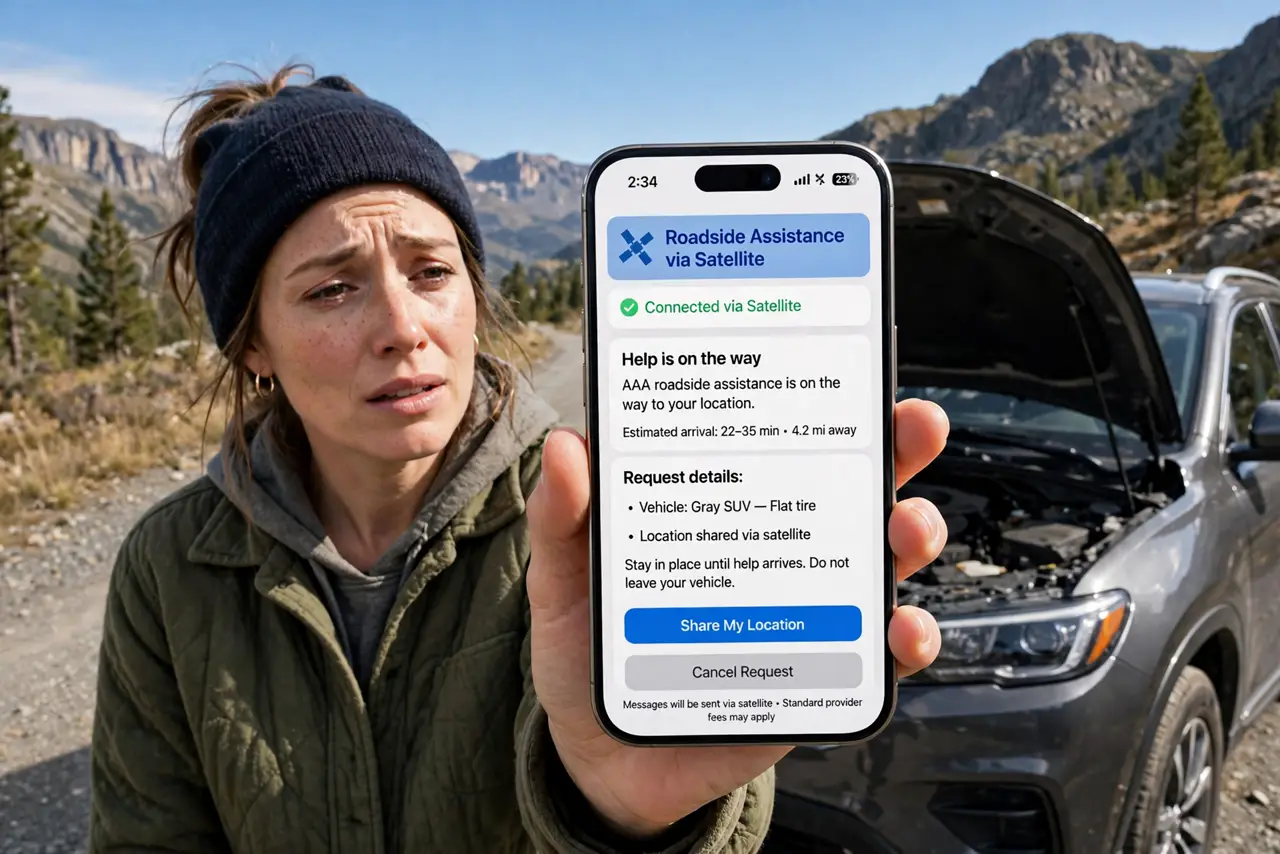
The car dies on a mountain road with zero bars — no signal, no Wi-Fi, no passing traffic. If it is not a medical emergency but you still need a tow, newer iPhones can request roadside assistance over satellite, the same satellite system as Emergency SOS but routed to a roadside provider instead of 911. It takes a few minutes and needs open sky, but it beats walking ten miles.
TL;DR / Quick Fix
Quick fix: iPhones with satellite support can request roadside assistance with no cell signal — start the request in Messages and follow the prompts outside under open sky. You will be connected to a provider such as AAA. Save your provider and policy details in your phone before remote trips.
Follow these steps
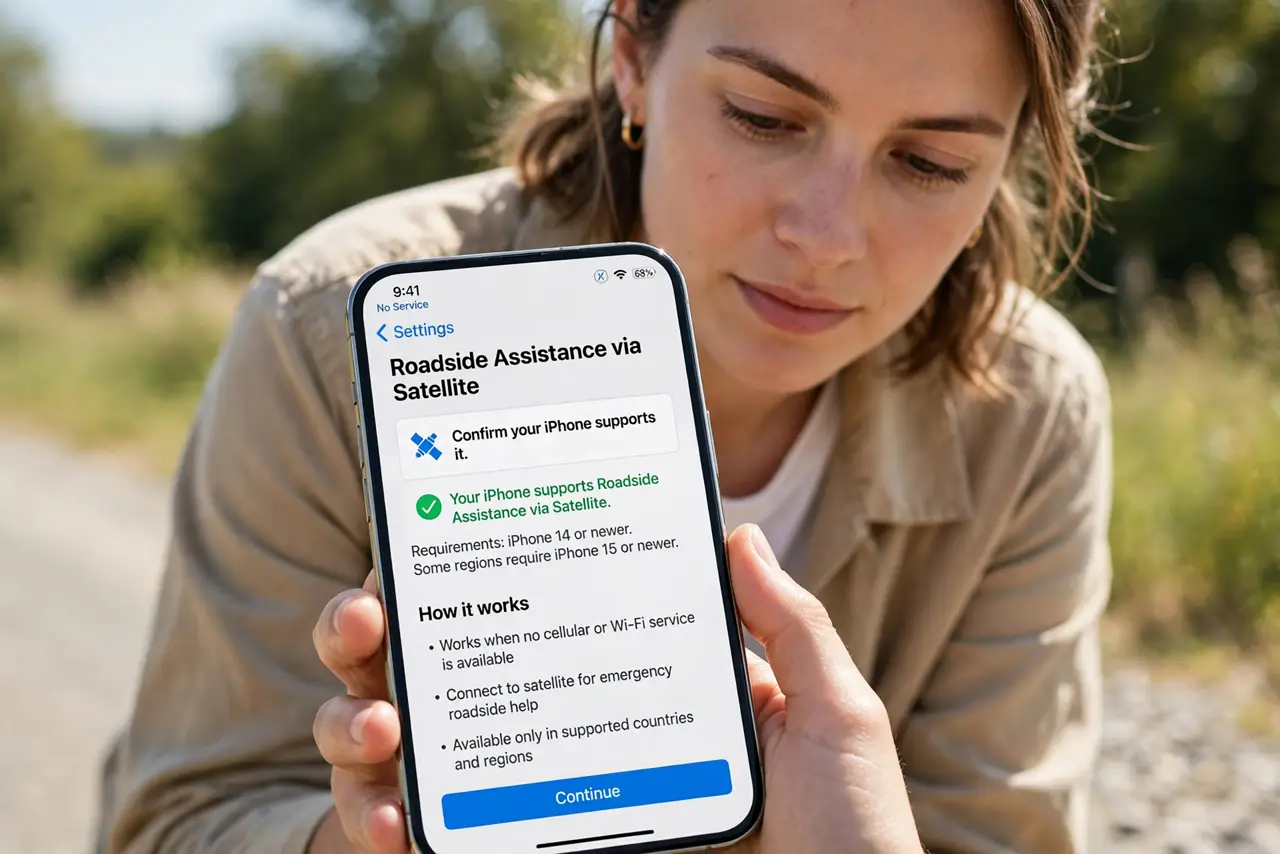
- Confirm your iPhone supports it. Roadside Assistance via satellite needs an iPhone 14 or newer (some regions add iPhone 15+). The option only appears when you genuinely have no cellular or Wi-Fi — you cannot trigger it from your driveway with full bars.
- Start the request from Messages. Open Messages and begin a new roadside assistance request — or follow the Satellite prompt in the connection settings. The phone walks you through it step by step; there is nothing to install or subscribe to on the spot.
- Answer the vehicle questions. You will be asked what happened (flat tire, out of fuel, locked out, mechanical failure) and for vehicle details like make, model, and color. Short, accurate answers get the right truck dispatched.
- Stay outside with a clear sky view. Like Emergency SOS via satellite, this needs open sky — the phone shows where to point it. Stay near the car, keep the phone aimed as directed, and be patient; satellite messages take minutes, not seconds.
- Have your provider details ready. The service connects you with a provider such as AAA. If you are a member, have your membership number in your phone (a note or a photo of the card) — it speeds everything up when the chat connects.
- Prepare before remote trips. Save your roadside provider's number, your policy or membership details, and your car's basics in a note on your phone now. Preparation done at home is what makes a stressful roadside moment go smoothly.
What NOT to do
- Do not use this for medical emergencies. Chest pain, injuries, bleeding — that is Emergency SOS via satellite, not roadside assistance. Pick the right service.
- Do not wander away from the car mid-request. Stay with the vehicle, stay pointed at the sky, and keep the session alive until help is confirmed.
- Do not expect instant replies. Satellite messaging is slow by nature — minutes per exchange. Patience is part of the feature.
- Do not assume coverage everywhere. Satellite roadside availability varies by country — check before a remote trip abroad, not during it.
Frequently asked questions
Does it cost money?
The satellite connection itself has been included with qualifying iPhones; the actual tow or service is billed by the roadside provider per their normal rates — membership or pay-per-use, same as a phone call would be.
Which providers participate?
Apple routes through providers such as AAA in the US. Availability and partners differ by country, so check Apple's satellite page for your region.
Can I use it for someone else's car?
Yes — describe the actual vehicle needing help when asked. The service follows the request, not the phone's owner.