Auto-Close Old Safari Tabs
The tab count hits triple digits and Safari starts feeling like a attic. Auto-close prunes tabs you have not touched in a day, a week, or a month — automatically, silently, in the background. Your keepers survive in tab groups or bookmarks; the cruft composts itself.
TL;DR / Quick Fix
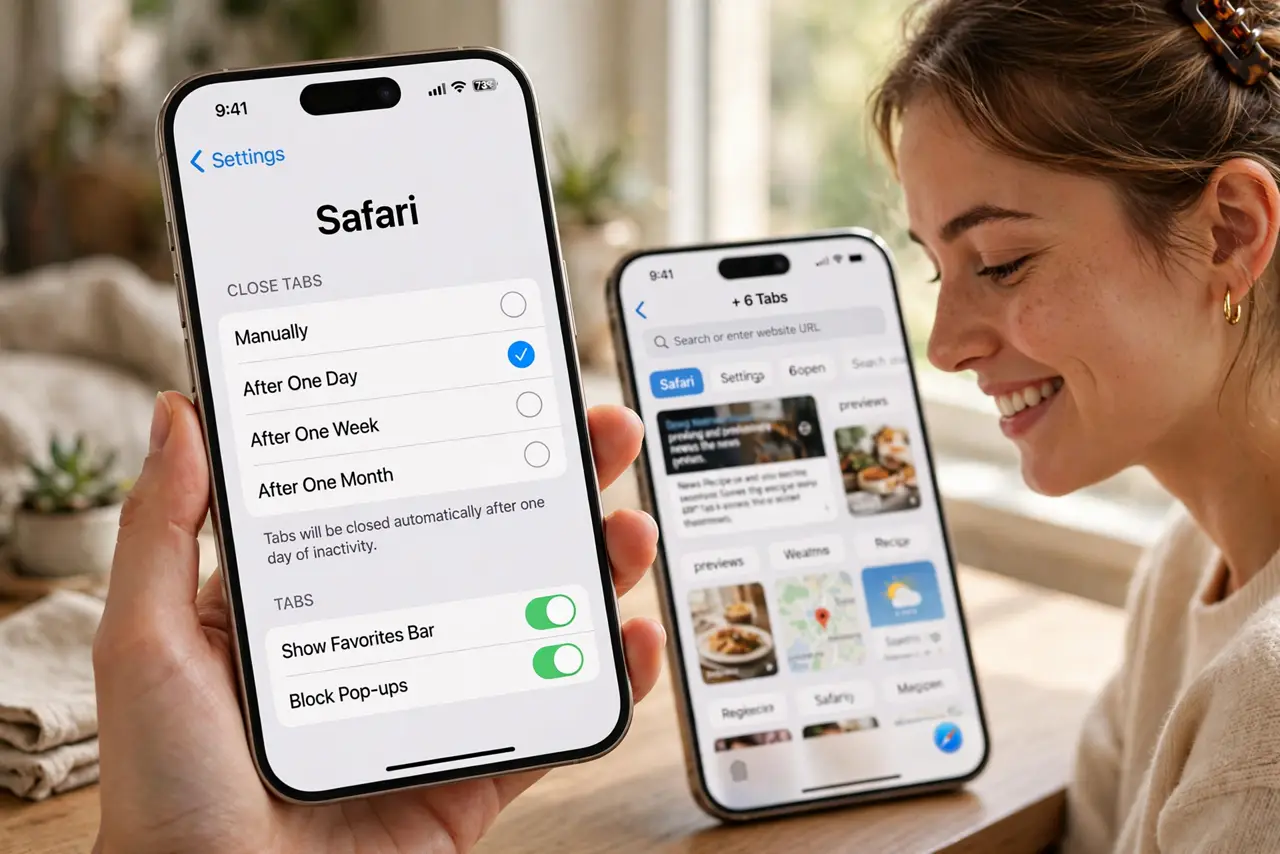
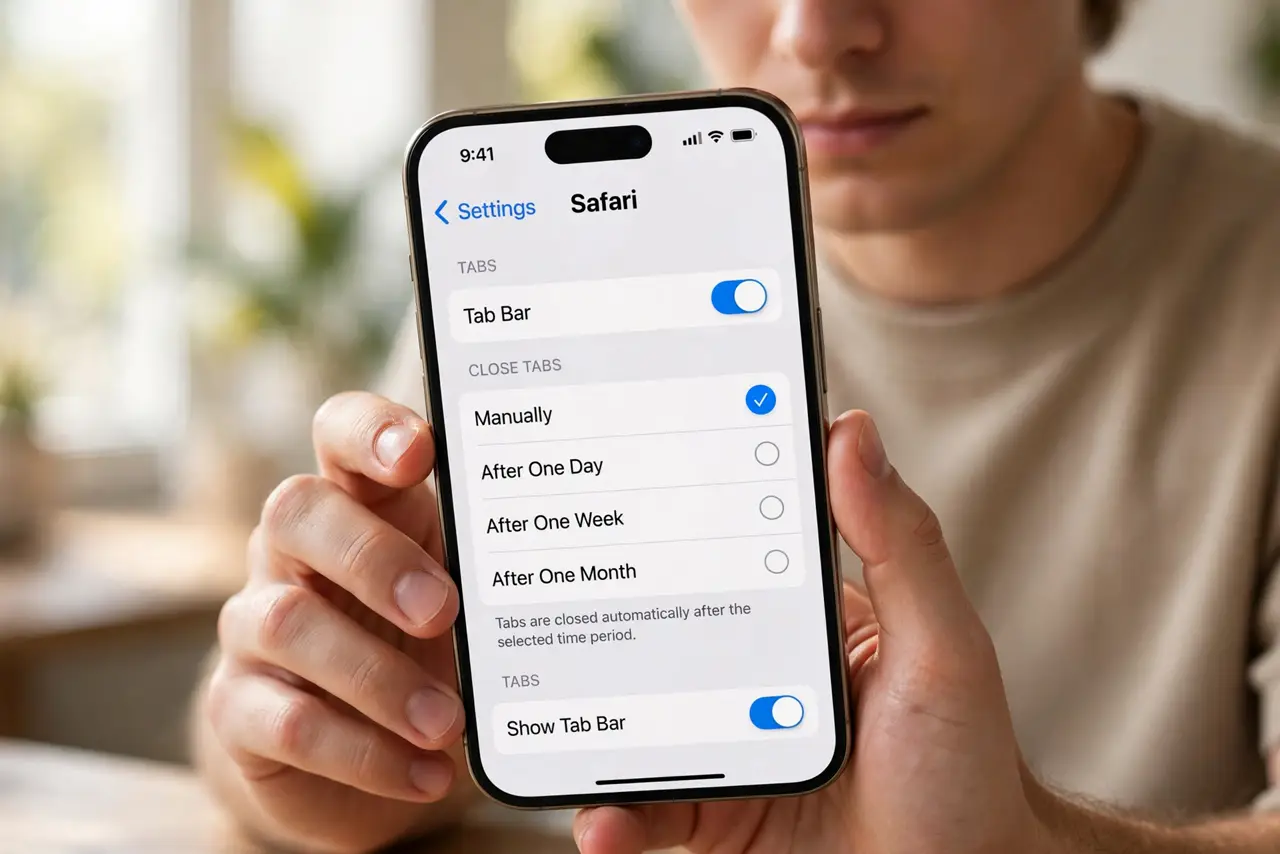
Quick fix: on iPhone, open Settings > Safari > Close Tabs and choose After One Day, After One Week, or After One Month. On Mac, open Safari > Settings > Tabs and set tabs to close automatically after the same intervals. Only untouched tabs close — active ones stay.
Follow these steps
- Open Safari settings on the iPhone. Settings > Safari > scroll to the Tabs section > Close Tabs. The options are right there.
- Pick your pruning interval. After One Day is aggressive; After One Month is gentle. A week suits most people — tabs you have not touched in seven days were never important.
- Set it on the Mac too. Safari > Settings > Tabs > Automatically close tabs after one day, week, or month. Each device manages its own tabs.
- Bookmark the keepers first. Before the first prune, save anything worth keeping — bookmarks or a tab group protect tabs from the auto-close.
- Know what closes and what stays. Only tabs untouched for the whole interval close. A tab you opened yesterday morning survives a one-week setting.
- Check the recently closed safety net. Closed a tab you wanted? Long-press the + in the tab overview to resurrect recently closed tabs.
What NOT to do
- Do not choose one day on day one. Start with a month, feel the rhythm, then tighten — aggressive pruning on a tab-hoarder causes panic.
- Do not rely on auto-close for privacy. It closes tabs; it does not clear history — use Private mode for that.
- Do not forget pinned tabs are exempt. Pinned tabs never auto-close — pin the three that must survive anything.
- Do not confuse it with closing the app. Swiping Safari away never closed tabs; this setting actually does.
Frequently asked questions
Will it close tabs in my tab groups?
Yes — the setting applies per tab regardless of group. Move keepers to bookmarks if a group holds long-term references.
Can I recover an auto-closed tab?
Often — long-press + in the tab overview for recently closed tabs. Ancient ones are gone; the keepers should have been bookmarked.
Does it close tabs on all devices at once?
No — each device prunes its own tabs on its own schedule. Your Mac's tabs follow the Mac's setting.