Organize Safari Tabs Into Groups
Forty-seven open tabs: the work research, the gift shopping, the rabbit hole from Tuesday. Tab Groups give each project its own tab shelf in Safari — switch contexts with one tap instead of scrolling a endless tab strip. Setup takes a minute on iPhone and Mac alike.
TL;DR / Quick Fix
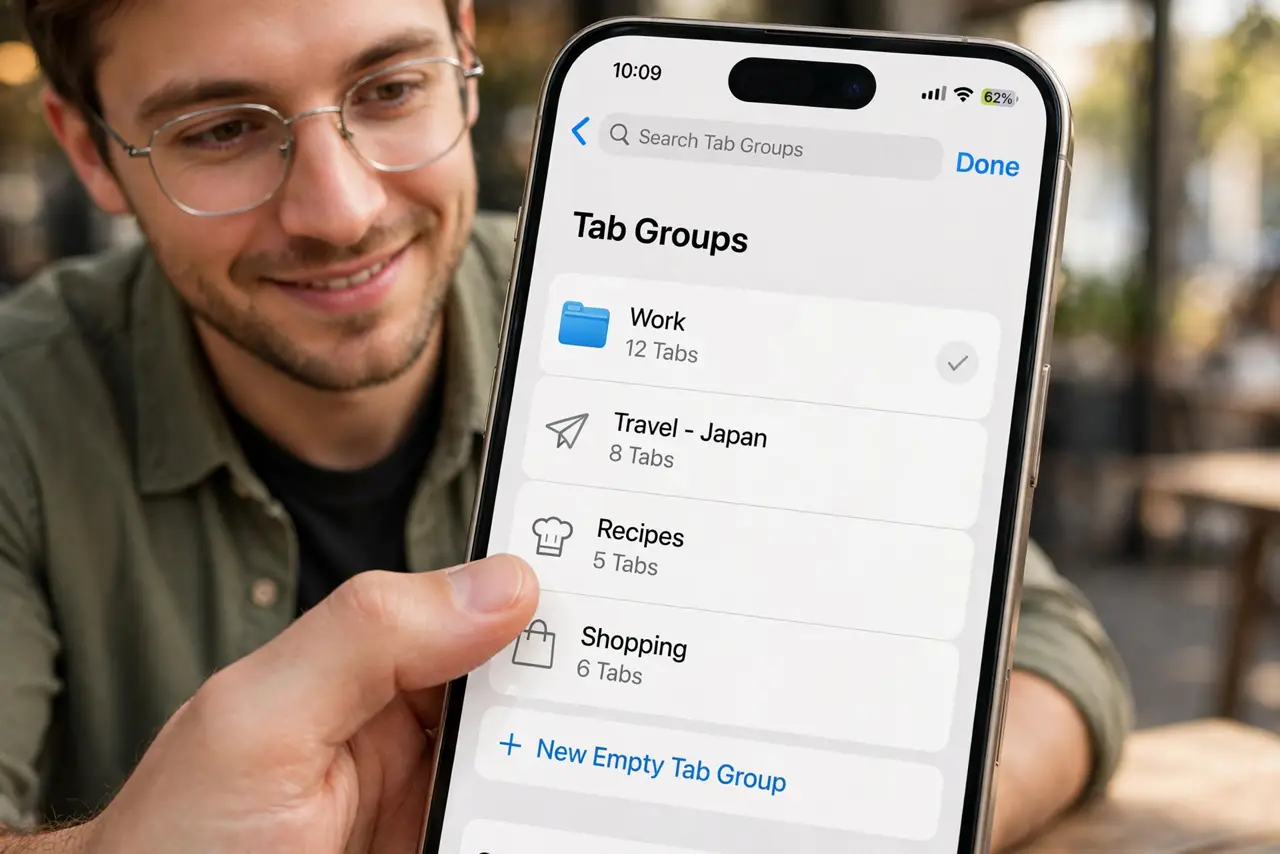
Quick fix: in Safari, open the tab overview, tap the Tab Groups button, and choose New Empty Tab Group — or New Tab Group from the open tabs. Name it for the project. Switch groups from the same button; tabs stay separated and sync via iCloud to your Mac.
Follow these steps
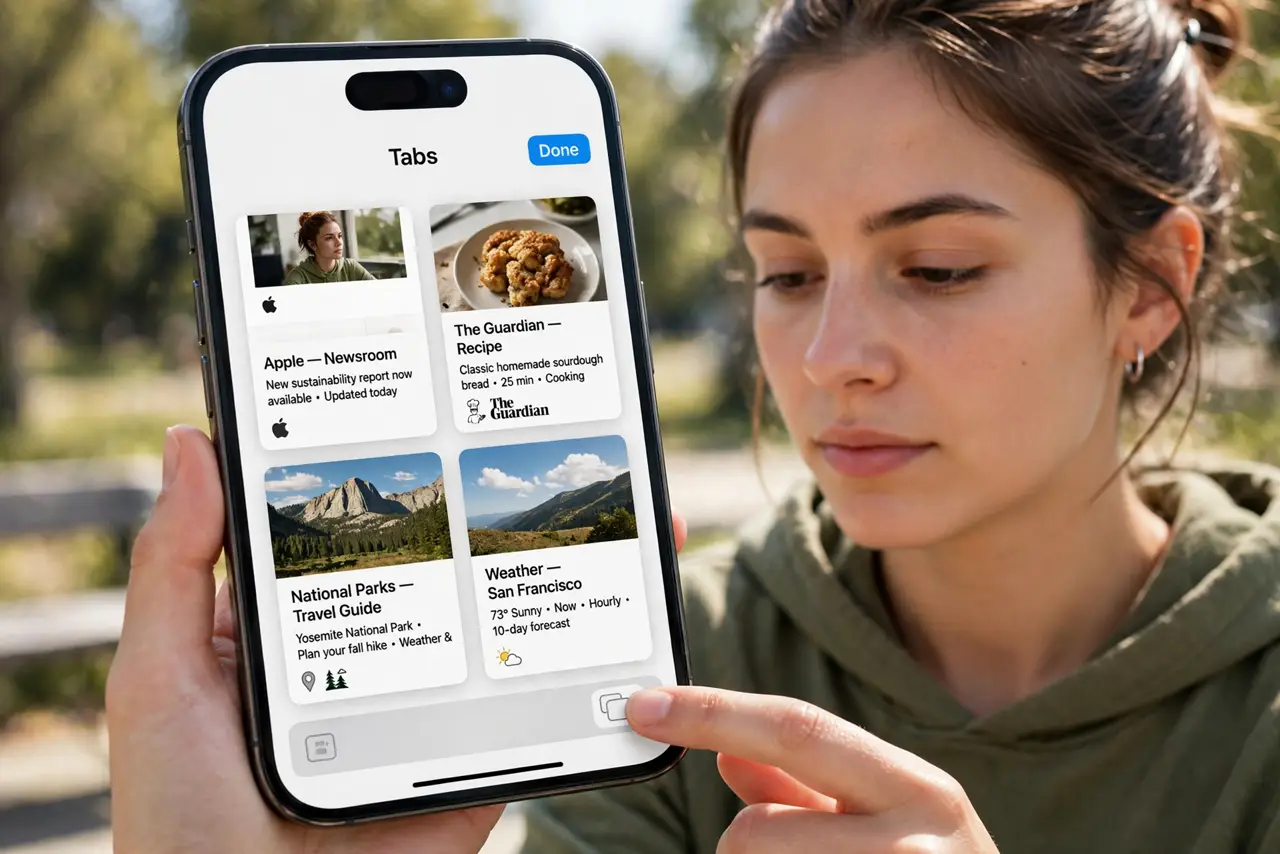
- Open the tab overview. In Safari, tap the tab overview button (the squares icon). Your open tabs spread out — this is the organizing desk.
- Tap the Tab Groups button. At the bottom of the overview, tap the Tab Groups label. It lists your groups and the option to create new ones.
- Create a group from open tabs. Choose New Tab Group from X Tabs to corral the current mess, or New Empty Tab Group to start fresh. Name it clearly — 'Gift shopping', not 'Group 3'.
- Move tabs between groups. Long-press any tab in the overview and choose Move to Tab Group. Strays find their homes in seconds.
- Switch groups in one tap. The same Tab Groups button jumps between shelves. Each group keeps its own tab set — contexts stay clean.
- Let iCloud sync them. With iCloud Safari sync on, groups appear on your Mac and iPad too. Organize once, benefit everywhere — and auto-close the strays you never grouped.
What NOT to do
- Do not make a group per tab. Groups organize multiples — a shelf with one book on it is just clutter with a name.
- Do not forget to name them. 'Untitled Group' times six is worse than no groups at all.
- Do not keep dead groups forever. A finished project's group should be closed — long-press the group name and delete it, tabs and all, or move survivors out first.
- Do not confuse Tab Groups with private browsing. Groups organize; Private mode hides — different buttons, different jobs.
Frequently asked questions
Do tab groups sync between iPhone and Mac?
Yes, through iCloud — same Apple ID, Safari sync on. A group made on the phone appears on the Mac.
Can I share a tab group with someone?
Yes — long-press the group and share it. Collaborators see the tabs update live, handy for trip planning.
What's the difference from bookmarks?
Bookmarks save pages permanently; tab groups hold live working sets. Groups are for now, bookmarks are for later.