Find Your Safari Downloads
You downloaded the boarding pass, the PDF, the file — and now it has vanished into the phone. iPhone downloads live in the Files app, in a location you chose once and forgot. Two taps reveal the spot, and one settings change puts future downloads where you will actually look.
TL;DR / Quick Fix
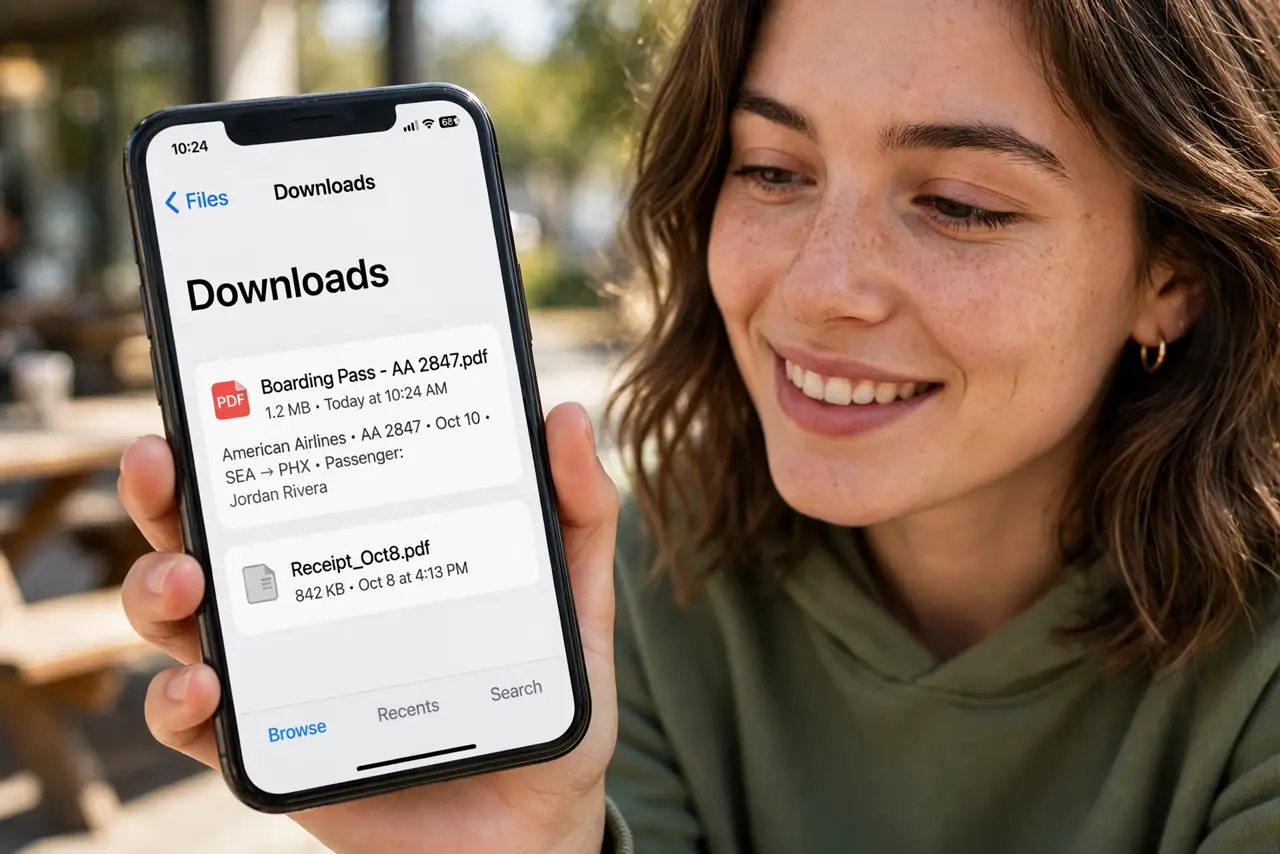
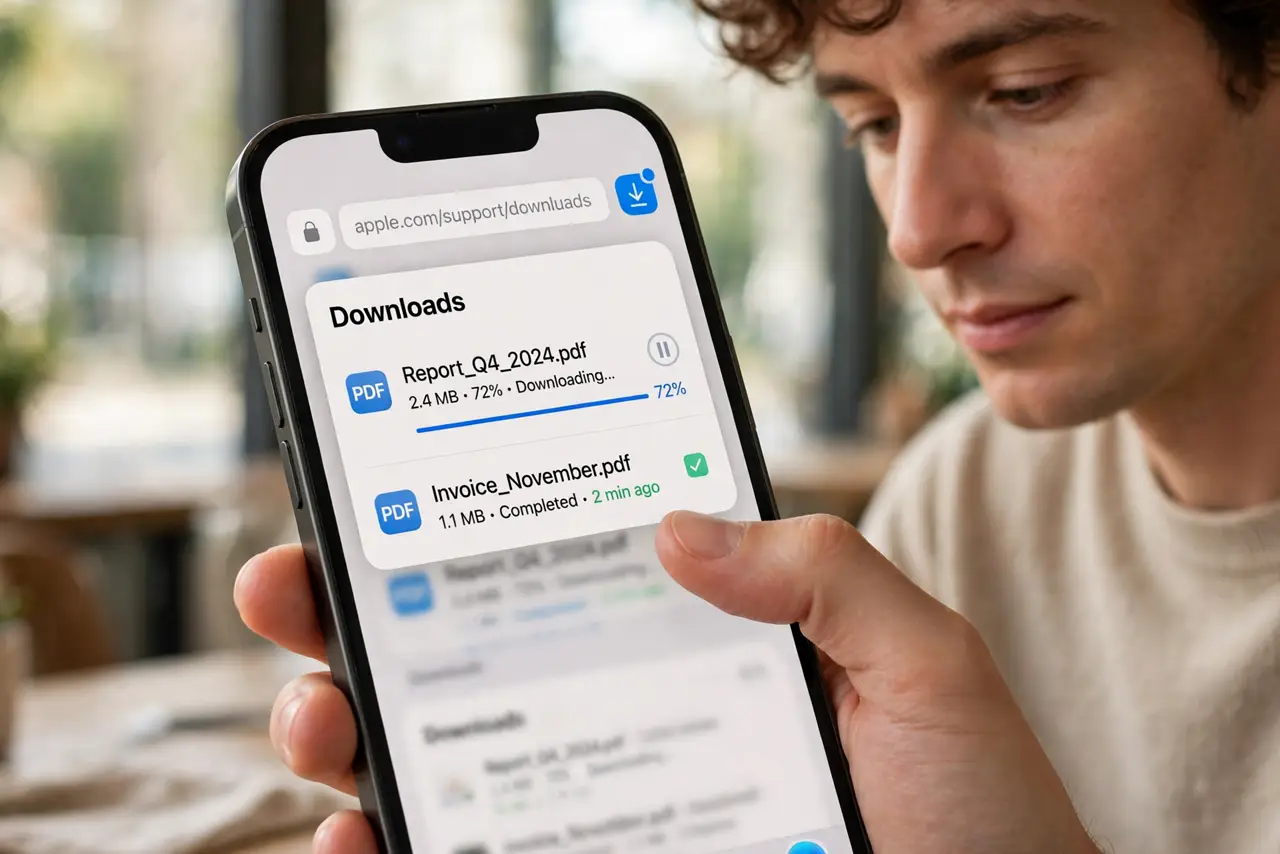
Quick fix: open the Files app, tap Browse, and open Downloads — under iCloud Drive or On My iPhone depending on your setting. To change where Safari saves, go to Settings > Safari > Downloads and pick the location. While downloading, a download icon appears in Safari's address bar.
Follow these steps
- Check the download icon in Safari. While a file downloads, an arrow icon appears in the address bar — tap it to see progress and reveal the file in place.
- Open the Files app. Downloads live in Files, not in Safari. Tap Browse at the bottom, then look for the Downloads folder.
- Know which Downloads folder is yours. Settings > Safari > Downloads shows the current location: iCloud Drive > Downloads, or On My iPhone > Downloads. Check the matching spot.
- Change the location for next time. In the same Settings screen, pick the location you will actually check. iCloud Drive syncs to the Mac — On My iPhone stays local.
- Remove downloads you have handled. Downloads accumulate silently. Swipe to delete the ones you have used — or set a monthly cleanup reminder.
- For big files, stay on Wi-Fi. Large downloads over cellular can stall or eat your data plan. Wait for Wi-Fi for anything over a few dozen megabytes.
What NOT to do
- Do not download the same file five times. Each tap re-downloads — check the Downloads folder before tapping again.
- Do not assume a failed download retries itself. Interrupted downloads often sit half-finished — delete the partial file and start over.
- Do not save sensitive downloads to a shared iCloud. A boarding pass in shared iCloud Drive is visible to family sharing — keep IDs local.
- Do not ignore the storage warning. A full phone aborts downloads silently — check storage if downloads keep failing.
Frequently asked questions
Where did my download go on the iPhone?
Files app > Browse > Downloads — under iCloud Drive or On My iPhone, matching Settings > Safari > Downloads.
Can Safari download to the Photos app?
Images offer Save to Photos on long-press. Other files go to the Downloads folder — that is the system design.
Why does the download keep failing?
Usually storage full, or a flaky connection. Free space and switch to Wi-Fi, then retry.