Schedule Texts to Send Later
You remember the birthday text at 2 AM and either send it immediately like a maniac or trust your morning self to remember — which never works. Both iPhone and Android can schedule messages to send later: write it now, set the time, and the phone delivers it at 8 AM like a thoughtful morning person.
TL;DR / Quick Fix
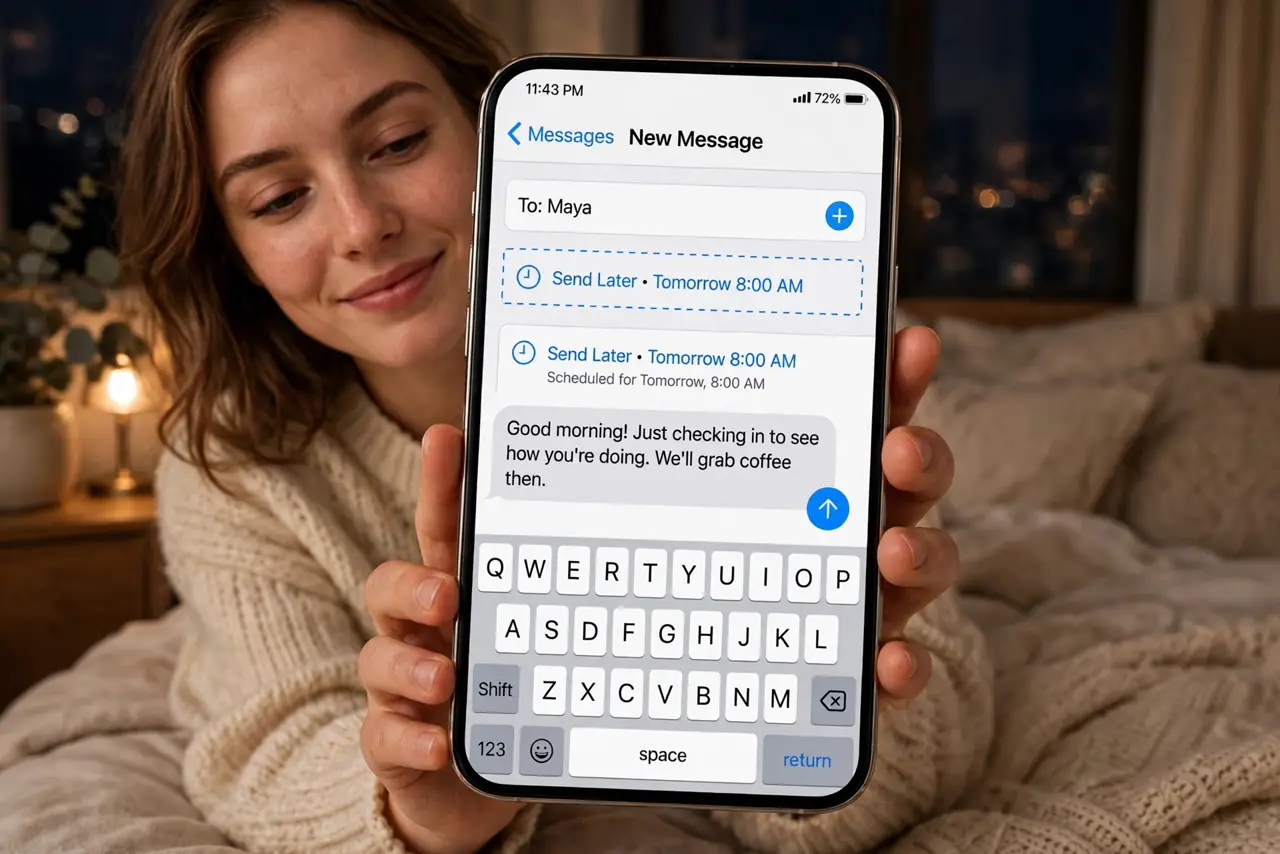
Quick fix: in the Messages app, write your text, then choose Send Later instead of sending — pick tomorrow morning or any date. The message waits and sends automatically. Use it for birthdays, reminders, and anything you think of at midnight.
Follow these steps
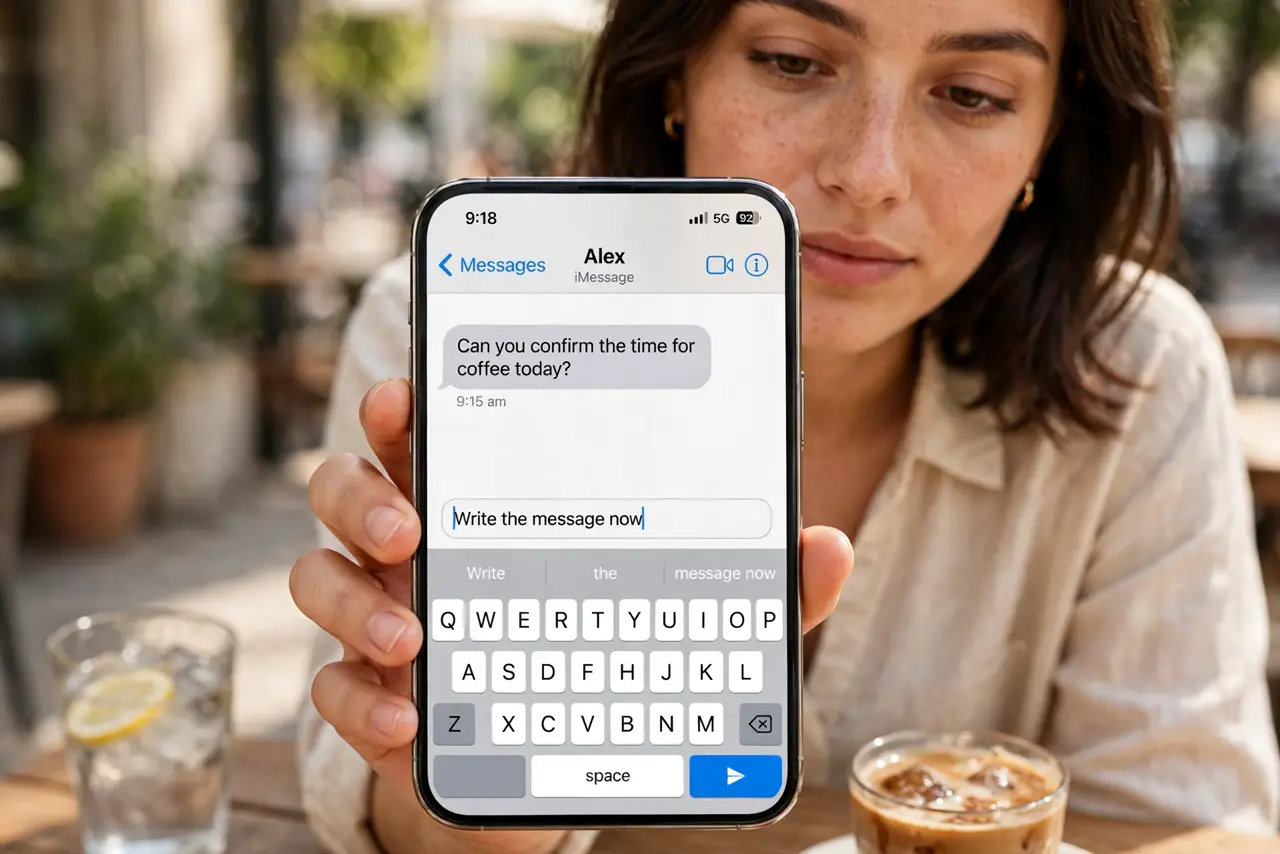
- Write the message now. Open Messages, pick the conversation, and type the text while you are thinking of it. Capturing it now is the point — the scheduling handles the timing.
- Choose Send Later. On iPhone, tap the plus button and choose Send Later; on Android, long-press the send button for scheduling options. The time picker appears — this is the step people miss.
- Pick the right moment. Choose a time the recipient is awake and the message makes sense — 8 or 9 AM for birthdays, not midnight. Think about their timezone if they travel.
- Confirm it is scheduled. The message appears in the conversation with a scheduled label and a dashed outline. Verify it is there — a scheduled message you cannot see is a message that will not send.
- Edit or cancel if plans change. Tap the scheduled message to edit the text or time, or delete it to cancel. Until it sends, it is fully under your control.
- Remember it needs the phone on. Scheduled messages send from your phone at the set time — powered off or in airplane mode at 8 AM means a delayed text. For critical messages, confirm delivery.
What NOT to do
- Do not text at 3 AM 'so you do not forget.' That is exactly what scheduling is for — write now, send at 8.
- Do not schedule time-sensitive news far ahead. Plans change; a scheduled message you forget about can send something painfully outdated.
- Do not assume it sent. For truly important messages, check the conversation after the send time to confirm delivery.
- Do not schedule across a phone switch. Scheduled messages live on the device — a new phone before send time strands them.
Frequently asked questions
Can I schedule on WhatsApp?
Not natively — WhatsApp has no built-in scheduling. Third-party apps exist but need accessibility permissions; for WhatsApp, reminders to send manually are safer.
Does the recipient know it was scheduled?
On iPhone, no — it arrives like any normal text. Some Android versions show no indicator either; it just looks like good timing.
What if my phone is off at the send time?
The message waits and sends when the phone is back on and connected. It will be late, not lost — but check before assuming.