Record a Voicemail Greeting
Callers hear the robotic carrier default — 'the person you have called is unavailable' — and assume you do not care. Recording your own greeting takes sixty seconds and changes the whole impression: your voice, your name, what to do next. Here is where the setting hides on iPhone and Android, and what to actually say.
TL;DR / Quick Fix
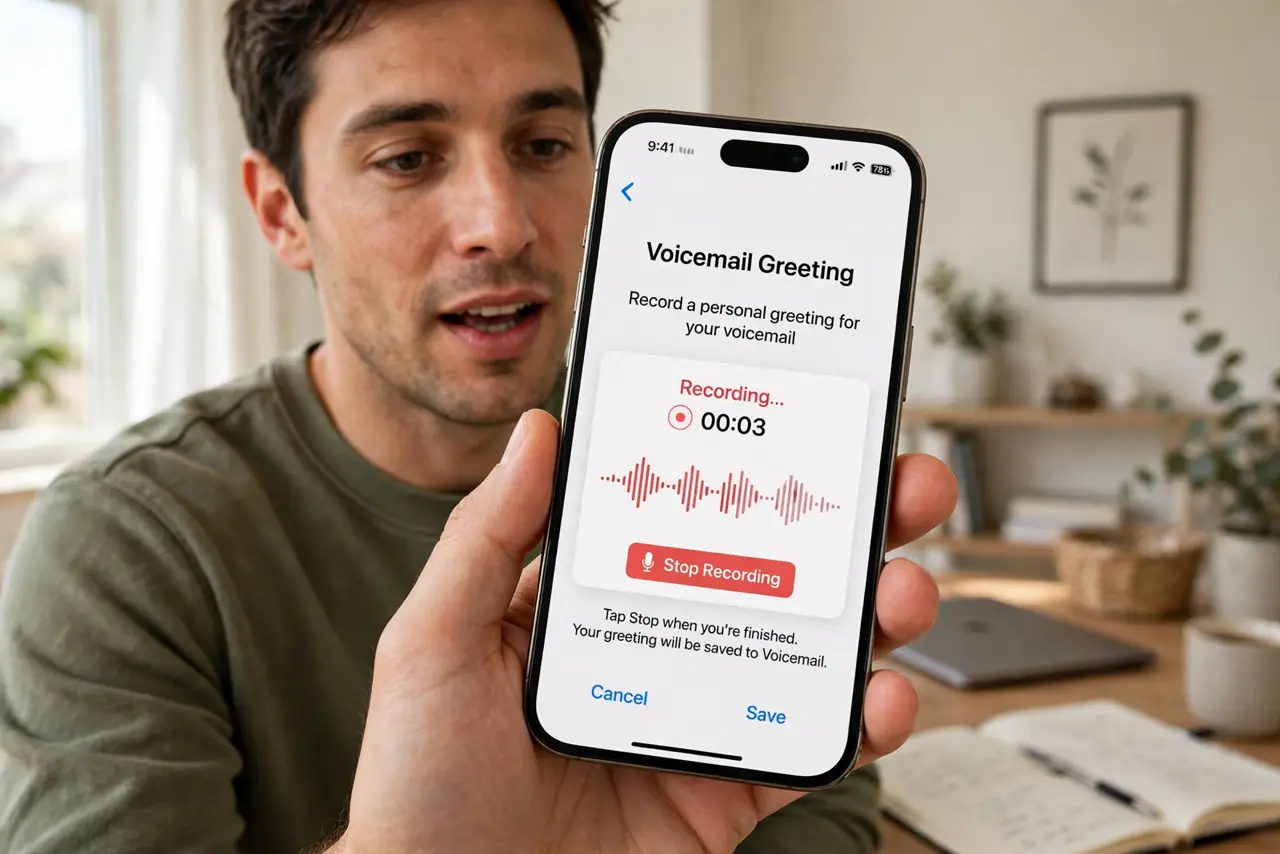
Quick fix: open the Phone app, go to Voicemail, tap Greeting, choose Custom, and record. Say your name, that you cannot take the call, and what to do — leave a message or text. Keep it under twenty seconds. Play it back once, save, and you are done forever.
Follow these steps
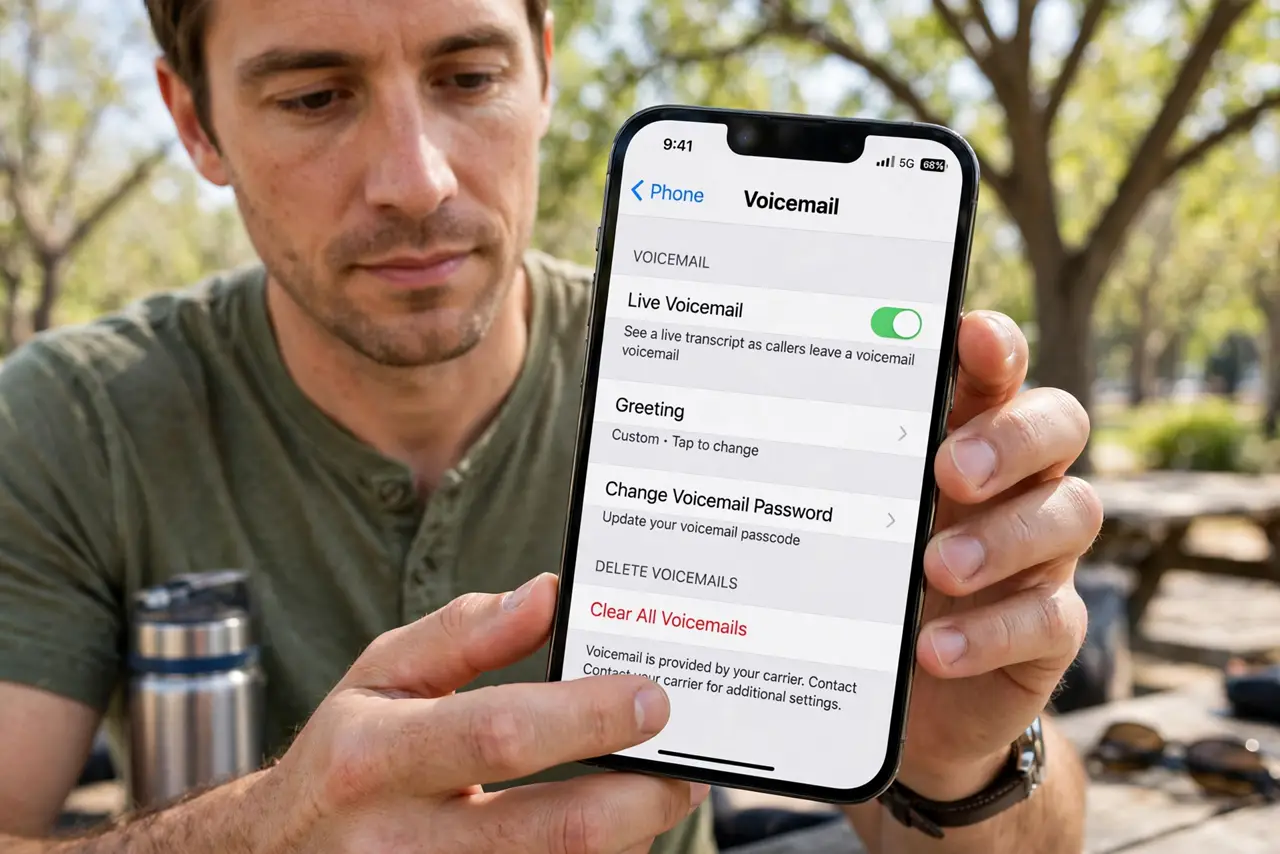
- Open the voicemail settings. On iPhone, open the Phone app, tap Voicemail, then Greeting. On Android, open the Phone app, tap the three dots, then Settings, then Voicemail, then Greeting — carriers vary, but it lives near the voicemail options.
- Choose Custom. Switch from Default to Custom. The default is the carrier's robot voice; custom is you. This one toggle is the entire transformation.
- Write your script first. Jot down two sentences: your name and what to do. 'Hi, this is Alex — I cannot take your call right now. Please leave a message or text me and I will get back to you.' Scripting avoids the rambling take.
- Record in a quiet room. Tap record and read your script at a natural pace. Bathrooms echo, streets roar — a quiet room with soft furnishings sounds professional with zero equipment.
- Listen back once. Play the recording before saving. Check for clarity, background noise, and that you said your name — the number one thing people forget.
- Save and test. Save the greeting, then call yourself from another phone to hear what callers hear. One test call confirms everything works as intended.
What NOT to do
- Do not ramble past twenty seconds. Long greetings get hung up on — name, status, instruction, done.
- Do not include sensitive details. No 'I am on vacation until Friday' — that is a burglary invitation on an answering machine.
- Do not record in a noisy place. Wind and traffic make you sound unprofessional no matter how good the script is.
- Do not forget to update it. A greeting mentioning a 2022 vacation in 2026 tells callers you never check messages.
Frequently asked questions
Why can't I find the Greeting option?
Some carriers manage voicemail on their network, not the phone. Call your voicemail and follow the prompts, or check the carrier's app — the setting lives there instead.
Should I use the default or custom?
Custom, always. The default signals 'I never set up my phone'; your voice signals a real person who will call back.
Can I have different greetings for work and personal?
Not with standard voicemail — one greeting per line. Dual-SIM phones can set a greeting per line, which covers work versus personal numbers.