iPhone Screen Recording Has No Sound? Fix It
Your screen recording plays back silent, even though the video is fine. Screen recording captures system audio by default, but the microphone toggle and silent mode confuse the result. The Mac version is a Mac screen recording with no sound, and the iPhone fix is even quicker.
TL;DR / Quick Fix
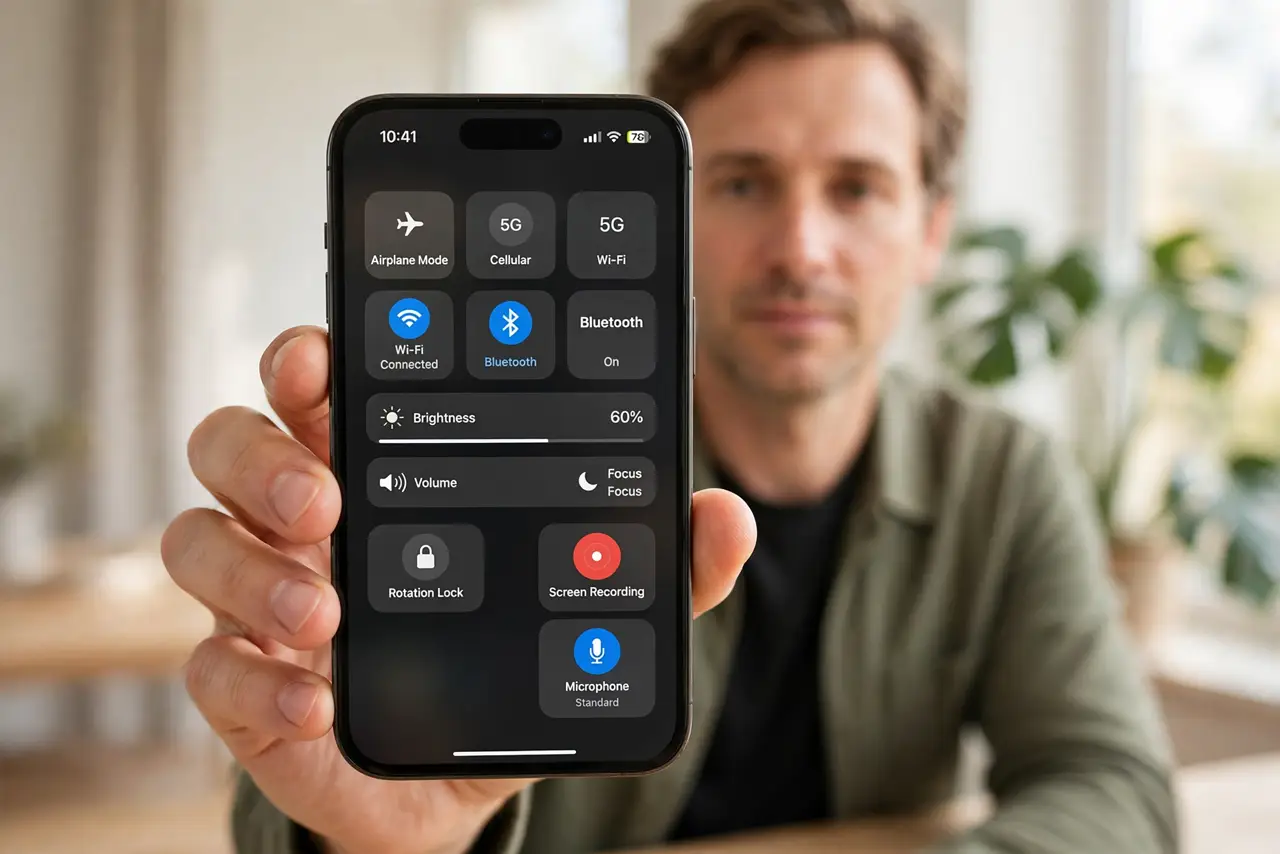
Quick fix: press and hold the recording button and turn Microphone on, raise volume, check silent mode, record a short test, and check the video in Photos. If it still fails after these steps, note exactly when it happens, since that pattern reveals the cause.
Follow these steps
- Turn the microphone on before recording. Open Control Center, press and hold the Screen Recording button, and turn Microphone on. Without it, your voice is not recorded, only system audio.
- Raise the volume before recording. Raise media volume before you start. A recording made at minimum volume plays back nearly silent, even though it technically has sound.
- Check the silent switch. Look at the side switch or Action Button setting. Silent mode can affect what the recording captures, so test with it off if sound is missing.
- Record a short test clip. Record ten seconds while speaking and playing a sound, then play it back in Photos. A test clip shows whether microphone, system audio, or both are missing.
- Check the video in Photos, not just the preview. Open the recording in Photos and play it with volume up. A preview or a muted player can make a good recording look silent.
- Restart if sound stays missing. Restart the iPhone and record another test. A stuck audio session after calls or other apps sometimes needs a restart to clear.
What NOT to do
- Do not record a long tutorial before testing sound. A ten-second test saves you from a silent hour-long recording.
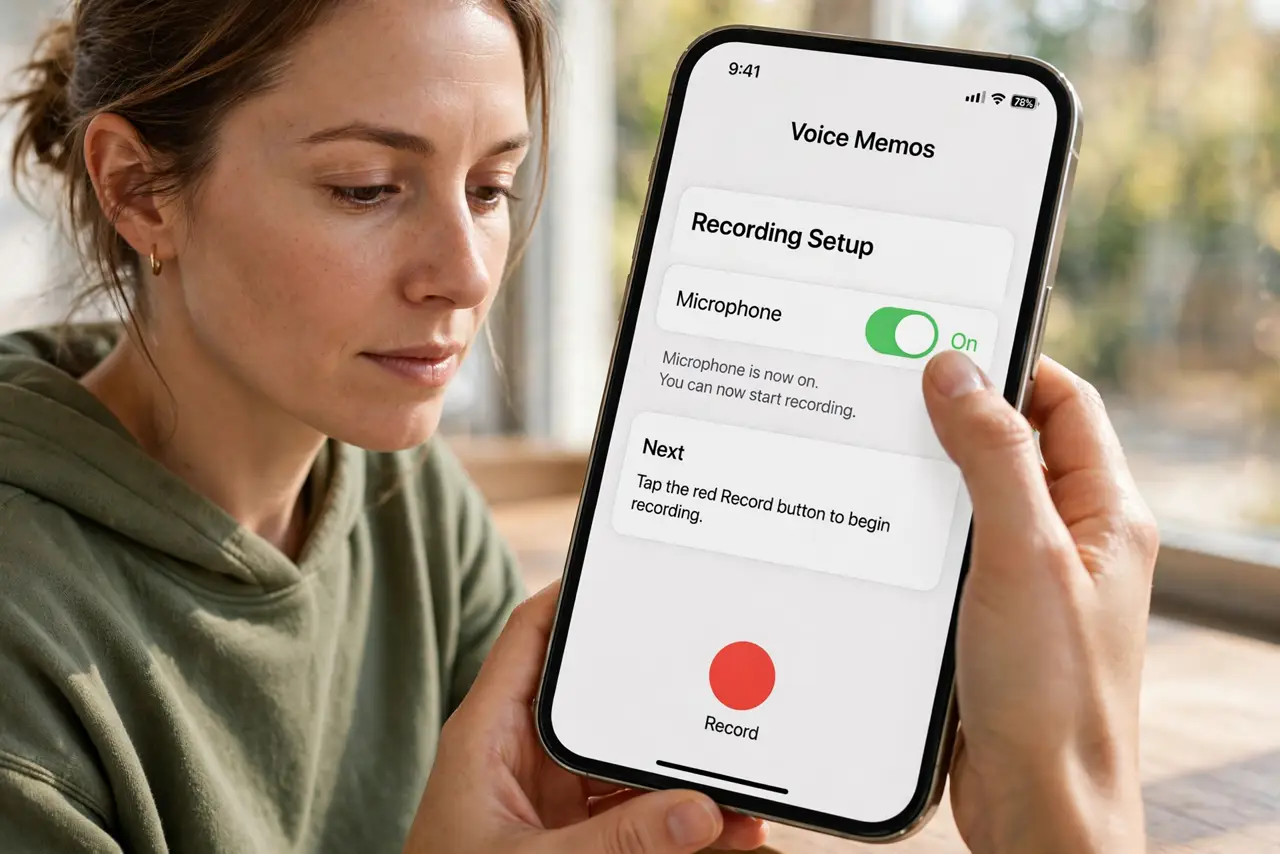
- Do not assume the microphone is broken. The recording microphone toggle is off by default, so check it before suspecting hardware.
- Do not play copyrighted audio in a recording you plan to share. System audio capture includes whatever is playing, which can cause problems when published.
- Do not ignore a recording that has neither voice nor system sound. That points to an audio session fault, so restart and retest.
Frequently asked questions
Why does my recording have no voice?
Because the microphone toggle was off. Press and hold the recording button and turn Microphone on.
Why is system audio missing too?
Usually volume was at minimum, silent mode interfered, or the audio session was stuck. Test after a restart.
Can I add sound to a silent recording later?
Not easily. Re-record with the microphone on, since the original audio was never captured.