Search iPhone Faster
Still swiping through pages hunting for that app? Your iPhone has a search engine for everything on it — apps, contacts, settings, even text inside photos — one swipe away. Two letters typed beats twenty seconds of swiping, every time. Combine with the App Library for total app peace, and automate the repetitive with Shortcuts.
TL;DR / Quick Fix
Quick fix: stop hunting for apps — swipe down on any home screen and type the first two letters of the app's name. Spotlight finds apps, contacts, and even settings instantly. Two letters beat twenty seconds of swiping every single time.
Follow these steps
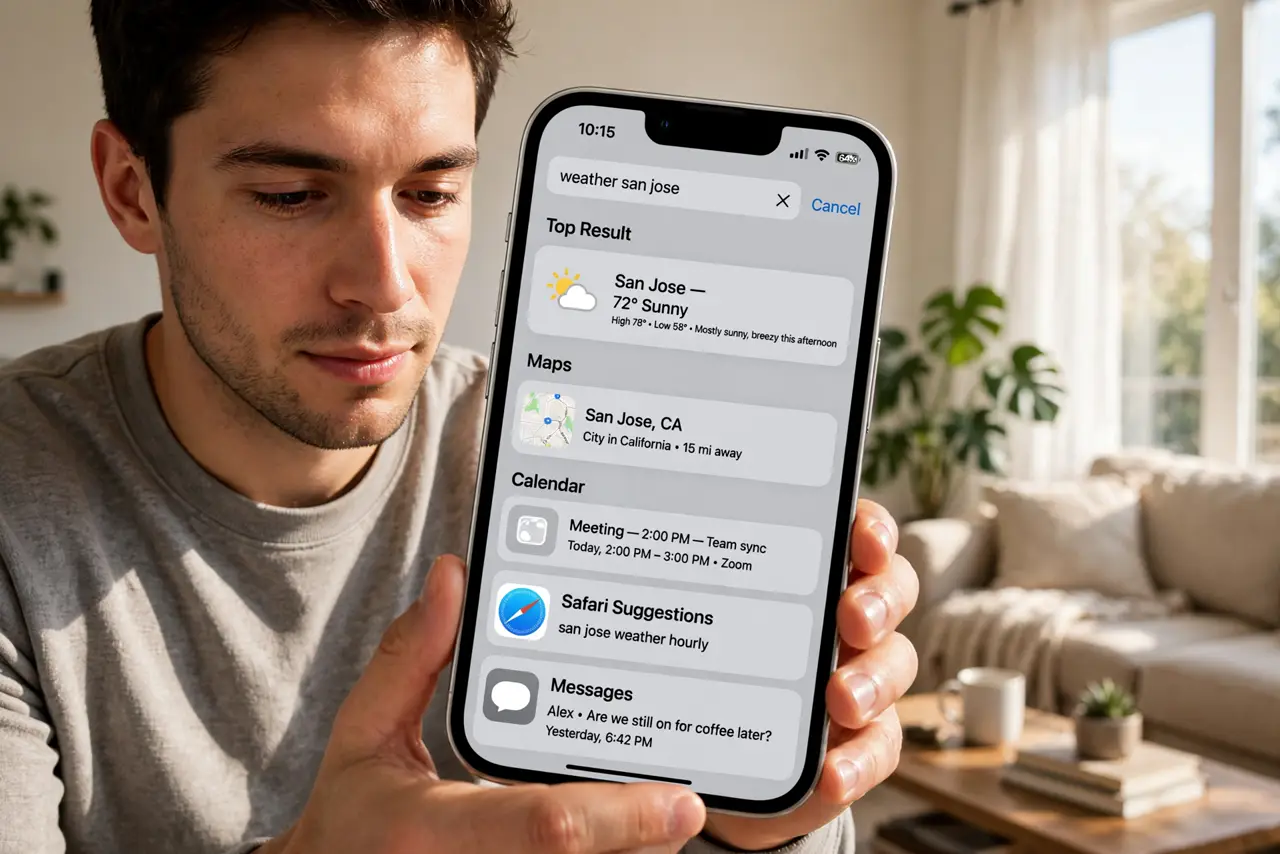
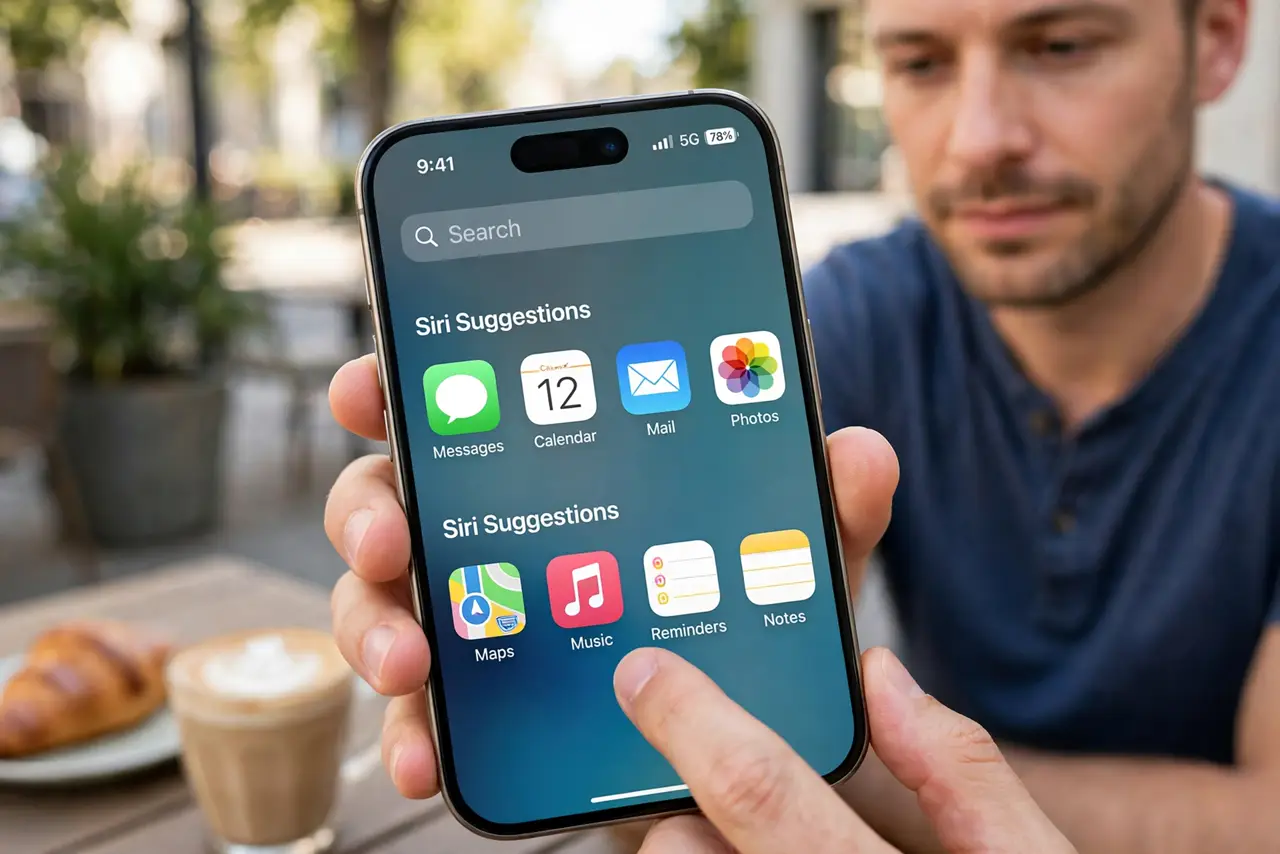
- Open Spotlight. Swipe down from the middle of any home screen. The search bar appears with Siri suggestions below it.
- Type two letters. Start typing the app's name — two or three letters is usually enough. Results filter live as you type.
- Tap the top hit. The best match sits at the top; tap it to launch. Muscle memory makes this faster than any folder within days.
- Search beyond apps. Try contacts, settings (type wifi to jump straight there), calendar events, and even text spotted in your photos.
- Use it for quick math and answers. Type a calculation or a question — Spotlight answers many directly without opening anything.
- Make it a habit. Every time you catch yourself swiping through pages, stop and swipe down instead. The habit pays off within a week.
What NOT to do
- Do not keep swiping out of habit. The old way feels faster only because it is familiar — it is not.
- Do not organize apps into deep folders. Search makes folder archaeology obsolete; keep the home screen simple.
- Do not forget settings search. Typing the setting name beats digging through Settings menus every time.
- Do not ignore Siri suggestions. The suggestions above the keyboard often surface the app before you finish typing.
Frequently asked questions
Can Spotlight search inside apps?
For many apps, yes — messages, notes, photos, and mail content all surface in results.
Does it search the web too?
It can show web suggestions, but its strength is your phone. For web searches, use the browser.
Is my search data private?
On-device searches stay on your phone. Web suggestions follow Apple's privacy policies.