Share Location with Family
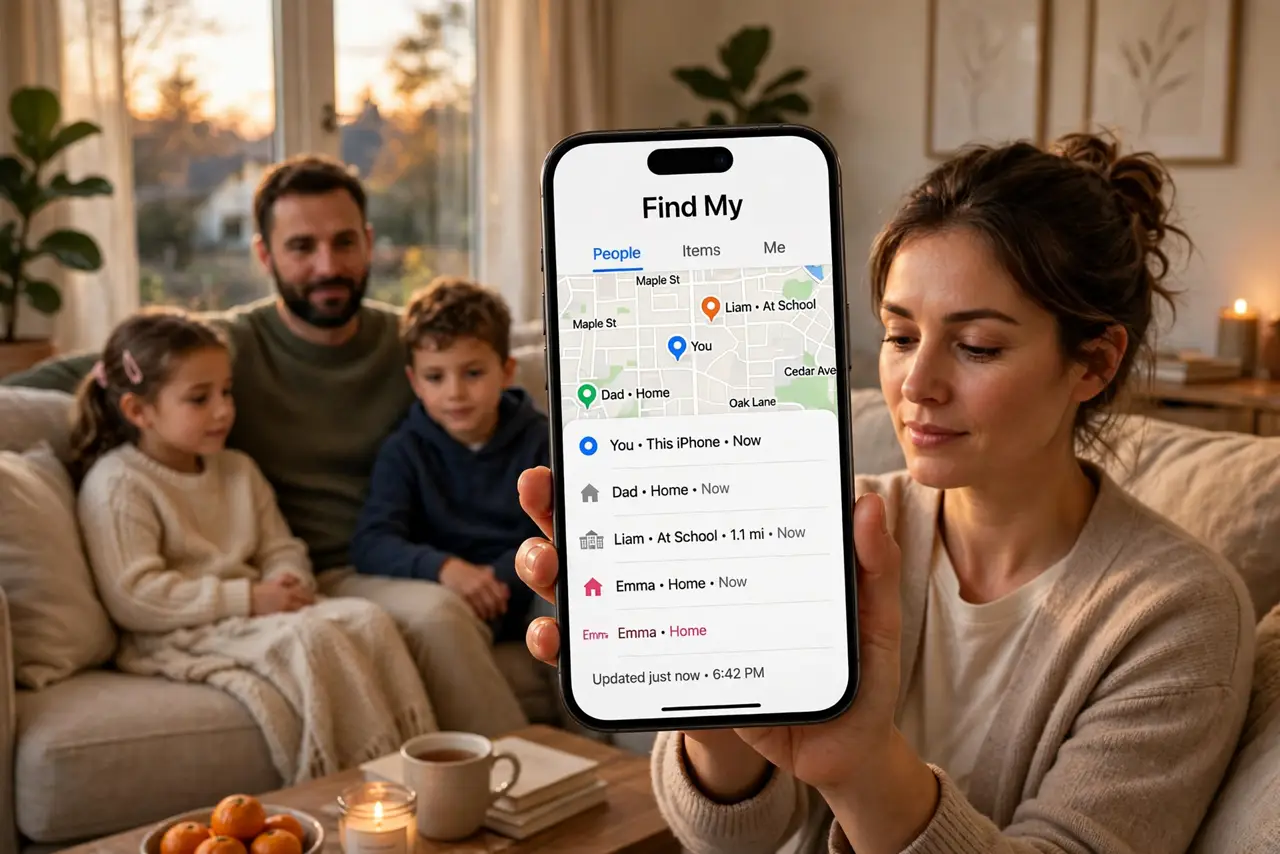
Where is everyone? The group chat fills with are you close? and just parked! while dinner gets cold. Instead of texting locations back and forth, share your live location with family through Find My: everyone appears on one map, ETAs become obvious, and pickups stop being a negotiation. It is opt-in, visible, and you can stop it any time.
TL;DR / Quick Fix
Quick fix: share your location with family in Find My — open the app, tap Share My Location, and pick family members. They see you on their map until you stop sharing. Use it for pickups and travel days, and remember you can see exactly who you are sharing with.
Follow these steps
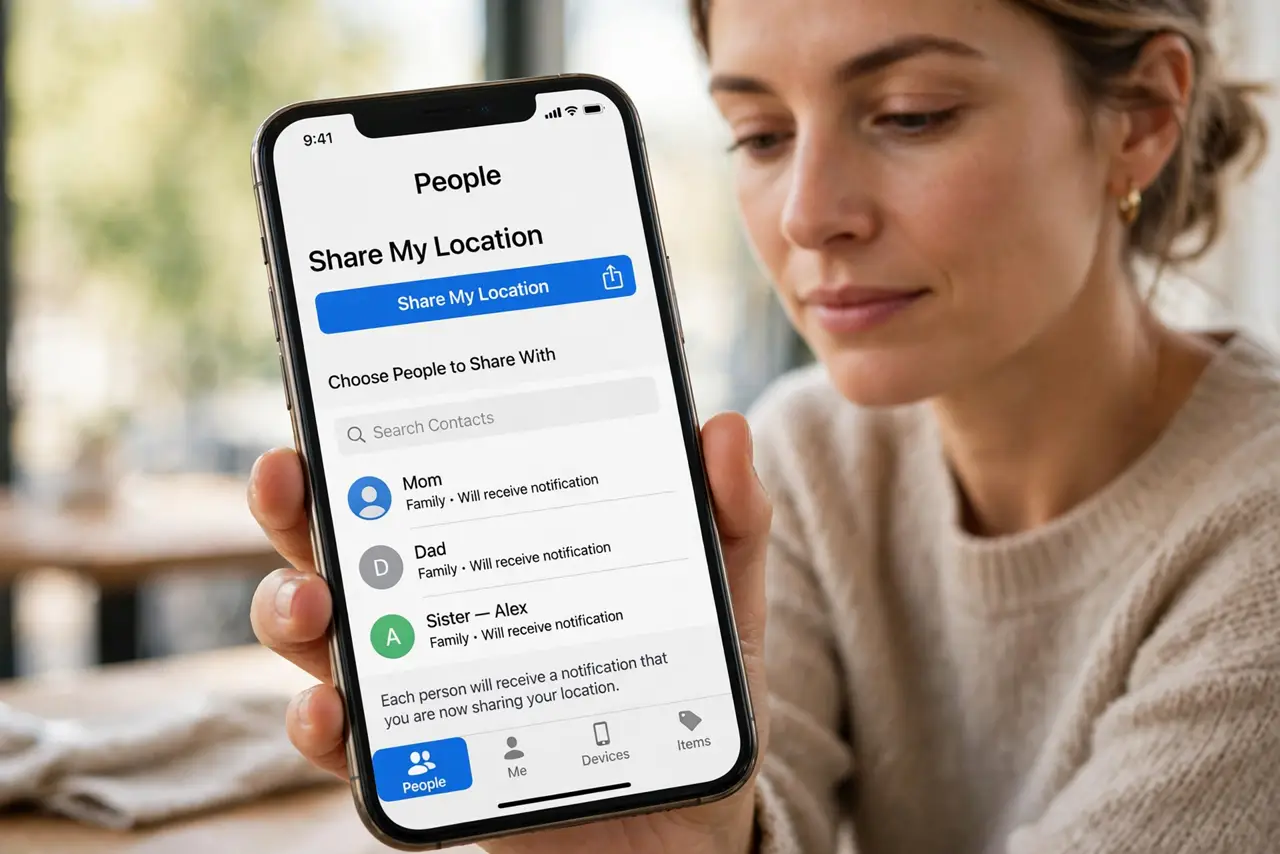
- Open Find My and start sharing. Open the Find My app, go to the People tab, and tap Share My Location. Pick family members from your contacts — each gets a notification that you are sharing, so there are no surprises.
- Use Family Sharing for the always-on option. If your family uses Apple's Family Sharing, locations can stay shared continuously with one setup. It is the set-and-forget version for households — ideal for kids' phones and travel days.
- Share temporarily with visitors. For a weekend guest or a one-day outing, share for a limited time instead of indefinitely. Time-boxed sharing gives them the map without a permanent window into your movements.
- Use it for pickups, not surveillance. The healthy pattern: share during the airport run, the road trip, the concert night — then stop. Permanent always-on tracking between adults breeds resentment; event-based sharing builds trust.
- Check who can see you regularly. In Find My, the People tab lists everyone you share with. Audit it monthly — ex-partners, old roommates, and former coworkers have no business on that list. Sharing is always visible to you, so there is no excuse for stale entries.
- Pair it with device safety features. Location sharing complements tools like AirTag sharing for luggage and keys — and if something goes truly wrong outdoors, SOS via satellite is the emergency layer on top.
What NOT to do
- Do not share indefinitely with everyone by default. Permanent sharing should be a deliberate choice for a few trusted people, not the lazy default.
- Do not use location sharing to check up on people. The moment it becomes surveillance, trust breaks — use it for coordination, with everyone's knowledge.
- Do not forget to stop sharing after the event. The airport pickup ended three weeks ago; the sharing does not need to continue.
- Do not share your location publicly or in big groups. Keep it to people you trust individually — a group-chat link to your live location is an overshare.
Frequently asked questions
Can I share with Android users?
Directly in Find My, no — it is Apple-only. For mixed families, share a live location from a messaging app for the event, or have everyone use a cross-platform option temporarily.
Will it drain my battery?
Modestly — location sharing uses periodic updates, not constant GPS. If battery is tight, share only during the event rather than all day.
Can someone see my location without me knowing?
No — sharing is always listed in your Find My app, and iOS notifies you about who you share with. If someone is tracking you another way, that is a different problem; check for unknown AirTags too.