Kiosk Mode for Demos
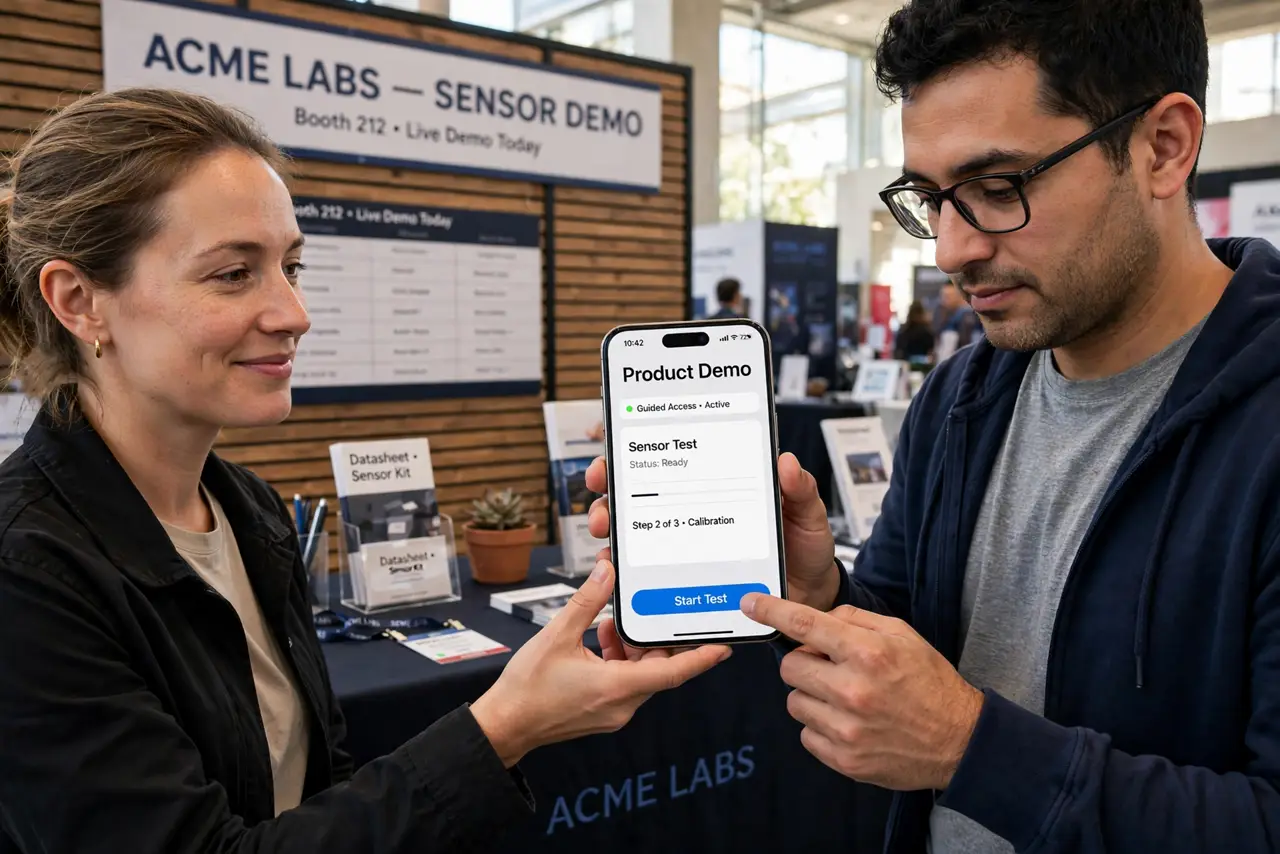
You hand your phone to show a demo and they wander into your messages. Kiosk mode — Guided Access on iPhone — locks the phone to one app until you enter the passcode. Demos, kids, and nosy relatives: contained.
TL;DR / Quick Fix
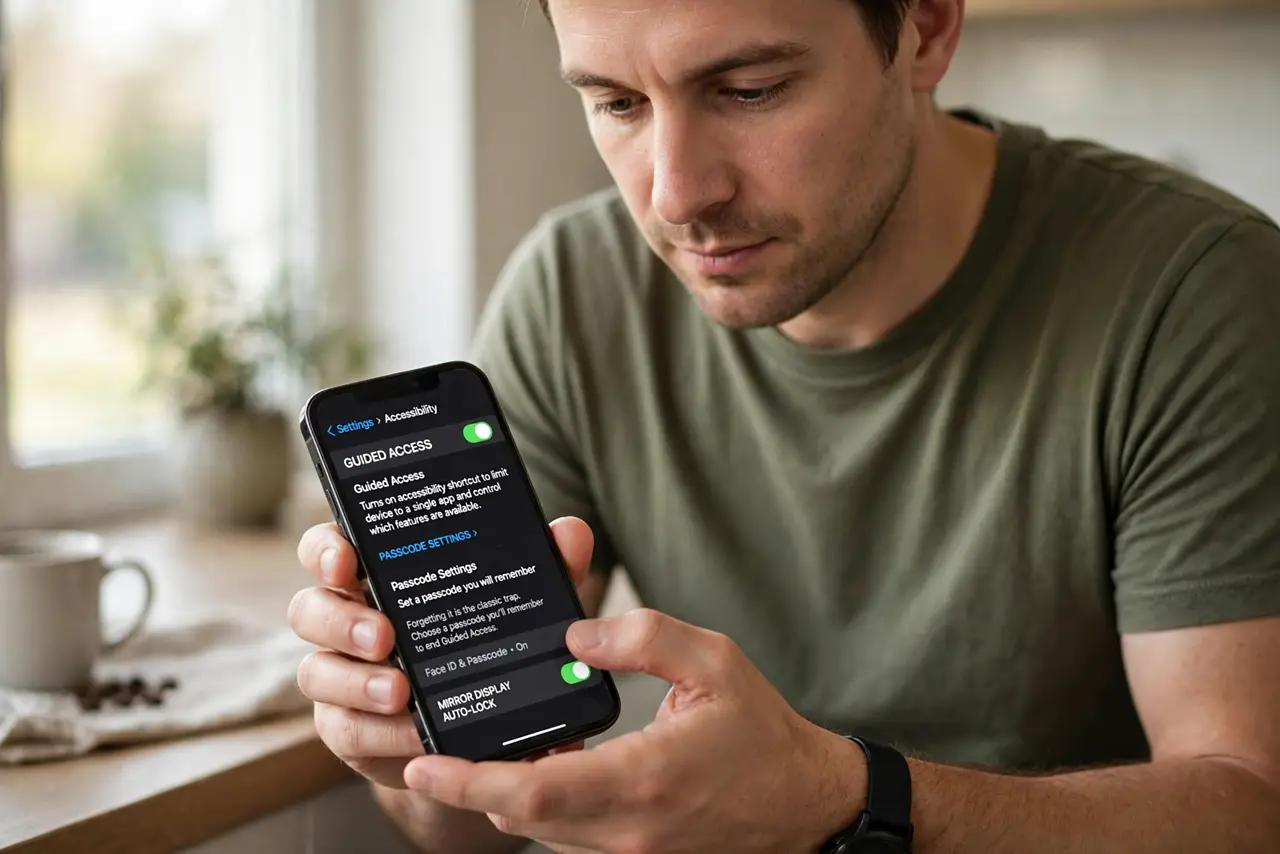
Quick fix: on iPhone, open Settings, Accessibility, Guided Access, and turn it on with a passcode. Open the app, triple-click the side button, and tap Start — the phone locks to that app. Triple-click and enter the passcode to exit. Nothing else is reachable until you end the session.
Follow these steps
- Enable Guided Access. Go to Settings, Accessibility, Guided Access and turn it on. Set a passcode you will remember — forgetting it is the classic trap.
- Open the demo app. Launch the app you want to lock to. Get it to the starting screen before locking.
- Triple-click to start. Triple-click the side button, adjust options if needed, and tap Start. The phone is now a kiosk.
- Circle dead zones. Before starting, circle areas to disable — ads, settings gears, purchase buttons. Disabled zones ignore touches entirely.
- Hand it over confidently. Guests can use the app fully but cannot leave it. Home button, gestures, notifications — all locked out.
- Triple-click to end. Triple-click, enter the passcode, tap End. For the accessibility shortcut behind the triple-click, see Accessibility Shortcut.
What NOT to do
- Do not forget the passcode. A kiosk you cannot unlock is a brick until it restarts — write it down somewhere safe.
- Do not enable it mid-demo unprepared. Practice the triple-click flow once before an audience watches.
- Do not assume notifications are hidden. Configure Do Not Disturb too, or texts pop over your kiosk.
- Do not use it as parental control alone. It locks one app; determined kids need the full Guided Access setup plus device limits.
Frequently asked questions
What is the difference between Guided Access and kiosk?
Guided Access is Apple's name for single-app kiosk mode — same feature, Apple branding.
Can I disable the volume buttons too?
Yes — the options screen before Start lets you toggle hardware buttons off.
Does it work on iPad?
Identically. iPads make excellent kiosks for check-in desks and demos.