iPhone Stuck on 'SOS Only' After an Update
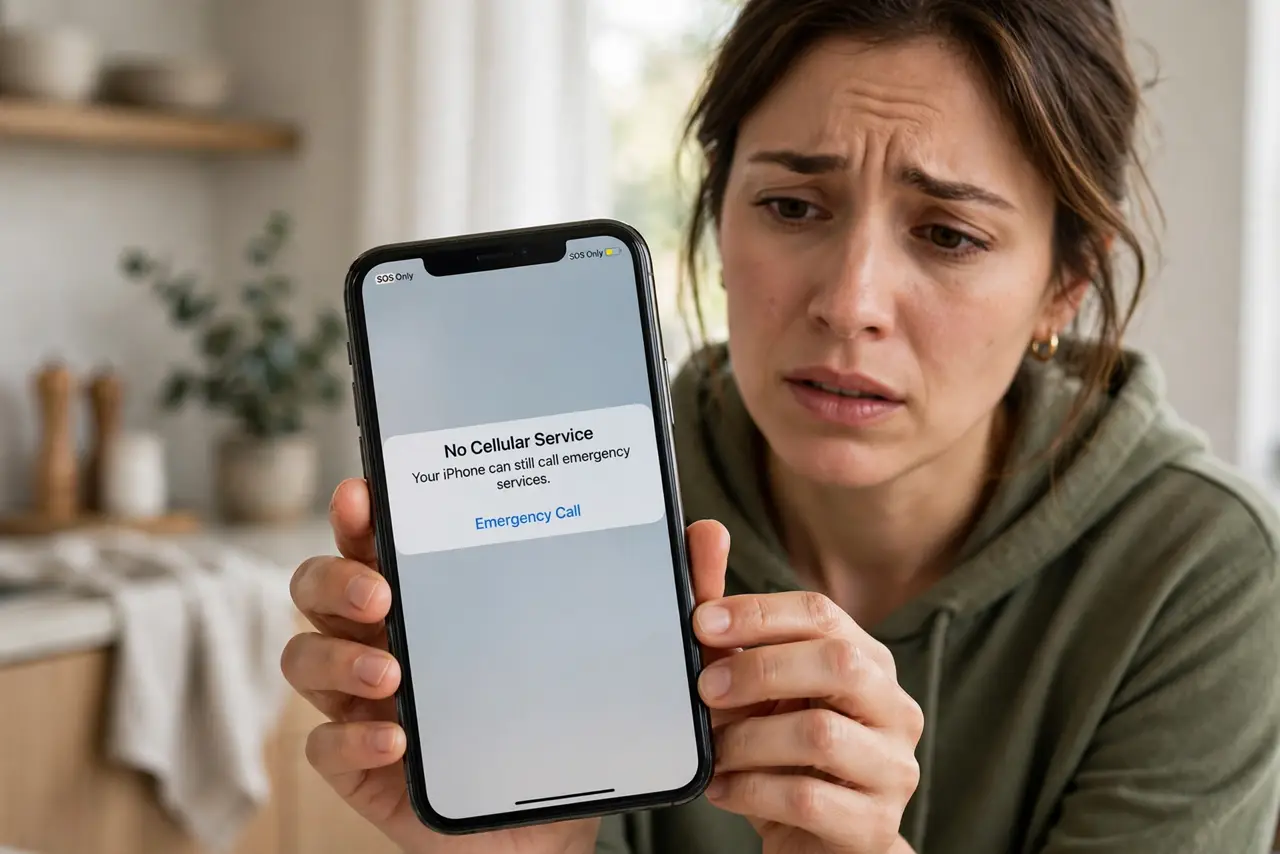
After an update, your iPhone shows 'SOS Only' instead of your carrier — no calls, no data, just emergency calls. Updates can disturb the carrier settings or SIM handshake. This guide restores service step by step, from the quick re-registration to the carrier-side fixes that need support.
TL;DR / Quick Fix
Quick fix: toggle airplane mode on for ten seconds, then off, and restart the iPhone. Check for a carrier settings update in General, About. If SOS Only persists, reseat the SIM or check the eSIM, then contact your carrier — the update may have broken provisioning on their side.
Follow these steps
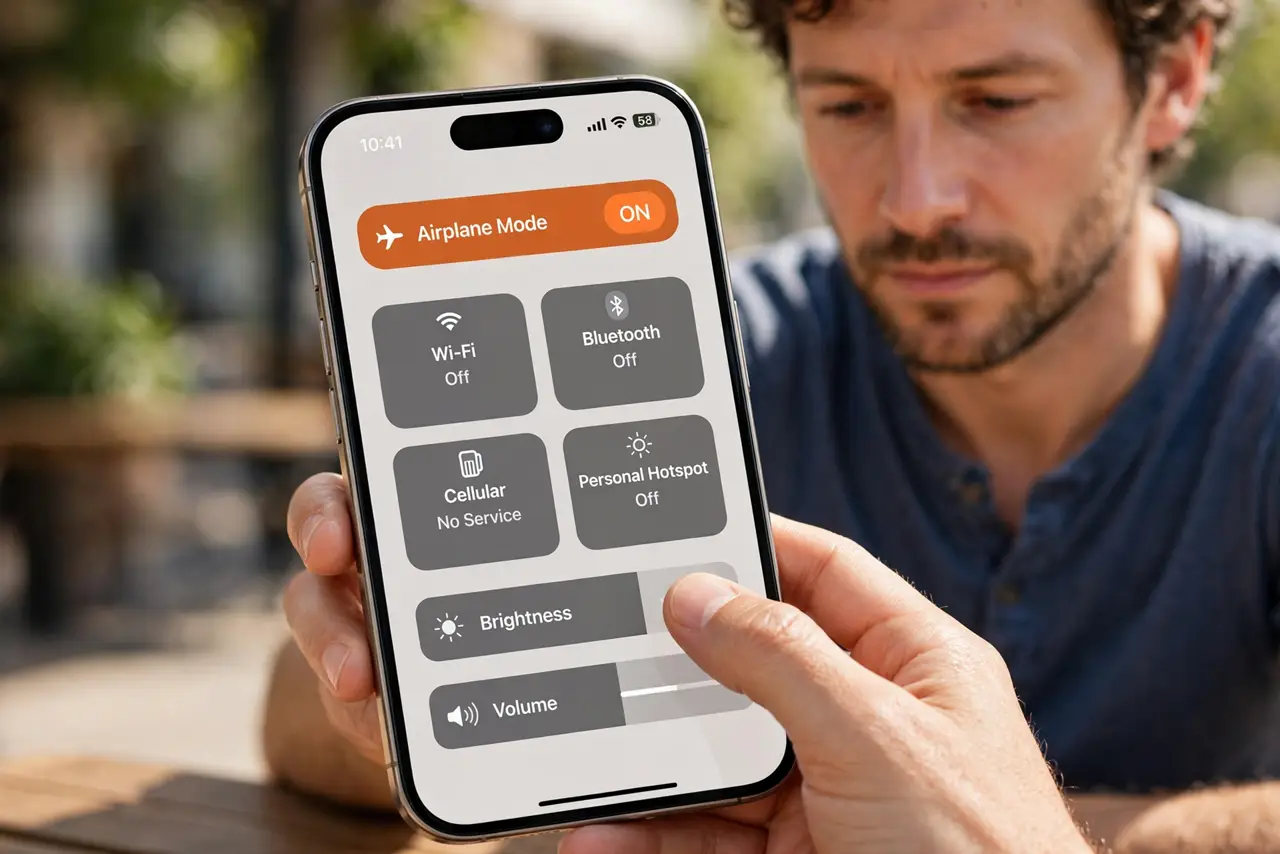
- Toggle airplane mode. Ten seconds on, then off. This forces a fresh network registration and clears many post-update SOS states.
- Restart the iPhone. A full restart reloads the cellular stack with the new update. Do this before anything more drastic.
- Check for a carrier settings update. Go to Settings, General, About, and wait. Install any carrier update offered — updates sometimes need a matching carrier profile.
- Reseat the physical SIM. Power off, remove the SIM tray, reseat the card, and power on. For eSIM, verify the line is still active in cellular settings.
- Reset network settings. This clears cellular configuration without deleting data. It fixes provisioning glitches that survive restarts.
- Contact the carrier. If SOS Only persists, the update likely broke provisioning on the carrier's side. They can re-push your line's activation.
What NOT to do
- Do not panic about the SOS label. It means emergency calls still work — the phone is not bricked.
- Do not restore the whole phone as a first step. Re-registration and carrier updates fix this far more often.
- Do not ignore the SIM PIN prompt. If the update re-locked the SIM, the phone shows no service until you enter the PIN — see SIM PIN after restart.
- Do not assume every update breaks service. When it happens, it is usually a handshake glitch, not a ruined phone.
Frequently asked questions
What does SOS Only mean?
The phone cannot register with your carrier, so only emergency calls are allowed. Your number and account are fine — registration is what failed.
Why did an update cause this?
Updates rewrite the cellular software and sometimes need a fresh carrier profile or re-registration to complete the handshake.
Will I lose my number?
No. SOS Only is a registration problem, not an account problem. Your number stays with your carrier account.