iPhone Spam Texts Keep Arriving? Stop Them
Spam texts keep landing in your inbox no matter how many you delete. Deleting alone does nothing, because the sender just tries again. The fix is filtering, reporting, and blocking, and it starts with a setting most people never turn on, as explained in how to stop spam calls and texts.
TL;DR / Quick Fix
Quick fix: turn on Filter Unknown Senders, report each spam text as junk, block repeat senders, never tap links or reply STOP to strangers, and check your carrier spam tools. If it still fails, note when it happens, since that pattern reveals the real cause.
Follow these steps
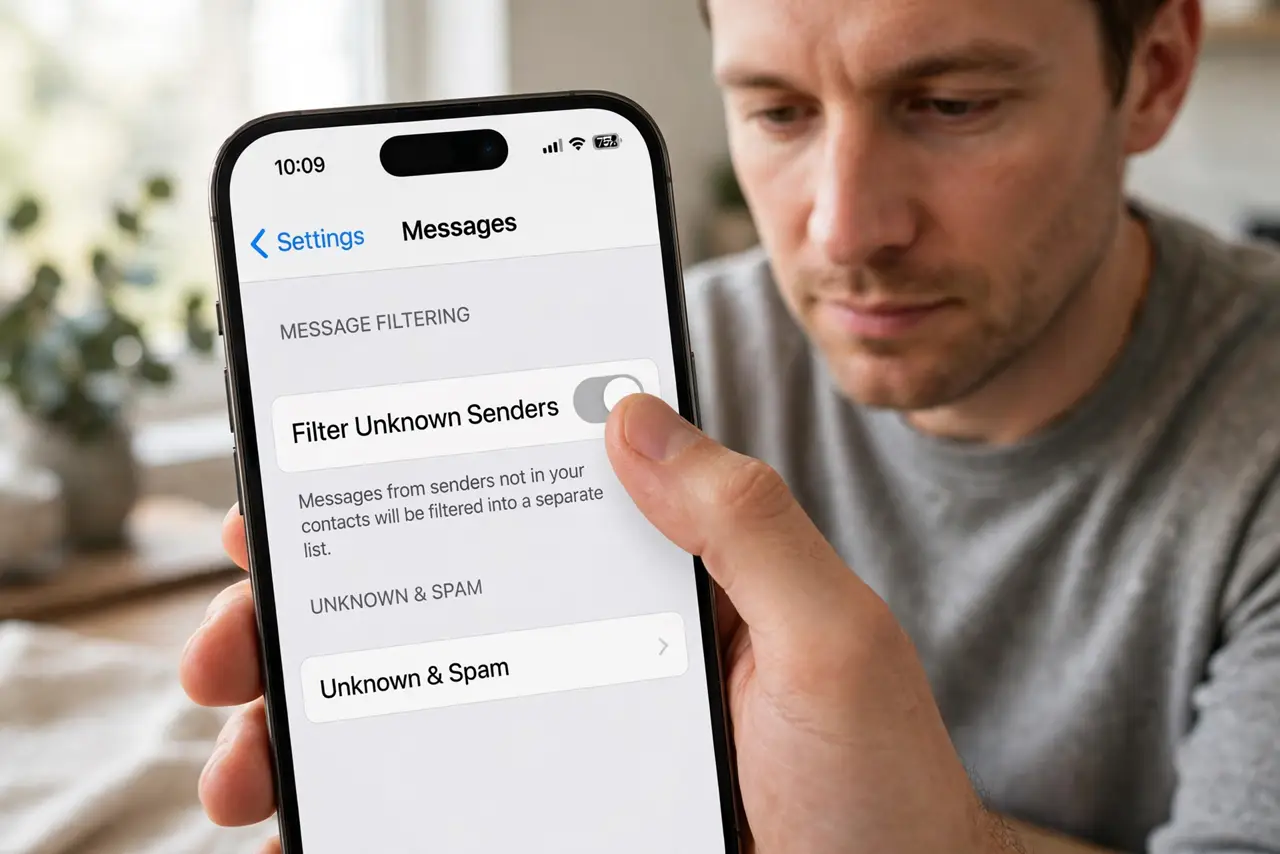
- Turn on Filter Unknown Senders. Open Settings, then Messages, and turn on Filter Unknown Senders. Spam from numbers not in your contacts moves to a separate list, out of your main inbox.
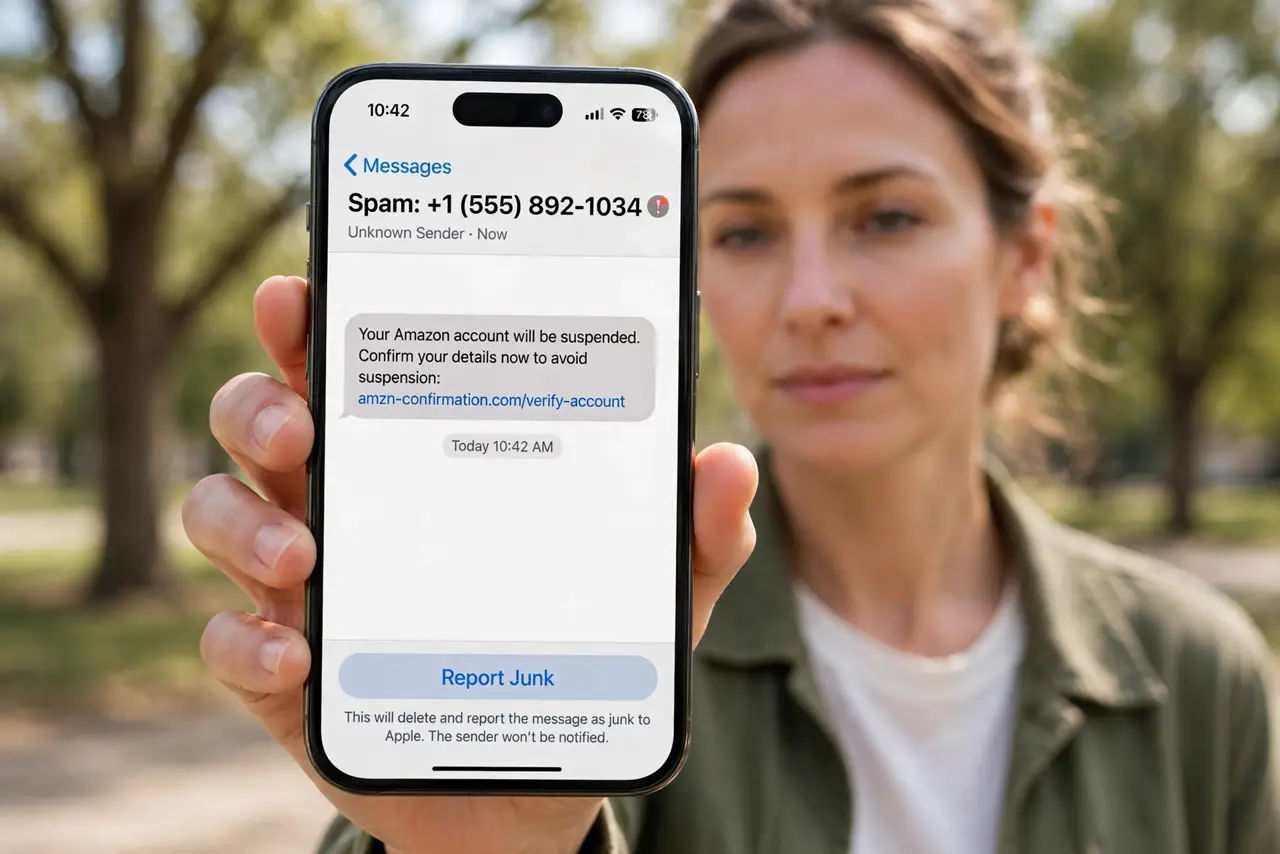
- Report each spam text as junk. Open the spam message, tap Report Junk, then Delete and Report Junk. Reporting helps carriers and Apple block the sender for others too.
- Block repeat senders. If the same number spams again, open the conversation, tap the number, then Block Caller. Blocking stops that number, even if filtering missed it.
- Never tap links or reply to strangers. Do not tap links in spam texts, and do not reply STOP unless you know the sender. Replying confirms your number is active and can bring more spam.
- Check your carrier spam tools. Many carriers offer free spam filtering apps or settings. Check your carrier app or website, since carrier filtering catches spam before it reaches you.
- Review the Unknown Senders list weekly. Open Messages and check the Unknown Senders list once a week. A real message can land there by mistake, so rescue anything genuine.
What NOT to do
- Do not tap unsubscribe links in spam texts. Real companies use them, but spam links can confirm your number or lead to scam sites.
- Do not reply to spam to complain. Any reply tells the sender your number is live, which usually brings more spam, not less.
- Do not delete spam without reporting it. Reporting is what helps block the sender for you and for others.
- Do not share your number widely to stop spam. Fewer places with your number means fewer spam sources over time.
Frequently asked questions
Does Filter Unknown Senders hide real messages?
It can, if the sender is not in your contacts. Check the Unknown Senders list weekly for anything genuine.
Why does blocking not stop all spam?
Because spammers change numbers constantly. Filtering plus reporting catches more than blocking alone.
Should I reply STOP to spam?
Only to a real company you know. To strangers, replying confirms your number is active.