See Speed Limits in Maps
Glancing at your phone for the speed limit beats squinting at a sign you just passed — and both major map apps can show it live. The catch: they pull the limit from map data, not from reading signs, so it can lag behind roadwork and new zones. Here is how to turn it on and when to trust it.
TL;DR / Quick Fix
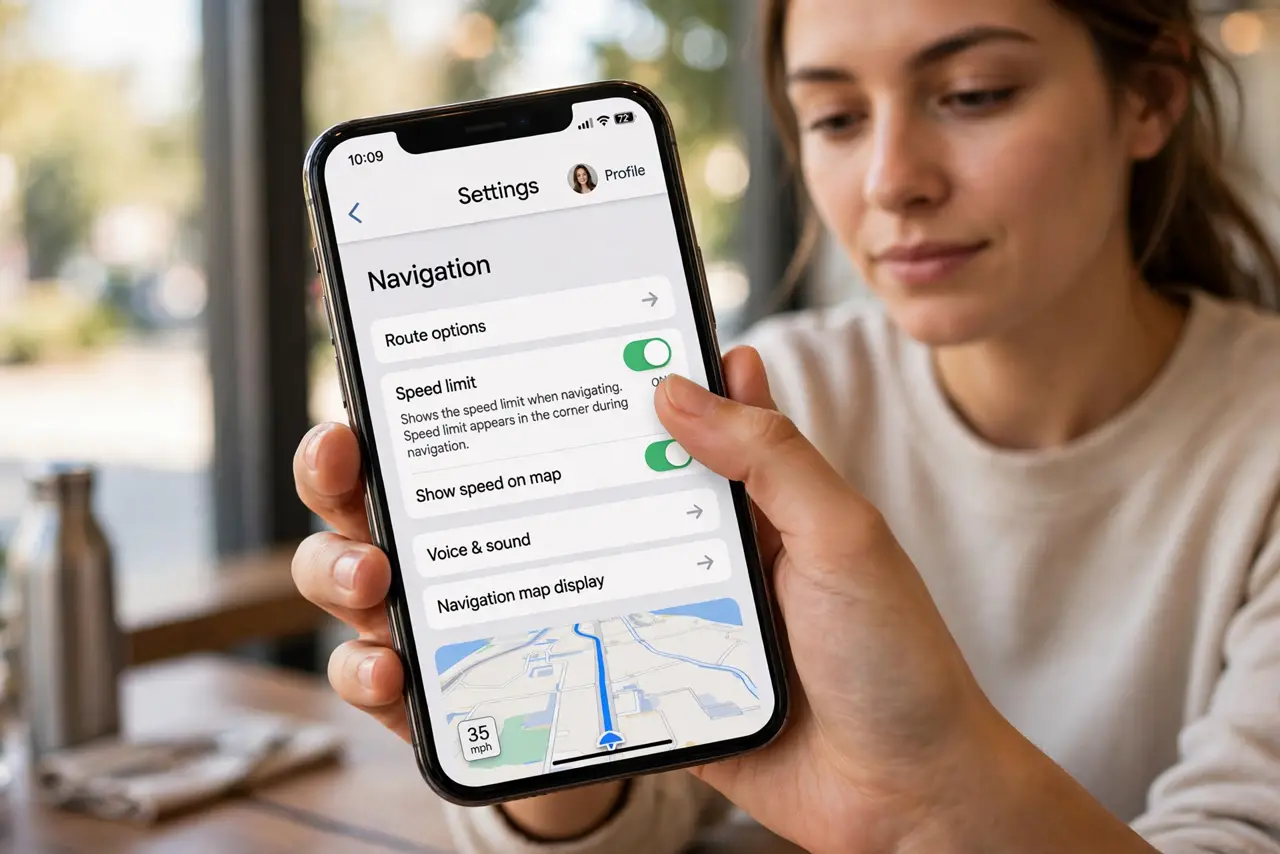
Quick fix: in Google Maps, open your profile, tap Settings, then Navigation, and turn on speed limits. Apple Maps shows them automatically where data exists. The limit comes from map data and can be wrong in construction zones, so always trust the road signs first.
Follow these steps
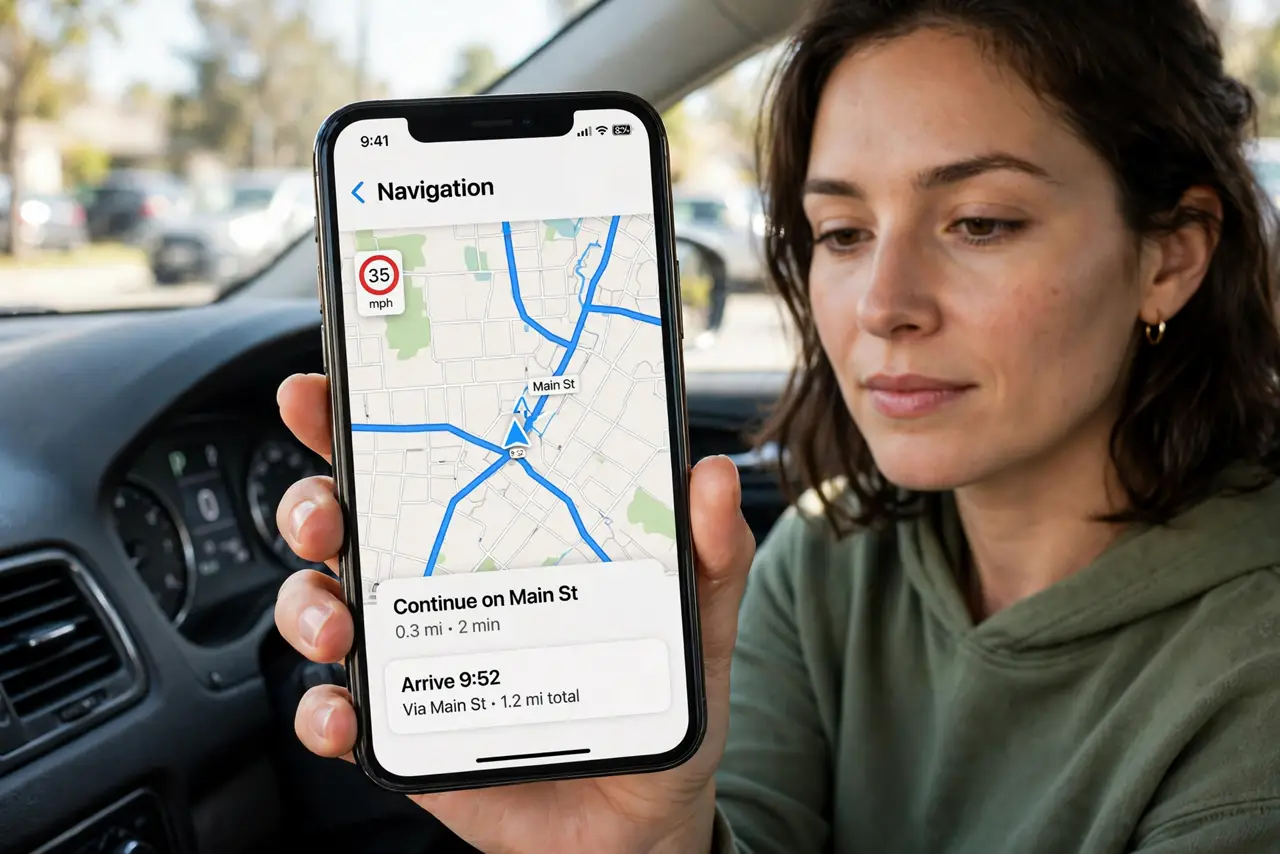
- Turn it on in Google Maps. Tap your profile picture, go to Settings > Navigation, and enable the speed limit option. The current limit then appears in the corner during navigation.
- Know Apple Maps does it automatically. Apple Maps shows speed limits during navigation with no setting to toggle — it appears when map data includes the limit for that road. Keep the app updated for the freshest data.
- Check it against real signs. Construction zones and recent changes often beat map updates by weeks. Treat the on-screen limit as a hint and the physical sign as the law — the sign always wins.
- Do not stare at the number. The limit display is for quick glances. Watching it constantly is distracted driving; set it, glance, and keep your eyes on the road.
- Report wrong limits when you spot them. In Google Maps you can report a map issue for an incorrect speed limit. Reports from drivers are how the data gets corrected.
- Pair it with speed alerts carefully. Some apps beep when you exceed the limit. Useful on unfamiliar roads — but an outdated limit means false alarms, so do not let the alert replace attention.
What NOT to do
- Do not trust the displayed limit in construction zones. Map data lags behind temporary limits — the orange signs on the road are the real ones.
- Do not use speed-limit display as an excuse to look at your phone. Mount it, glance, and drive — or let a passenger navigate.
- Do not assume every road has data. Rural roads often show no limit at all; that means unknown, not unlimited.
- Do not rely on it where limits change by time of day. School zones and variable limits need the actual signs, not the map.
Frequently asked questions
Why doesn't my map show any speed limit?
The road may lack limit data, or you are outside navigation mode — some apps only show it while actively navigating. Updating the app and the offline maps region can help; see offline maps if you drive without signal.
Is the speed limit display accurate?
Usually, on major roads. It comes from map databases that update periodically, so recent changes and construction zones are the weak spots.
Can it warn me if I speed?
Google Maps and some third-party apps offer overspeed alerts. They are a nudge, not enforcement — and they inherit the same data lag.