StandBy's Red Night Mode? Explained
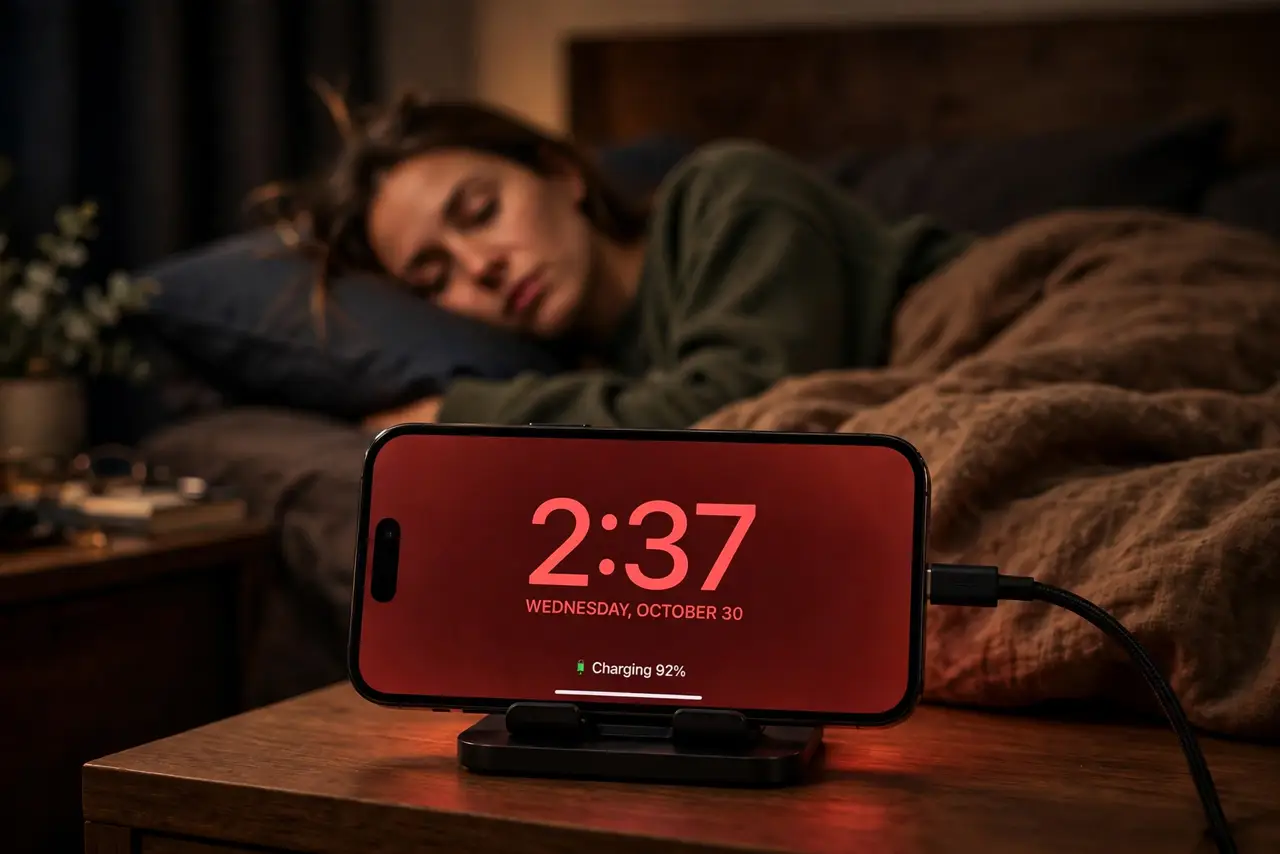
At 3 a.m. your nightstand clock should not feel like a flashlight. StandBy's Night Mode tints the whole display deep red in dark rooms — easy on sleepy eyes and on your sleep. It is one toggle, but it only kicks in under the right conditions. Here is what it does and how to make it behave.
TL;DR / Quick Fix
Quick fix: StandBy's Night Mode turns the clock red in a dark room so it won't blast your eyes at night. Enable it under Settings > StandBy > Night Mode. It needs a dark room and charging sideways. If the screen stays bright, a nightlight may be fooling the sensor.
Follow these steps
- Understand what Night Mode does. It shifts the StandBy display to a dim red palette in dark rooms. Red light disturbs sleep less than white — that is the entire point.
- Turn it on. Open Settings > StandBy > Night Mode and enable it. It works together with StandBy itself, which must also be on.
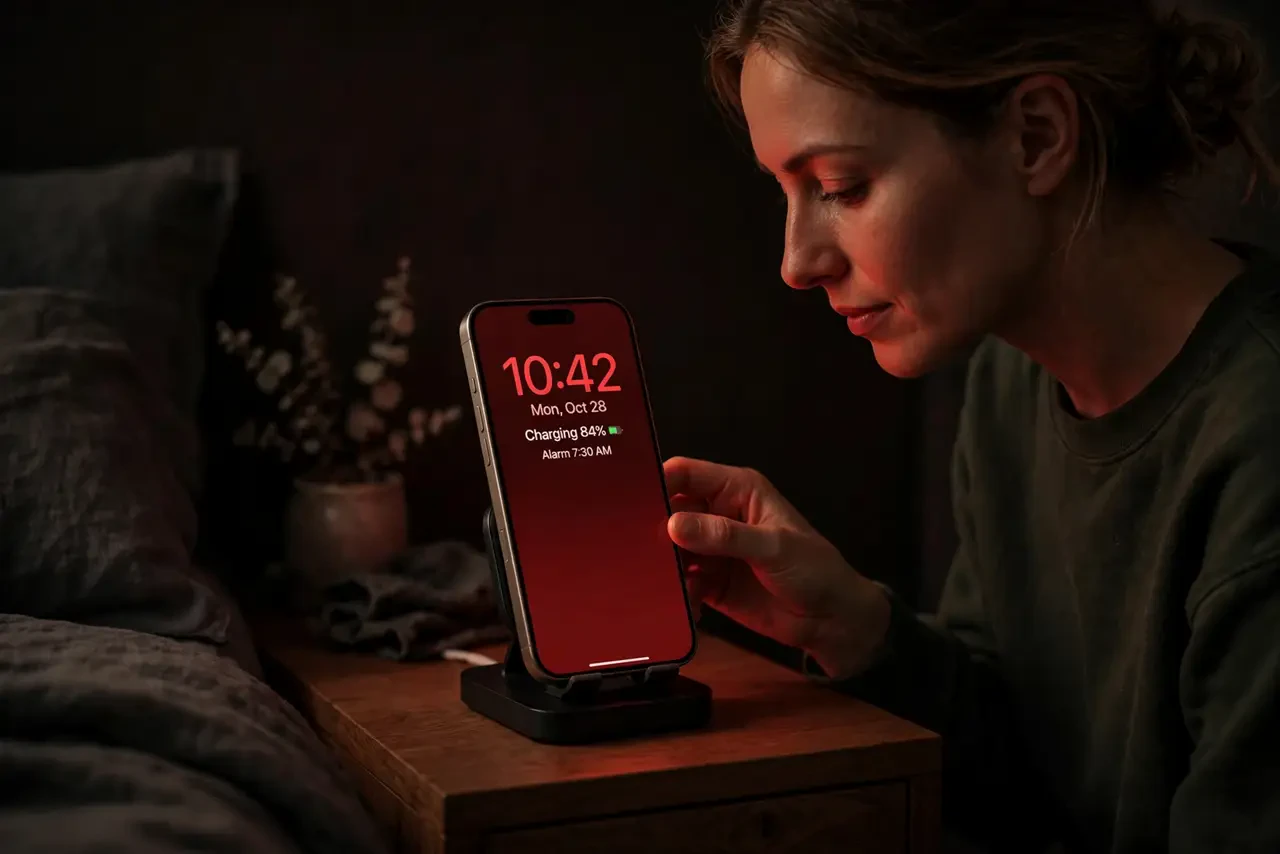
- Meet the conditions. The room must be genuinely dark, the iPhone charging, and the phone sideways. Miss one and you get the normal StandBy look.
- Check for light leaks. A bright nightlight, a glowing charger LED, or street light through blinds can keep the sensor in 'daytime'. Dim the room and retest.
- Pair it with Motion to Wake. With motion detection on, the display sleeps until you stir — then shows the red clock. Fewer glowing hours, same convenience.
- Know it is not Night Shift. Night Shift warms the regular screen; Night Mode is a separate StandBy-only red theme. They are independent toggles.
What NOT to do
- Do not expect Night Mode in a lit room. The ambient light sensor decides — if the room is bright, you get the normal display.
- Do not confuse it with the red screen of doom. This red is a gentle theme, not an error — your phone is fine.
- Do not disable StandBy trying to fix the color. The color comes from Night Mode's own switch, not from StandBy being on or off.
- Do not stare at the bright version hoping it dims. Walk away — the display dims on its own after a while by design.
Frequently asked questions
Why is my StandBy clock red at night?
That is Night Mode doing its job — red light is gentler on sleepy eyes. It switches back automatically in daylight.
Does Night Mode drain the battery?
Barely — the phone is charging the whole time, and the dim red display sips power. See the Always-On cost guide for the full picture.
Can I force Night Mode during the day?
No manual override exists — it follows the ambient light sensor. A dark room is the only trigger.