Make Custom Stickers
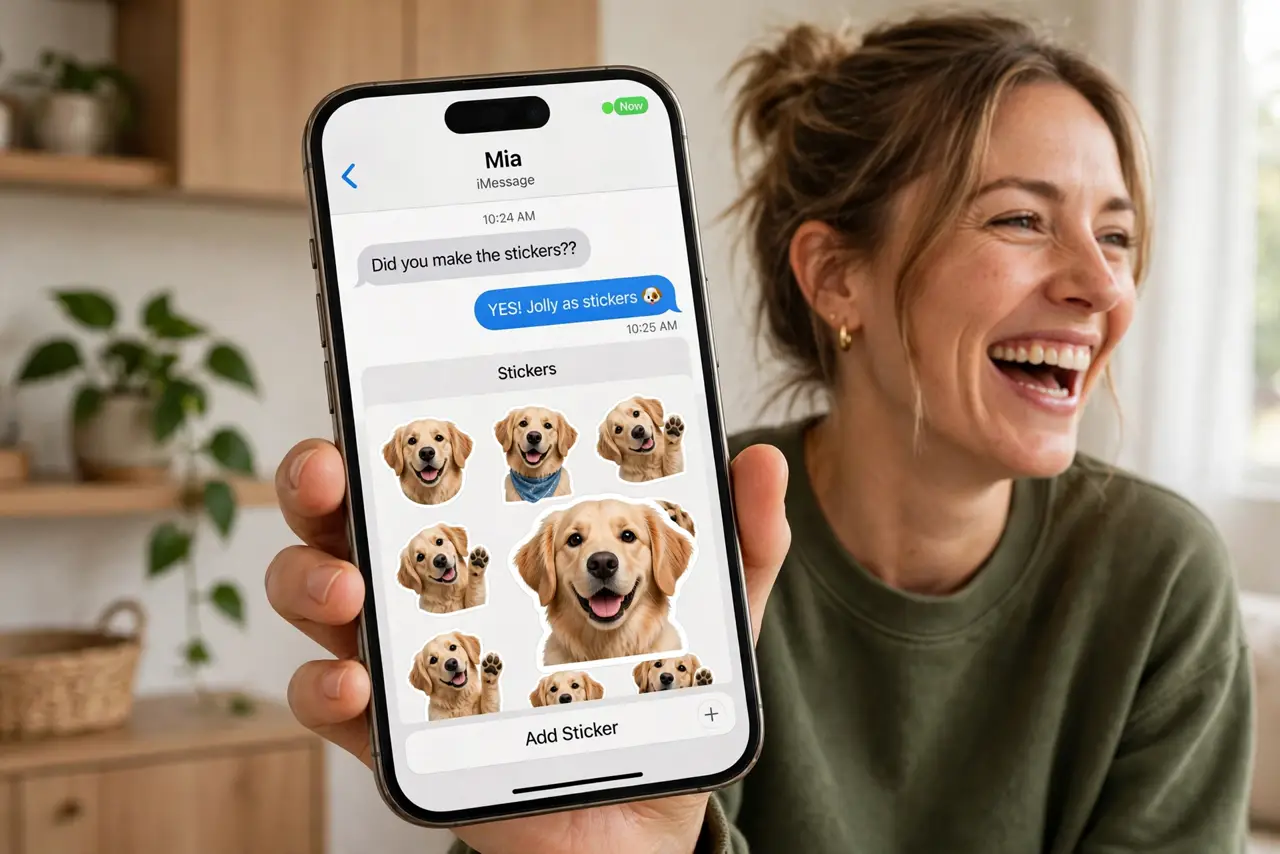
Group chats run on stickers now — and the best ones are not from a pack, they are your dog, your kid's face, or that perfect reaction moment, cut out automatically. The iPhone turns any photo into a custom sticker in seconds, no editing skills needed. This guide makes stickers, adds effects, and organizes them. For live animated versions, see how to turn photos into stickers.
TL;DR / Quick Fix
Quick fix: in Messages, open the stickers drawer, tap the plus, and choose a photo — the iPhone cuts out the subject automatically. Add outline or comic effects, then send. Long-press any sticker to rearrange or delete. Your best photos make the best stickers.
Follow these steps
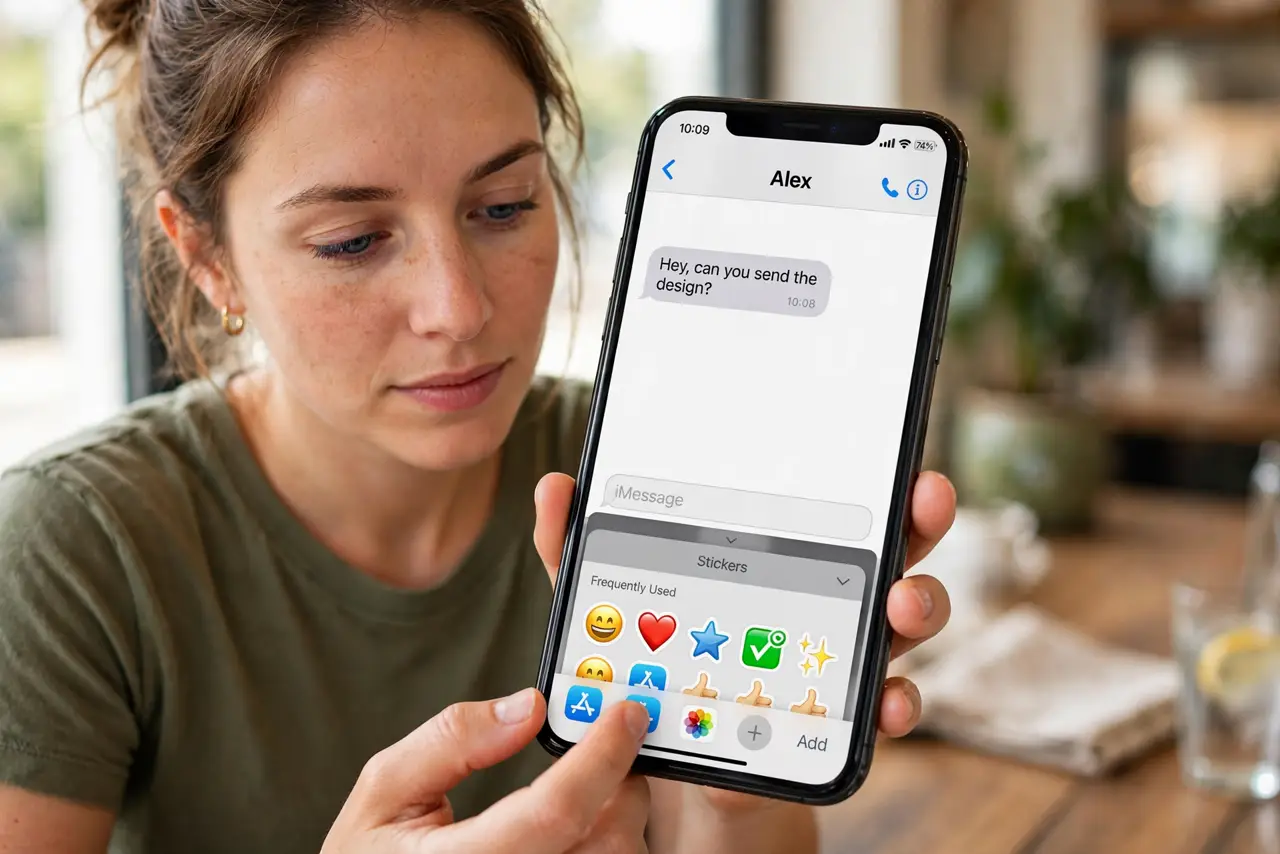
- Open the sticker drawer. In a Messages conversation, tap the plus button, then Stickers. Your sticker collection lives here, including the custom ones you are about to make.
- Create from a photo. Tap the plus in the sticker drawer and pick a photo. The iPhone automatically cuts out the subject — people, pets, objects — with surprisingly clean edges.
- Add an effect. Long-press the new sticker and choose Add Effect: outline, comic, puffy, or shiny. Effects make stickers pop in the chat — the outline is the classic look.
- Send it. Tap the sticker to send it alone, or drag it onto a specific message to react with it. Dragged stickers land on the message like a Tapback with personality.
- Organize the collection. Long-press stickers to rearrange or delete. A curated dozen beats a swamp of hundreds — prune the ones that never get sent.
- Make them from anything. Screenshots, memes, whiteboard photos — anything with a clear subject becomes a sticker. The group chat's inside jokes are sticker gold.
What NOT to do
- Do not make stickers of other people without asking. A friend's face as a group-chat sticker needs their okay first.
- Do not expect perfect cutouts on messy photos. Clean backgrounds cut cleanly; busy ones get ragged edges — pick photos with separation.
- Do not hoard hundreds. An unfindable sticker might as well not exist — keep the rotation tight.
- Do not forget stickers need iMessage for full flair. SMS friends receive them as images, which still works fine.
Frequently asked questions
Can I use stickers in other apps?
In iMessage and many apps that support stickers, yes. They paste as images elsewhere.
Why is my sticker blurry?
The source photo was low resolution. Start from a sharp, well-lit photo for crisp stickers.
Do stickers sync across devices?
Yes, through iCloud — stickers you make on iPhone appear on your Mac and iPad too.