Photos Eat Storage?
Your iPhone screams 'Storage Full' right as you try to photograph something wonderful, and the culprit is almost always photos and videos quietly eating tens of gigabytes. Deleting memories feels wrong, and it is — the fix is smarter storage, not fewer photos. Between iCloud optimization and clearing the silent junk (screenshots, duplicates, memes), you can reclaim shocking amounts of space. Compare your options in the iCloud vs device guide.
TL;DR / Quick Fix
Quick fix: turn on iCloud Photos with Optimize Storage so full-resolution images live in the cloud and small versions stay on your phone. Then delete screenshots, duplicates, and old videos — the three biggest silent storage eaters on any iPhone.
Follow these steps
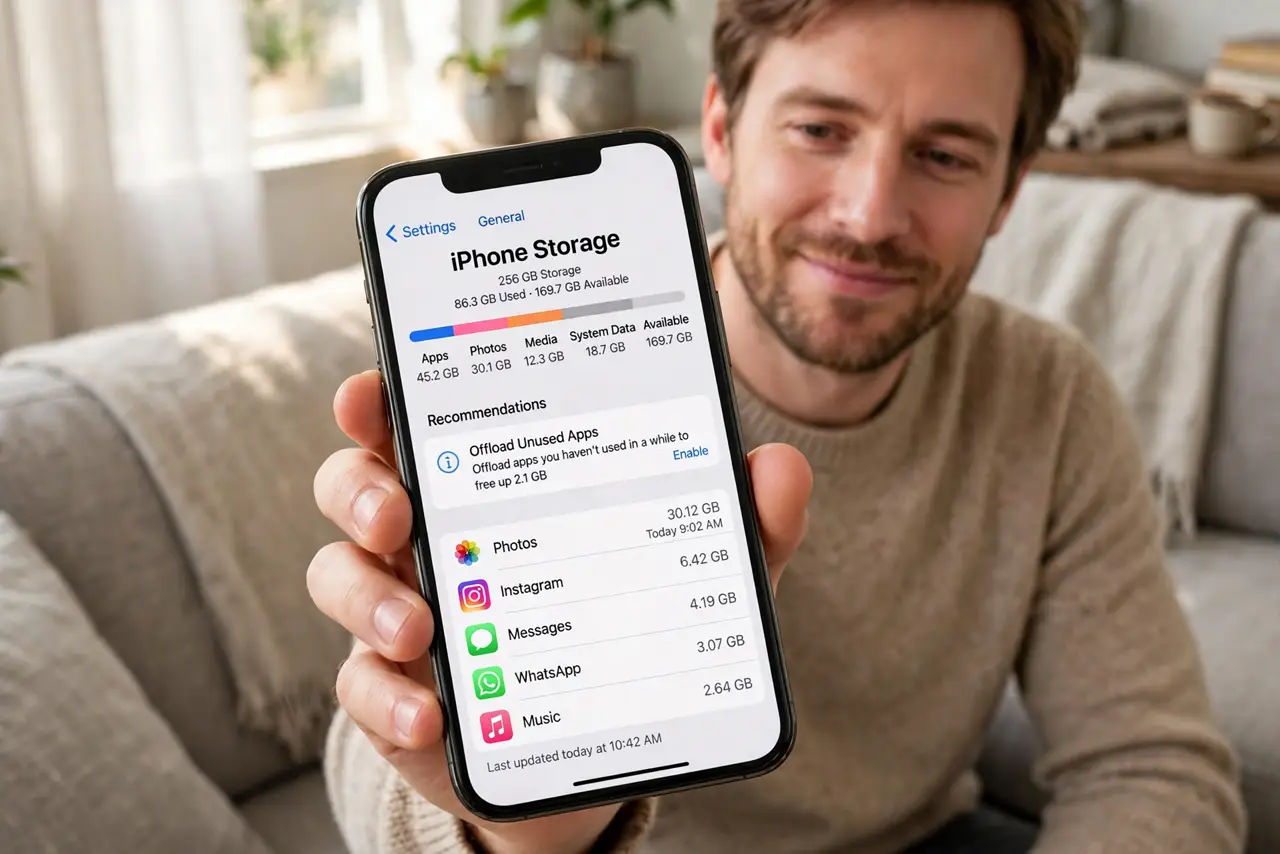
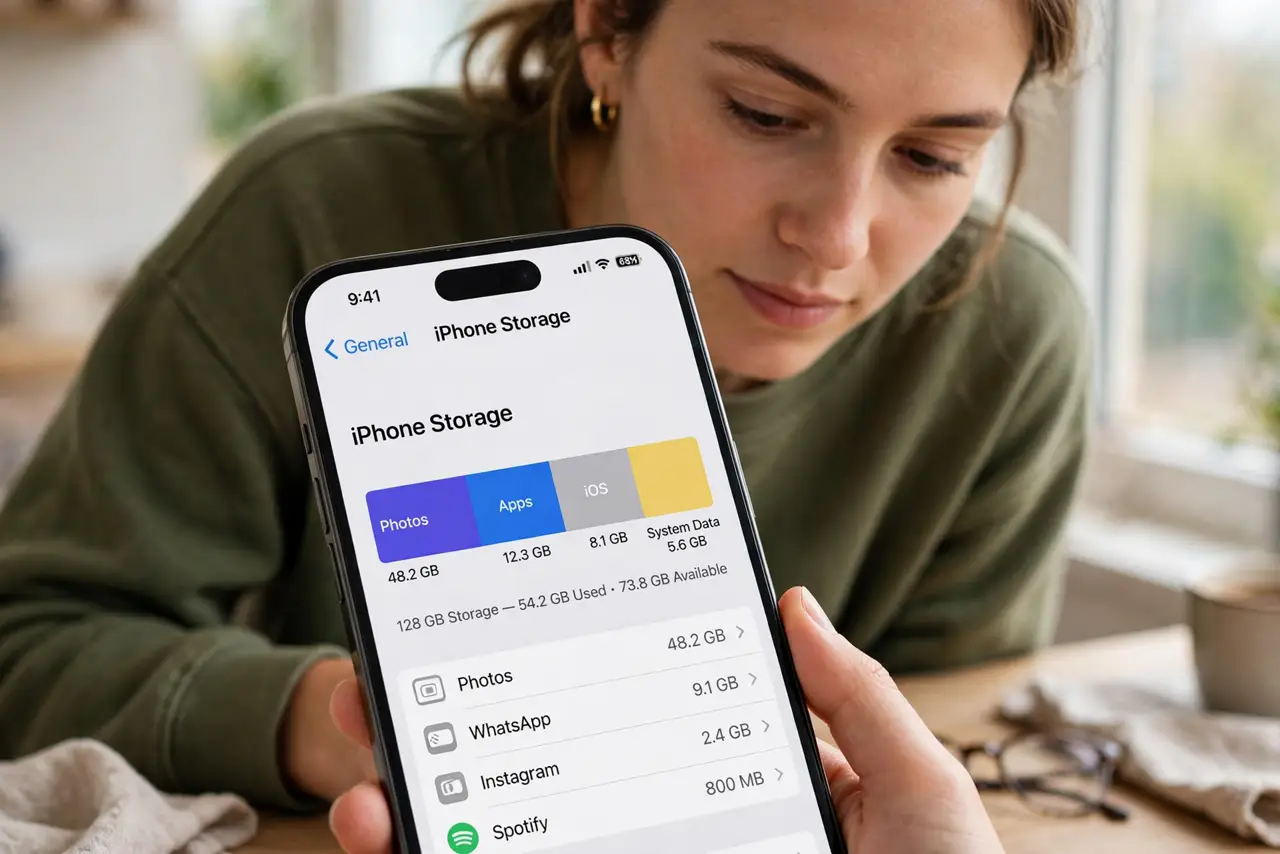
- Check what is actually using space. Open Settings, then General, then iPhone Storage. The colored bar shows exactly what eats space — photos are usually the runaway leader.
- Enable Optimize iPhone Storage. In Settings, then Photos, turn on iCloud Photos with Optimize Storage. Full-resolution originals move to iCloud; lightweight versions stay on the phone.
- Purge screenshots and screen recordings. Search Photos for screenshots — most people keep hundreds they never look at again. Select, delete, then empty Recently Deleted.
- Hunt down duplicate and burst photos. The Duplicates album under Utilities merges identical shots. Bursts keep dozens of near-identical frames — keep the best two.
- Offload old videos. Videos are the heaviest files per minute. Move long recordings to a computer or cloud drive, then delete them from the phone.
- Empty Recently Deleted. Deleted photos sit in Recently Deleted for 30 days still eating space. Open it and delete everything to reclaim the space now.
What NOT to do
- Do not delete photos without a backup. Optimize Storage needs iCloud room — deleting originals with nowhere to go loses them.
- Do not ignore the free iCloud limit. Five gigabytes fills fast; check you have room before enabling iCloud Photos.
- Do not offload apps hoping for big wins. Apps are small compared to a single 4K video — attack photos and video first.
- Do not forget Recently Deleted. Skipping this step leaves gigabytes sitting in the trash for a month.
Frequently asked questions
Will Optimize Storage delete my originals?
No — originals upload to iCloud in full resolution. The phone keeps smaller versions, downloading the full file when you open or edit it.
How much iCloud storage do I need?
More than your photo library. Check its size in Settings first, then buy the tier above it — the free 5GB is rarely enough.
What if I do not want iCloud?
Copy photos to a computer regularly with a cable, then delete from the phone. It works, but it only works if you actually do it regularly.